I now make most code changes on this blog with help from AI agents. In the last month, 446 commits landed in this site’s repository, and 95% of them have a Claude co-author line.
That only works because I’ve set up the project for agents. They know whose site they’re on, which commands to run, what they must never touch, and how to show that a change works. Here’s how I set it up, including what was broken until I audited it in November 2026.
I mostly use Claude Code, with some Cursor and Codex on the side. All three are AI coding agents: tools that read your project’s files, run commands in your terminal and make changes for you.
The instruction files and the workflow apply to all three. Hooks need their own setup in each tool.
What “Agent-Ready” Means for a WordPress Project
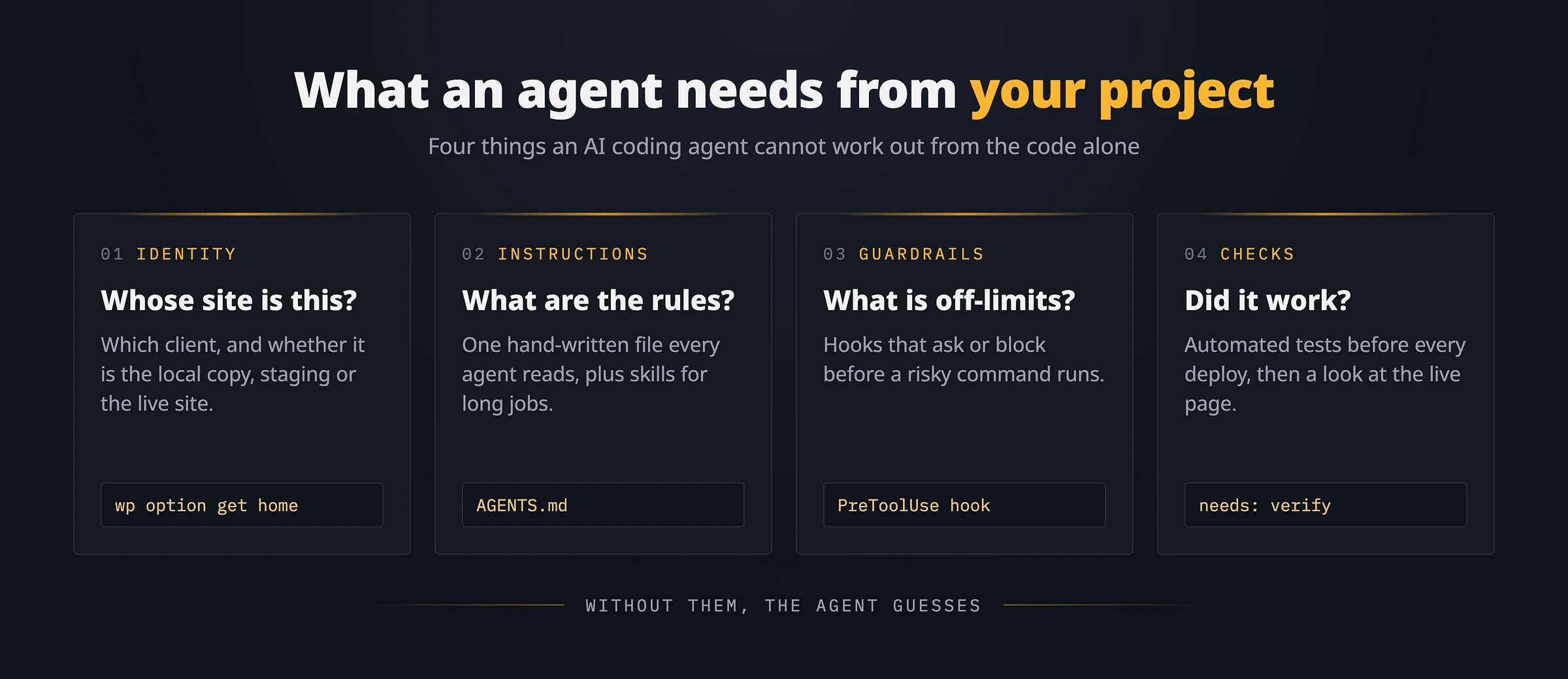
An agent-ready WordPress project gives an AI coding agent four things it can’t figure out on its own: which site and environment it’s in, which commands it can run safely, rules the project actually enforces, and a way to check whether a change worked. Without those, the agent guesses.
I’m talking about agents that work on your site. That’s different from AI agents that visit your site, which is what Google’s Lighthouse agentic browsing audit measures.
WordPress has a few complications of its own. Posts, pages and settings live in the database, not in files.
Core and plugins are third-party code, so I don’t edit them. And a careful setup has three copies of the site: a local copy on your computer, a staging copy (a private test version of the site) and production, the live site.
No Local Site Yet?
Everything here assumes the agent works on a copy of the site on your computer. If you only have the live site, start there, because an agent should never learn on production.
The easiest option is WordPress Studio, the free desktop app from the WordPress project. It creates a local site in a few clicks, adds an AGENTS.md file to every new site, and lets the agent run WP-CLI through its studio wp command. Developers who already use Docker can use wp-env instead.
Then copy your theme and custom plugins into the local site, put them in git, and import a recent copy of the database, so the agent sees real content. Only then point the agent at it.
Step 1: Tell the Agent Whose Site This Is
The first thing an agent needs to know is which project it’s working on. I learned that from a near miss: several of my client projects look alike, and an agent once got within one step of running commands on the wrong client’s live server.
Now I have the agent run a check of its own at the start of every task. In WordPress, it asks WordPress for the site URL instead of trusting the folder name:
wp option get home
# https://savvy.co.il
On the server, the same check runs before any write. My hosting server is shared with other clients’ sites, so the agent must confirm it is inside the right app before it touches anything.
Write the environments down in one place: the local URL, the staging and production hosts, and which one is which. An agent that has to guess the production host will eventually guess wrong.
AGENTS.md vs CLAUDE.md: One File for Every Agent
Each coding tool reads its own instruction file. Claude Code reads CLAUDE.md, Codex and Cursor read AGENTS.md, and Cursor also has its own rules folder. If you keep three files, they drift apart.
The fix is to write one AGENTS.md, a plain Markdown file of instructions, in the root folder of your project’s git repository, and point Claude Code at it. By default, Claude Code only reads AGENTS.md on its own when no CLAUDE.md exists, so the cleaner setup is a short CLAUDE.md that imports it:
@AGENTS.md

## Claude Code only

- Hooks in .claude/settings.json block other clients' server paths and
  printing secrets, and ask before production writes.
- Auto memory is for personal preferences. Project rules go in AGENTS.md.
Here’s how the three tools handle these files:
| Tool | Reads AGENTS.md | Own file |
|---|---|---|
| Claude Code | By default only when there is no CLAUDE.md, or via @AGENTS.md |
CLAUDE.md |
| Codex | Yes, from the repo root down | None needed |
| Cursor | Yes, root and subfolders | .cursor/rules/*.mdc |
Keep CLAUDE.md under 200 lines. In Codex, the file closest to your working folder wins, and in Cursor, make sure the rules never contradict AGENTS.md.
The Claude Code documentation spells out the import pattern:
“By default, Claude reads
AGENTS.mdonly when you have noCLAUDE.mdin your working directory or above it.” (Claude Code memory documentation, v2.1.277 and later)
When I audited my setup, I found I didn’t have an AGENTS.md at all. My project rules lived in Claude’s private memory, so Cursor and Codex never saw them.
My older Cursor rules also contradicted newer ones, so each tool was working from different instructions.
What Goes in the File, and What Never Does
It’s tempting to put everything in the instruction file. A 2026 study tested repository-level context files across several coding agents and found that the files didn’t reliably help:
“providing context files does not generally improve task success rates, while increasing inference cost by over 20% on average.” (Gloaguen et al., Evaluating AGENTS.md, v3, September 2026)
Files written by developers beat having no file by 2.4% on average, a gain the authors found was not statistically significant. Files generated by an AI did slightly worse than no file at all. The authors recommend skipping AI-generated files and using human-written ones only for instructions that aren’t already in the README.
My takeaway: write the file yourself, and stick to what the agent can’t figure out from the code. For a WordPress project, that means:
- How to check which site you’re on, and a list of the environments.
- The hard rules: what needs a human’s approval and what must never be deployed.
- Which commands to run for common jobs, especially if you have your own wrappers.
- Gotchas you won’t spot in the code, like “this server ignores
.htaccess“. - Where to find the longer docs, so the agent only reads them when it needs them.
The best lines in my file were never planned. They came from mistakes.
Every time I correct the agent on the same thing twice, I add one line to AGENTS.md, so the third session gets it right without being told. Claude Code’s own best-practice guide recommends the same habit.
Here’s a shorter version of my AGENTS.md, with the hosts and IDs replaced:
# AGENTS.md - example.com

## 1. Know whose site this is
- Before acting, confirm: `./wp option get home` prints https://example.local
- Environments: local (MAMP) -> staging (ssh alias `staging`) -> production
  (ssh alias `prod`, behind Cloudflare). On the server, check `wp option get home`
  before any write.

## 2. Hard rules (ask first)
- Nothing is written to staging or production without explicit approval.
- Never run `git add -A`, never push to master unasked (push = staging deploy).
- Never switch branches in the main checkout; other sessions share it.
- Never read or print .env or SSH keys. Scripts load .env themselves.

## 3. Tools
| Job | Command |
|---|---|
| WP-CLI (pinned PHP) | `./wp ...` |
| Read a post for editing | `./wp savvy fetch-post <ID>` |
| Push content | `scripts/content-push/` (staging first) |
| Before a prod deploy | `python3 scripts/check-live-demo-compat.py <sha> HEAD` |

## 4. Where knowledge lives
- docs/runbook.md - deploy and verification steps
- docs/followups.md - dated checks, listed at session start
Mine is 119 lines long. I keep all the procedural details, including the full deploy runbook, in docs/runbook.md. The instruction file just points to it.
A Starter AGENTS.md for Any WordPress Site
If you are starting from nothing, copy this template into the root of your repository and replace everything in angle brackets. Delete any line that does not apply, and keep it short:
# AGENTS.md - <your-site.com>

## Whose site this is
- WordPress site for <client or company>. Live URL: https://<your-site.com>
- Local copy: https://<your-site.local>. Confirm before any task:
  `wp option get home` must print the local URL.
- Staging: <staging URL>. Production is the live site.

## Ask a human before you
- Change anything on staging or production.
- Delete posts, users, plugins or files.
- Run `wp search-replace` or import a database.
- Install, update or remove plugins and themes.

## Never
- Edit WordPress core or third-party plugins. Our code lives in
  wp-content/themes/<theme> and wp-content/mu-plugins/.
- Read, print or commit .env, wp-config.php secrets or keys.

## How to work here
- WP-CLI: `wp ...` (use `wp --skip-plugins` if a plugin breaks the site).
- Theme assets: `npm run build` in wp-content/themes/<theme>.
- Before you say a change works, run <your test or lint command>
  and open the page you changed.

## Things the code will not tell you
- <Example: the contact form sends through an SMTP plugin; never test it with real emails.>
- <Example: product prices sync from an external system every night.>
The last section matters most. It holds what an agent can only learn from you, and it is where the “correct it twice” lines go.
Never put secrets, hostnames with credentials, or API keys in an instruction file. Agents load that file into every session, and it usually lives in git. Instead, point the agent to the script that reads the secret.
Make WP-CLI the Agent’s Main Interface
When an agent works on WordPress, it needs a fast, scriptable, safe way to work with the database. That’s what WP-CLI, WordPress’s official command-line tool, is for. The WordPress AI team makes the same point in its October 2026 post “WordPress for the Agentic Web”: agents can already do a lot with WP-CLI, even before you set up MCP.
Two things make WP-CLI more reliable for agents. First, I use a wrapper to pin the PHP version so the agent never picks up the wrong PHP binary on a local stack like MAMP:
#!/usr/bin/env bash
# ./wp - run WP-CLI with the project's PHP and wp-cli.phar
set -e
DIR="$(cd "$(dirname "${BASH_SOURCE[0]}")" && pwd)"
exec /Applications/MAMP/bin/php/php8.3.30/bin/php "$DIR/wp-cli.phar" "$@"
The second is a set of custom commands for the jobs agents do every day. A small must-use plugin (a plugin WordPress always loads) adds wp savvy fetch-post and wp savvy update-post to WP-CLI on my site.
One call gives the agent everything it needs about a post. The update command shows the changes before it saves them.
<?php
// wp-content/mu-plugins/savvy-cli.php (shortened)
if ( defined( 'WP_CLI' ) && WP_CLI ) {
	WP_CLI::add_command( 'savvy fetch-post', function ( $args ) {
		$post = get_post( (int) $args[0] );
		if ( ! $post ) {
			WP_CLI::error( 'No such post.' );
		}
		file_put_contents( "/tmp/post-{$post->ID}.html", $post->post_content );
		WP_CLI::line( wp_json_encode( array(
			'id'    => $post->ID,
			'title' => $post->post_title,
			'url'   => get_permalink( $post ),
			'file'  => "/tmp/post-{$post->ID}.html",
		) ) );
	} );
}
I can also build what I learned into custom commands. Mine refuse to overwrite a post if it’s changed since they fetched it. I added that check after a parallel agent edited the same post and the second write silently reverted the first.
Skills for the Jobs You Repeat
I keep long procedures out of the instruction file and put them in skills instead. A skill is a folder with a SKILL.md that the agent loads only when the task matches. In a normal session, the agent first sees just the name and description of each skill, so twenty skills take up very little context.
For this blog, I use skills to write English posts, translate to Hebrew, update old posts, run SEO audits and build interactive demos. WordPress also publishes official skills in the WordPress/agent-skills repository on GitHub.
They cover WP-CLI operations, block development, the REST API, PHPStan and Playground blueprints. If you don’t have any skills yet, those are a good place to start.
When I audited my skills, I found two problems:
- Copies drifted. I kept a separate copy for each tool. Six of fourteen had drifted apart, and the one Codex used was missing two mandatory steps.
- Every client’s skills loaded everywhere. My global skills folder held 22 skills for other clients, so all of them were offered in every session on this blog too.
To fix the first problem, I keep one source folder and give each tool symlinks, which are shortcuts that point to the real folder:
# .cursor/skills holds the real files; every other tool gets links
cd .agents/skills
ln -s ../../.cursor/skills/post-writer post-writer
ln -s ../../.cursor/skills/seo-audit seo-audit
For the second issue, I gave each client a folder outside the global skills folder and linked it only into that client’s projects. After the move, I started a fresh session in this repository and listed its skills. None of the other clients’ skills showed up.
Guardrails That Do Not Depend on the Model
An instruction file is advice. The agent reads it and usually follows it, but it can still decide a rule doesn’t apply.
If a rule has to hold every time, I put it in a hook or a permission rule. A hook is a small script the agent tool runs at set moments, for example right before a shell command, and it can stop that command. The tool enforces both, whatever the agent decides.
In Claude Code, I keep both in the project’s .claude/settings.json. Deny rules stop Claude Code’s file tools from reading secrets, and a PreToolUse hook checks every shell command before it runs:
{
  "permissions": {
    "deny": ["Read(./.env)", "Read(./.env.*)", "Read(~/.ssh/**)"]
  },
  "hooks": {
    "PreToolUse": [{
      "matcher": "Bash",
      "hooks": [{
        "type": "command",
        "command": "python3 \"$CLAUDE_PROJECT_DIR\"/.claude/hooks/bash_guard.py"
      }]
    }]
  }
}
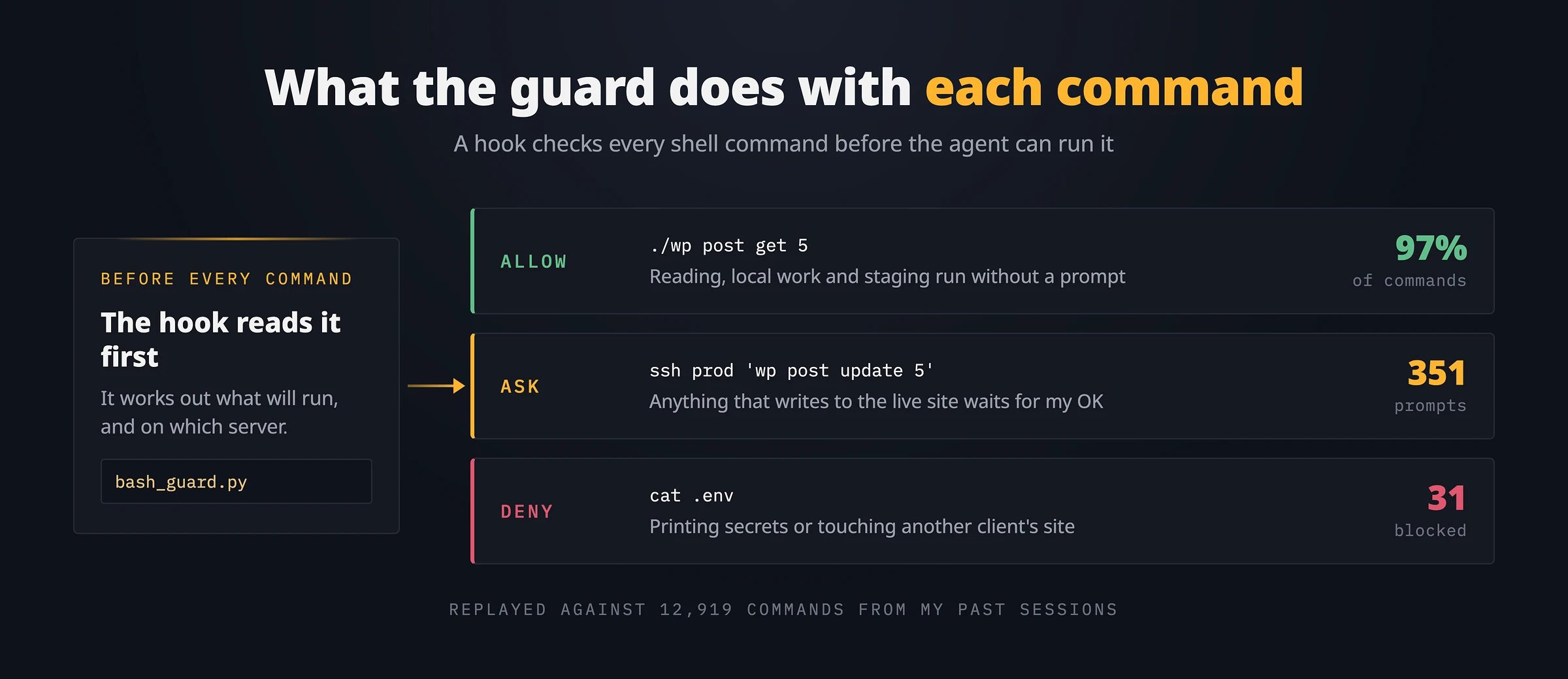
The hook reads the command and replies with allow, ask or deny. Mine does three things:
- It denies any path on the shared server unless it literally points to one of my two apps. That includes paths with globs or variables.
- It denies commands like
cat .envthat would print a secret, but it lets a script load a key into a variable. - It asks me before anything writes to production. On the live server, only commands on my read-only list run without asking.
Here’s a simplified version of the production check:
# .claude/hooks/bash_guard.py (simplified)
import json, re, sys

READ_ONLY_WP = {"get", "list", "url", "exists", "status"}

cmd = json.load(sys.stdin)["tool_input"]["command"]
m = re.search(r"\bssh\s+prod\s+'([^']*)'", cmd)
if m:
    for part in re.split(r"&&|;|\|", m.group(1)):
        words = part.split()
        if words[:1] == ["wp"] and len(words) > 2 and words[2] not in READ_ONLY_WP:
            print(json.dumps({"hookSpecificOutput": {
                "hookEventName": "PreToolUse",
                "permissionDecision": "ask",
                "permissionDecisionReason": "Production write. Needs approval."}}))
            break
The real version reads the command the way the shell does, including quotes, multi-line scripts and variables. My first version only matched text patterns, and testing showed why that was not good enough.
Test the Hook Against Your Own History
I replayed every shell command from my past sessions through the guard, close to 13,000 unique commands. With simple text matching, my first version would have prompted me 511 times and blocked 61 commands, most of them harmless.
It flagged text inside commit messages but missed hosts tucked away in a loop like for h in staging prod; do ssh $h ....
With the parser, the guard lets 97% of commands through without a word. It prompts on 351, nearly all of them production actions such as deploys and content pushes, and blocks 31. Each check takes about 21 milliseconds.
An independent review found gaps I’d missed. My rule only matched common key names, so it missed most of my private SSH keys.
And Codex doesn’t support the “ask” answer at all. So in Codex, my guard now turns every “ask” into a “deny” and tells me to get approval first.
I think of a hook like this as a tripwire for honest mistakes. A determined process can always find another way to write the same command. The hook’s real job is to catch an accidental production write and make sure every bypass is deliberate.
Where MCP Fits
I reach for MCP less often than I thought I would. MCP (Model Context Protocol) servers give agents ready-made tools for outside systems, and I use them when the shell doesn’t have a good answer: Google Analytics data, browser checks through Chrome DevTools, and my hosting panel through a read-only Cloudways connection.
On the WordPress site itself, I can already do most of the work with the shell and WP-CLI. The official MCP Adapter plugin turns WordPress abilities into MCP tools, but it’s still pre-1.0, and in my tests its credential worked across the whole REST API with that user’s privileges. I tested its risks in Securing the WordPress MCP Adapter.
If you’re new to MCP, start by connecting Claude Code to external tools. Give each server only the permissions it needs to work.
Local, Staging, Production: Make the Workflow Checkable
I want agents to change code on a local copy, in git, and reach production only after their work goes through checks. Here’s how my workflow runs:
- Agents make code changes in a git worktree, a second working copy of the same repository, so each agent works on its own files and never trips over another agent’s unsaved changes.
- When I push to the main branch, CI (automated checks that run on GitHub) tests the PHP for errors, builds the assets and runs a self-check of the agent setup.
- If those checks pass, the same workflow deploys the theme and mu-plugins to staging. If they don’t, it stops there.
- I move content separately, post by post, with a script that won’t overwrite a post someone else has changed.
- I use the same checks for production, then have the agent open the live page and confirm the change is there.
I made the worktree rule because of something that happened during this very audit. I switched branches in the shared checkout while another agent session was still working there.
That session thought it was still on its own branch and committed its next changes to mine. Nothing was lost, but only because I noticed.
Here’s the part of my deploy workflow that stops a deploy if the check fails:
# .github/workflows/deploy-staging.yml
jobs:
  verify:
    uses: ./.github/workflows/verify.yml   # lint, build, self-check

  deploy:
    needs: verify                          # no green verify, no deploy
    runs-on: ubuntu-latest
One more rule for releases: when a change touches both code and post content, push the content right after the code, so the live page runs new code against old content for minutes, not days.
Memory and Handoffs Without the Bloat
Claude Code keeps an automatic memory for each project, with an index file called MEMORY.md. At the start of a session, Claude Code loads only the first 200 lines or 25 KB of that index. Claude Code tells the agent when the index was cut, but nothing tells you, and the rules past the limit simply stop applying.
My index had grown to 37 KB and 214 lines. A third of it never loaded, including 13 rules I’d given the agent after real mistakes. Most of the space went to old “this is live on production” notes, even though the commits and deploy logs already record that.
I archived the notes for finished projects, put the project rules in AGENTS.md so every tool can see them, and added a session-start hook that warns me before the index hits the limit:
#!/usr/bin/env bash
# .claude/hooks/session-start.sh (shortened)
main=$(dirname "$(git rev-parse --path-format=absolute --git-common-dir)")   # same folder for every worktree
mem="$HOME/.claude/projects/$(printf '%s' "$main" | sed 's|[^A-Za-z0-9]|-|g')/memory/MEMORY.md"
bytes=$(wc -c < "$mem")
[ "$bytes" -gt 22000 ] && echo "MEMORY.md is $bytes bytes. Prune it before it passes 25 KB."
grep -E '^- \[ \] [0-9-]{10}' docs/followups.md | awk -v t="$(date +%F)" '$4 <= t'
The last line is for dated follow-ups. I used to keep checks like “review this post’s search data in four weeks” in memory notes, and I missed the due dates for two of them. Now I keep them in one file, and the hook lists what’s due when a session starts.
What I Fixed in My Own Setup
I ran the audit on 27 November 2026 with Claude Code 2.1.330. Here’s what I measured before and after the fixes:
| Area | Before | After |
|---|---|---|
| Shared instruction file | None | AGENTS.md (119 lines) plus a CLAUDE.md import |
| Memory index | 37 KB, 64 lines never loaded | 19 KB, everything loads |
| Skill copies | 6 of 14 drifted apart | One source, links for every tool |
| Other clients’ skills | 22 offered in every session | Loaded only in their own projects |
| Command guard | Uncommitted, easy to bypass | Committed, 80 test cases, replayed against 12,919 past commands |
| Deploy checks | Build and copy only | Lint, build and self-check must pass first |
None of these problems announced themselves to me. The memory limit, the drifted skills and the uncommitted guard all failed quietly. That’s why I audit the setup itself, not just the code the agents produce.
The Agent-Ready WordPress Checklist
Setting up your own project? Work through this list in order. If you are just starting, the first four steps already make a big difference, and you can add the rest one at a time.
- Put your site in git. Include your theme, mu-plugins and custom plugins, but leave out core and third-party plugins.
- Give the agent a local copy of the site and a pinned WP-CLI wrapper.
- Write one
AGENTS.mdby hand. Cover the identity check, environments, hard rules, tools and pointers. - Add a
CLAUDE.mdthat imports it, then make sure the Cursor rules agree with it. - Move long procedures into skills. Keep them in one source folder and link to them from each tool.
- Keep client-specific skills out of the global skills folder.
- Add deny rules for
.envand SSH keys. - Add a command hook that asks before production writes. Then replay your own history through it.
- Make every deploy pass a CI check: lint, build and a self-check of the agent setup.
- Use git worktrees for parallel agent sessions.
- Keep the memory index under its load limit. Put dated follow-ups in one file.
- Verify every release on the live site through the CDN, not in the database.
FAQs
Here are some common questions about setting up a WordPress project for AI coding agents:
CLAUDE.md in the working folder or above it. If you have a CLAUDE.md, add @AGENTS.md on its first line to import the shared file.
AGENTS.md is a shared format that Codex, Cursor and other agents read. CLAUDE.md is Claude Code's own file. Keep the shared rules in AGENTS.md and use CLAUDE.md only to import it and add Claude-specific notes.
wp option get home, the environments, the rules that need approval, your WP-CLI wrappers and custom commands, and pointers to longer documents. Keep it under 200 lines and never put secrets in it.
PreToolUse hook as a safety net that asks before shell commands that write to production, plus deny rules for secrets. An instruction in CLAUDE.md is not enough on its own, because the agent can decide a rule does not apply.
Summary
An agent-ready WordPress project tells the agent whose site it’s working on and which commands it can safely run. Hooks enforce the rules that matter, and the setup checks every change before it reaches production. One hand-written AGENTS.md serves every tool.
The setup needs its own audit, too. Mine looked fine until I measured it.
I found that a third of the memory was invisible, the skills had drifted, and my main safety hook only worked in one folder. Test your guardrails against your own history, and check the agent setup like you’d check any other code.