Cloudways recently released an official MCP server. Once it is connected to Claude Code, I can ask about my servers, apps, PHP settings and monitoring graphs in plain language, without opening the Cloudways dashboard.
The same connection can also restart services, purge caches and delete servers. The server I connected runs this blog and a client’s live site, so a wrong call could take down someone else’s business. I connected it read-only and checked every answer against SSH before I trusted it.
Below is exactly how I set it up on my Mac, including the step the official guide leaves out: blocking the write tools inside Claude Code. After that, I go through which answers matched the server and which ones didn’t.
What Is the Cloudways MCP Server?
The Cloudways MCP server is a remote MCP endpoint that turns Cloudways platform actions into tools an AI assistant can call. It is free for every Cloudways customer and works with Claude Code, Claude Desktop, Cursor, VS Code Copilot, Gemini CLI and Codex.
If MCP is new to you, start with our guide on how to connect MCP servers to Claude Code. In short, MCP is a standard way to plug outside tools into a model.
When I connected it, Claude saw 66 tools: 62 regular ones plus 4 discovery tools. The discovery tools load the rest on demand, which keeps the tool list small. Behind them sit 315 tools in total, across 22 groups such as servers, apps, monitoring, security and DNS.
That is a lot of power for one connection, and Cloudways says so plainly in its own FAQ:
“Yes. Cloudways MCP can perform destructive actions such as server and application deletion. Note that these actions are irreversible.”
– Cloudways Help Center, How to Use Cloudways MCP Server
That sentence is the reason I started read-only and added a second lock inside Claude Code.
What You’ll Need Before You Start
The setup itself took me about 15 minutes. Verifying it took longer. You need:
- The primary Cloudways account. Only the account owner can create API tokens. Team members can’t.
- Claude Code installed and signed in.
- A Mac. The token goes in the macOS Keychain. On Linux or Windows, use your own secret store or an environment variable instead.
You don’t need Node.js. The Cloudways guide lists it as a prerequisite, but it is only for clients that need the mcp-remote bridge, such as Claude Desktop. Claude Code connects to remote HTTP servers natively, so I skipped it.
How to Connect Claude Code to Cloudways MCP
The official guide gives a one-line claude mcp add command with the token pasted in. That works, but it stores the token in plain text in ~/.claude.json. I didn’t want a key to my servers sitting in a config file, so I kept it in the Keychain instead.
Step 1: Create a Read-Only Access Token
In the Cloudways dashboard, I opened the profile menu at the top right and chose API Integration. Under Access Token Details, I clicked Create Access Token.
The form has three fields:
- Name: I used
Claude Code MCP read only Savvy Mac. My first try had a hyphen and parentheses, and the form rejected it with “Access token name can only contain letters, numbers, and spaces”. - Expiration: I chose 1 month. That is enough time to test, and the token dies on its own if I forget about it. The options are 1 day, 1 month, 3 months, 6 months, 1 year and Never.
- Scope: I chose Read-Only Access. The other two are Limited Access (Beta, and it can include write endpoints) and Full Access.
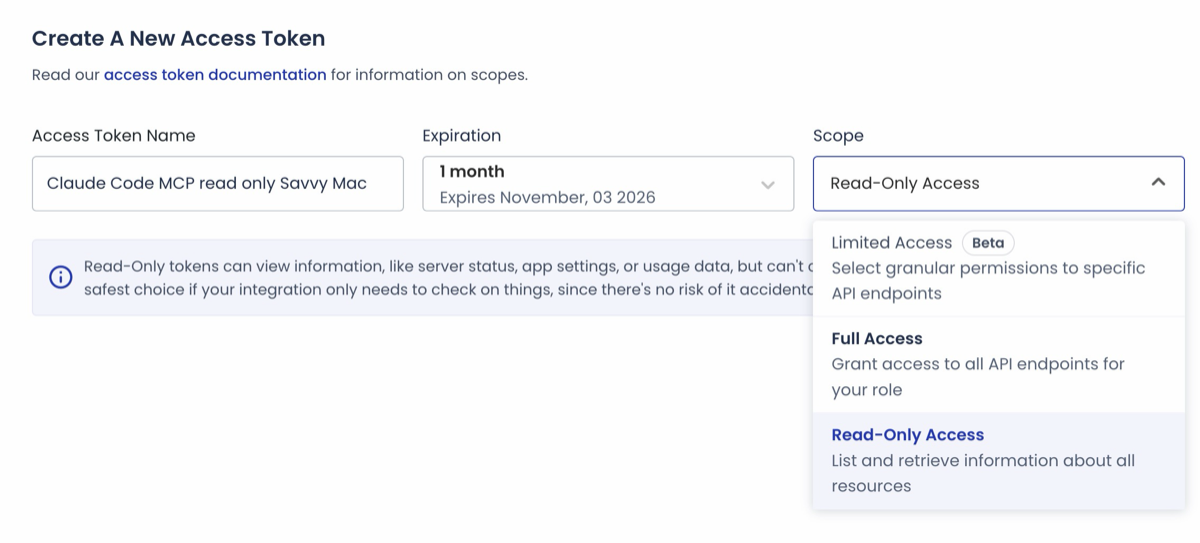
The token form with my settings. Limited Access is still marked Beta.
Then I clicked Create Access Token and copied the token from the confirmation screen.
The full token is shown only once and can’t be retrieved later. Copy it straight into the next step, and don’t take a screenshot of that screen. If you lose it, revoke it and create a new one.
Back in the token table, the Scopes column showed Read-Only Access. Keep that in mind, because it matters later.

The new token in the Access Token Details table, scoped to Read-Only Access.
Step 2: Store the Token in the macOS Keychain
Next, I saved the token in the macOS Keychain. I ran this in a separate Terminal window, not through Claude, so the token never passed through a chat transcript:
security add-generic-password -a "$USER" -s cloudways-mcp-token -U -wmacOS then asks for “password data for new item”. That prompt confused me at first: it wants the token, not your Mac password. Paste the token, press Enter, and paste it again when asked to retype. Nothing shows as you paste, which is normal.
To check it was saved without printing it, I asked for its length instead:
security find-generic-password -a "$USER" -s cloudways-mcp-token -w | tr -d '\n' | wc -cStep 3: Create a Header Helper Script
The Cloudways server reads two headers on every request: X-Access-Token with your token, and X-Mcp-Host with the name of your client. For Claude Code, that name is claude-code.
Claude Code has a headersHelper option for HTTP servers. It runs a command each time it connects and uses the JSON that command prints as headers. I saved this script as ~/.claude/mcp-helpers/cloudways-headers.sh:
#!/bin/sh
# Prints the Cloudways MCP headers. The token stays in the macOS Keychain.
tok=$(security find-generic-password -a "$USER" -s cloudways-mcp-token -w 2>/dev/null) || exit 1
[ -n "$tok" ] || exit 1
printf '{"X-Access-Token":"%s","X-Mcp-Host":"claude-code"}' "$tok"
Then I made it executable and readable only by my user:
chmod 700 ~/.claude/mcp-helpers/cloudways-headers.shStep 4: Add the Server to Claude Code
I registered the server at user scope, so it is available in every project. Use the full path to the script:
claude mcp add-json -s user cloudways '{"type":"http","url":"https://mcp.cloudways.com/mcp/","headersHelper":"/Users/YOUR_USER/.claude/mcp-helpers/cloudways-headers.sh"}'Keep the trailing slash in the URL. The Cloudways guide warns that other variants fail silently. Then I confirmed the connection:
claude mcp get cloudwaysIt showed Scope: User config and Status: ✔ Connected. My ~/.claude.json now holds only the URL and the script path, with no token in it.
Step 5: Start a New Session
In my test, the Claude Code session that was already open did not see the new tools, even though claude mcp get said Connected. A fresh session loaded them right away.
So after adding the server, start a new Claude Code session. But before you ask it anything, finish the lockdown in the next section. I looked at the tool list before my first question, and it changed my plan.
Lock It Down: Block Write Tools in Claude Code
This is the part that surprised me, and the official guide doesn’t mention it. Even with my Read-Only token, the server’s tool list included every write tool: server_delete, service_restart, app_purge_cache, server_settings_update and the rest.
The tool list does not change with the token’s scope. A Read-Only token still shows all 34 write tools to Claude. Cloudways presumably refuses the write when it is called, but I didn’t test that, because testing it means attempting a write on a live server.
The tools also carry no read-only or destructive labels, so Claude Code can’t tell reads from writes on its own. My fix was to deny the write tools in Claude Code itself.
I added these rules to the permissions block of ~/.claude/settings.json. If you copy them, merge them with the rules you already have:
"deny": [
  "mcp__cloudways__server_create",
  "mcp__cloudways__server_start",
  "mcp__cloudways__server_stop",
  "mcp__cloudways__server_restart",
  "mcp__cloudways__server_delete",
  "mcp__cloudways__server_backup",
  "mcp__cloudways__server_scale",
  "mcp__cloudways__server_update_label",
  "mcp__cloudways__app_create",
  "mcp__cloudways__app_delete",
  "mcp__cloudways__app_clone",
  "mcp__cloudways__app_clone_to_server",
  "mcp__cloudways__app_backup",
  "mcp__cloudways__app_purge_cache",
  "mcp__cloudways__app_update_label",
  "mcp__cloudways__app_vulnerabilities_refresh",
  "mcp__cloudways__app_credentials",
  "mcp__cloudways__service_restart",
  "mcp__cloudways__service_start",
  "mcp__cloudways__service_stop",
  "mcp__cloudways__varnish_manage",
  "mcp__cloudways__varnish_app_manage",
  "mcp__cloudways__addon_activate",
  "mcp__cloudways__addon_deactivate",
  "mcp__cloudways__addon_activate_on_server",
  "mcp__cloudways__addon_deactivate_on_server",
  "mcp__cloudways__cloudflare_add_domain",
  "mcp__cloudways__dns_made_easy_add_domains",
  "mcp__cloudways__dns_made_easy_delete_domains",
  "mcp__cloudways__dns_made_easy_add_records",
  "mcp__cloudways__dns_made_easy_delete_records",
  "mcp__cloudways__dns_made_easy_update_record",
  "mcp__cloudways__server_settings_update",
  "mcp__cloudways__server_disk_cleanup_settings_update",
  "mcp__cloudways__server_disk_cleanup_execute"
],
"ask": [
  "mcp__cloudways__execute_tool"
]
That list is the 34 write tools plus app_credentials. That one counts as a read, but it returns SSH and SFTP passwords, so I block it too.
You don’t have to trust my list. The server has a tool called get_write_tools that returns every write tool it has, 188 in total. For the 62 regular tools, its list matched mine exactly.
The ask rule matters just as much. execute_tool is the gateway to the other 249 tools, including about 150 more writes. With it on ask, Claude Code asks me before every call, and I check that it is a read before I approve it.
In my test sessions, the denied tools disappeared from Claude’s tool list completely: 31 Cloudways tools were visible instead of 66.
What You Can Ask Once It Is Connected
I started with questions I could check myself. These all worked:
- “List my Cloudways servers and every app on each, with its domain.”
- “What PHP version does each app run?”
- “Show CPU and memory around the reboot on October 3 at 12:14 UTC.”
- “Is Varnish enabled for each app?”
- “Which PHP pages were slowest on my main app in the last day?”
I ran each question in a fresh Claude Code session and compared the answer with what SSH showed on the same server. I was looking for the wrong answers more than the right ones. Simple lookups came back in 0.3 to 0.9 seconds per tool call, and a full multi-part question took one to two minutes.
| Question | What the MCP said | What the server showed | Result |
|---|---|---|---|
| Servers and apps | 1 server, 5 apps, with domains | Same 5 apps and domains in the Nginx config | Match |
| PHP per app | 8.4 for all 5 apps | All 5 PHP-FPM pools run 8.4 | Match |
| OPcache memory | 384 MB | 384 in every opcache.ini |
Match |
| Reboot time | CPU 100% idle at 12:15, free memory jumps | Last boot 12:14:36 | Match |
| Varnish | Enabled on all apps | x-cache header on every domain |
Match |
| Slowest PHP pages | Top 7 rows with counts and timings | Identical counts and timings in the PHP-FPM log | Exact match |
| WordPress version | 6.2.2 on every app | 7.1.2 on every app | Wrong |
The slow-pages answer was the most useful one for me. It matched the server’s PHP-FPM access log line for line, and it showed that my slowest requests were Action Scheduler background jobs running for 20 to 30 seconds each, not front-end pages. That is now on my list to look into.
Where the Answers Were Misleading
Most answers were right, but three fields would have misled me if I hadn’t checked:
- WordPress version is stale. The app details report 6.2.2 for every app, while all of them run 7.1.2. It looks like the version at install time.
- “Server PHP” is not your app’s PHP. The server settings say PHP 8.2. That is only the server default; each app’s own version (8.4 here) lives in the per-app settings, which you reach through
execute_tool. - The graphs are inverted. Asking for CPU returns idle CPU percent, and memory returns free bytes. A high number means less load, not more.
Claude handled the PHP case well. When it couldn’t reach the per-app settings, it told me so and refused to guess from the server default.
What Cloudways MCP Can’t Do Yet
I searched all 315 tool names and descriptions for these and found nothing, so I still use SSH or the dashboard for them:
- SSL certificates. There is no tool for a certificate’s issuer or expiry date.
openssl s_clientanswers it in a second. - Backup history. You get the backup frequency setting, but not when the last backup ran or whether it worked.
- Live OPcache usage. You see the configured size of OPcache, not how full it is or the hit rate.
- Copilot insights. The tool exists, but it returns a 403 “subscription required” error unless you pay for Cloudways Copilot.
It also can’t read files, so wp-config.php flags, crontabs and logs beyond its analytics views stay on the SSH side. For the caching plugin itself, I use the WP Rocket MCP which covers what Cloudways doesn’t.
Troubleshooting and Gotchas
These are the issues I ran into, roughly in the order you’ll hit them:
- Two header styles in the docs. Parts of the Cloudways guide still show
X-CW-EmailandX-CW-Api-Key. That is the legacy API key method, which Cloudways retires in mid-October 2026. UseX-Access-TokenandX-Mcp-Host. - Token name rejected. Letters, numbers and spaces only.
- Tools don’t appear. Start a new Claude Code session after adding the server.
- First calls fail validation. Claude sometimes skips a required argument, such as a server ID, and gets an “Input validation error”. It reads the error and retries correctly, so you can ignore it.
- Some calls are slow. The server settings call took 5 to 6 seconds every time, and repeated per-app status calls got slower in a row, up to 12 seconds.
- Some “reads” start a job. The analytics tools start a background operation on the server and return an ID that Claude polls. They change no settings, but they are not completely passive.
- Scripts get a 403 from Cloudflare. If you call the endpoint from your own Python script, Cloudflare blocks the default
Python-urllibuser agent with error 1010. Set your ownUser-Agentheader.
FAQs
Common questions about connecting Claude to Cloudways MCP:
server_delete. Block them yourself with permissions.deny rules in ~/.claude/settings.json, and set execute_tool to ask.
X-Access-Token with your access token and X-Mcp-Host with your client name, claude-code for Claude Code. The older X-CW-Email and X-CW-Api-Key pair belongs to the legacy API key, which Cloudways retires in mid-October 2026.
claude mcp add-json may not load the new server. Run claude mcp get cloudways to confirm it says Connected.
claude mcp remove cloudways -s user, delete the Keychain item with security delete-generic-password -s cloudways-mcp-token, and revoke the token in Cloudways under API Integration, Access Token Details. Revoking takes effect immediately.
Summary
Cloudways MCP lets me ask Claude about my servers instead of clicking through the dashboard. In my tests, the answers about apps, PHP, Varnish, OPcache settings, monitoring and slow pages matched what the server showed.
I’d still set it up the careful way. Use a Read-Only token, keep it in the Keychain behind a headersHelper script, and deny the write tools in Claude Code, because the token alone doesn’t hide them.
A few fields need care, such as the stale WordPress version and the inverted CPU graph. For SSL, backups and files, SSH is still my faster answer.