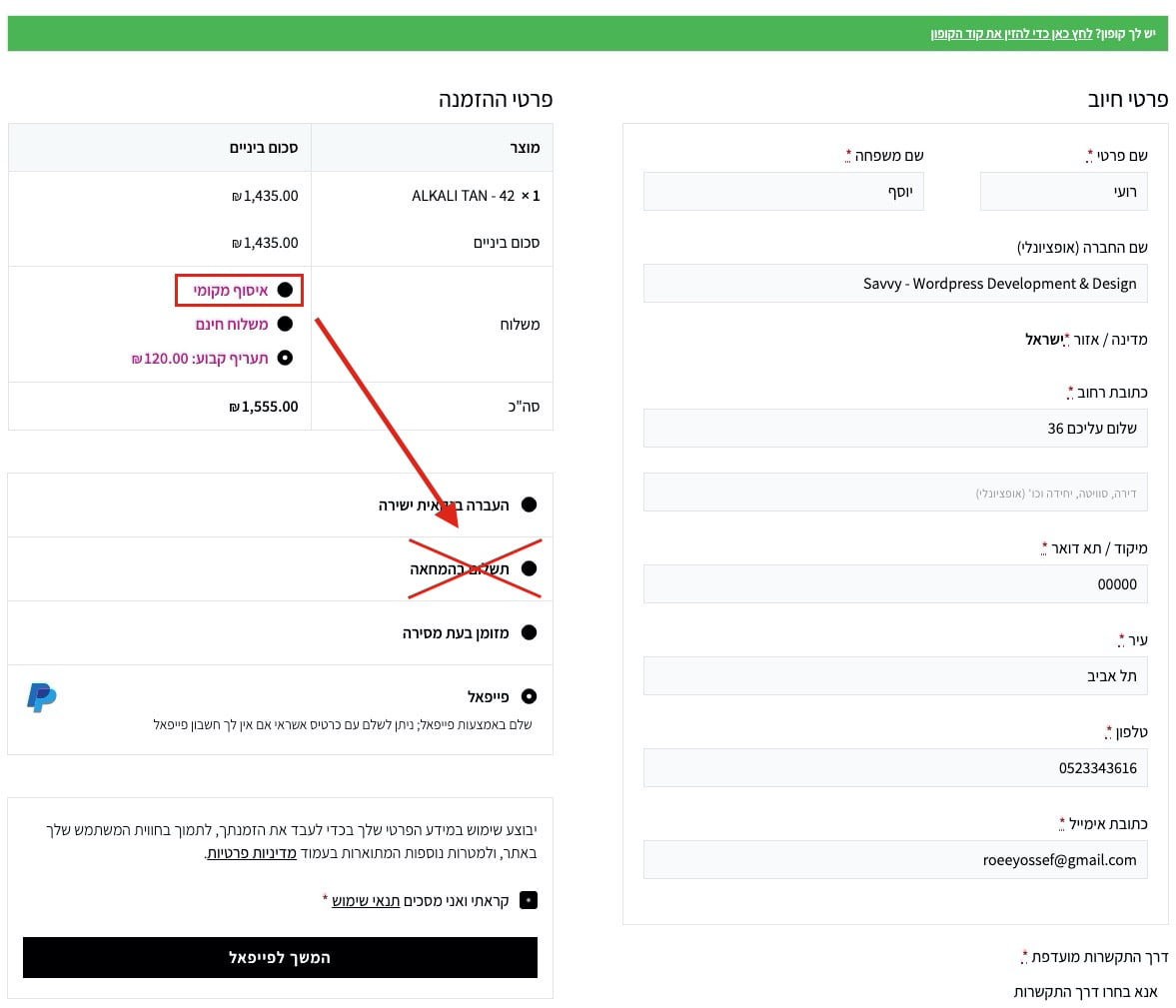
A look at the WooCommerce checkout page and specifically how to disable a payment method for a customer based on the shipping method they selected. For example, disable “Cash on Delivery” for the “Local Pickup” shipping method.
%22%20transform%3D%22translate(2.3%202.3)%20scale(4.59766)%22%20fill-opacity%3D%22.5%22%3E%3Cellipse%20fill%3D%22%23919191%22%20rx%3D%221%22%20ry%3D%221%22%20transform%3D%22matrix(70.87015%20-5.8002%201.98842%2024.29563%2040.3%20212.5)%22%2F%3E%3Cellipse%20fill%3D%22%23cdcdcd%22%20cx%3D%22126%22%20cy%3D%229%22%20rx%3D%22255%22%20ry%3D%2221%22%2F%3E%3Cpath%20fill%3D%22%23fff%22%20d%3D%22M-16%2053l287-27-46%20208z%22%2F%3E%3Cellipse%20fill%3D%22%23c9c9c9%22%20rx%3D%221%22%20ry%3D%221%22%20transform%3D%22matrix(-65.88504%20-13.37744%205.03916%20-24.8183%2071.6%20192.8)%22%2F%3E%3C%2Fg%3E%3C%2Fsvg%3E)
Here is a snippet that lets you do something like this (functions.php):
/**
 * @snippet       Disable a payment method for a specific shipping method
 * @author        Roee Yossef
 * @website       https://savvy.co.il
 */

function sv_gateway_disable_shipping_326( $available_gateways ) {

   if ( ! is_admin() ) {

      $chosen_methods = WC()->session->get( 'chosen_shipping_methods' );

      $chosen_shipping = $chosen_methods[0];

      if ( isset( $available_gateways['cod'] ) && 0 === strpos( $chosen_shipping, 'local_pickup' ) ) {
         unset( $available_gateways['cod'] );
      }

   }

   return $available_gateways;

}
add_filter( 'woocommerce_available_payment_gateways', 'sv_gateway_disable_shipping_326' );
If you use PayPal as a payment option on the WooCommerce checkout page, you can replace the PayPal logo displayed there. Add the following code to your theme’s functions.php file:
/**
 * Add custom gateway icons
 *
 * @param string $icon Image HTML.
 * @param string $gateway_id Gateway ID.
 *
 * @return string
 */
function sv_custom_wc_gateway_icons($icon, $gateway_id)
{
    // Example for PayPal:
    if ('paypal' == $gateway_id) {
        $icon = '<img src="' . get_stylesheet_directory_uri() . '/images/paypal.svg" alt="' . __('PayPal') . '" />';
    }
    return $icon;
}

add_filter('woocommerce_gateway_icon', 'sv_custom_wc_gateway_icons', 10, 2);
Change the path and filename to your new image and you are set!
The following code lets you extend how long it takes before WordPress automatically logs you out of the admin area. Add this code to your theme’s functions.php file:
function keep_me_logged_in_for_1_year( $expirein ) {
   return 31556926; // 1 year in seconds
}
add_filter( 'auth_cookie_expiration', 'keep_me_logged_in_for_1_year' );
For more security tips, see Hardening WordPress Security.
To change the appearance of the tag cloud, use the following snippet. A full reference of the options is available at this link:
// Tag cloud custom
function style_tags($args) {
    $args = array(
         'largest'    => '10',
         'smallest'   => '10',
         'format'     => 'list',
         );
    return $args;
}
add_filter('widget_tag_cloud_args', 'style_tags');
For more on tags and taxonomies, see Taxonomies in WordPress.
You can hide specific admin menu items from a specific user in the WordPress dashboard. Replace username with the login of the user you want to hide those menu items from:
function remove_menus()
{
    global $menu;
    global $current_user;
    get_currentuserinfo();

    if($current_user->user_login == 'username')
    {
        $restricted = array(__('Posts'),
                            __('Media'),
                            __('Links'),
                            __('Pages'),
                            __('Comments'),
                            __('Appearance'),
                            __('Plugins'),
                            __('Users'),
                            __('Tools'),
                            __('Settings')
        );
        end ($menu);
        while (prev($menu)) {
            $value = explode(' ',$menu[key($menu)][0]);
            if(in_array($value[0] != NULL ? $value[0] : "" , $restricted)) {
                unset($menu[key($menu)]);
            }
        } // end while

    } // end if
}
add_action('admin_menu', 'remove_menus');
This uses a WordPress hook. Learn more in WordPress Hooks Explained.
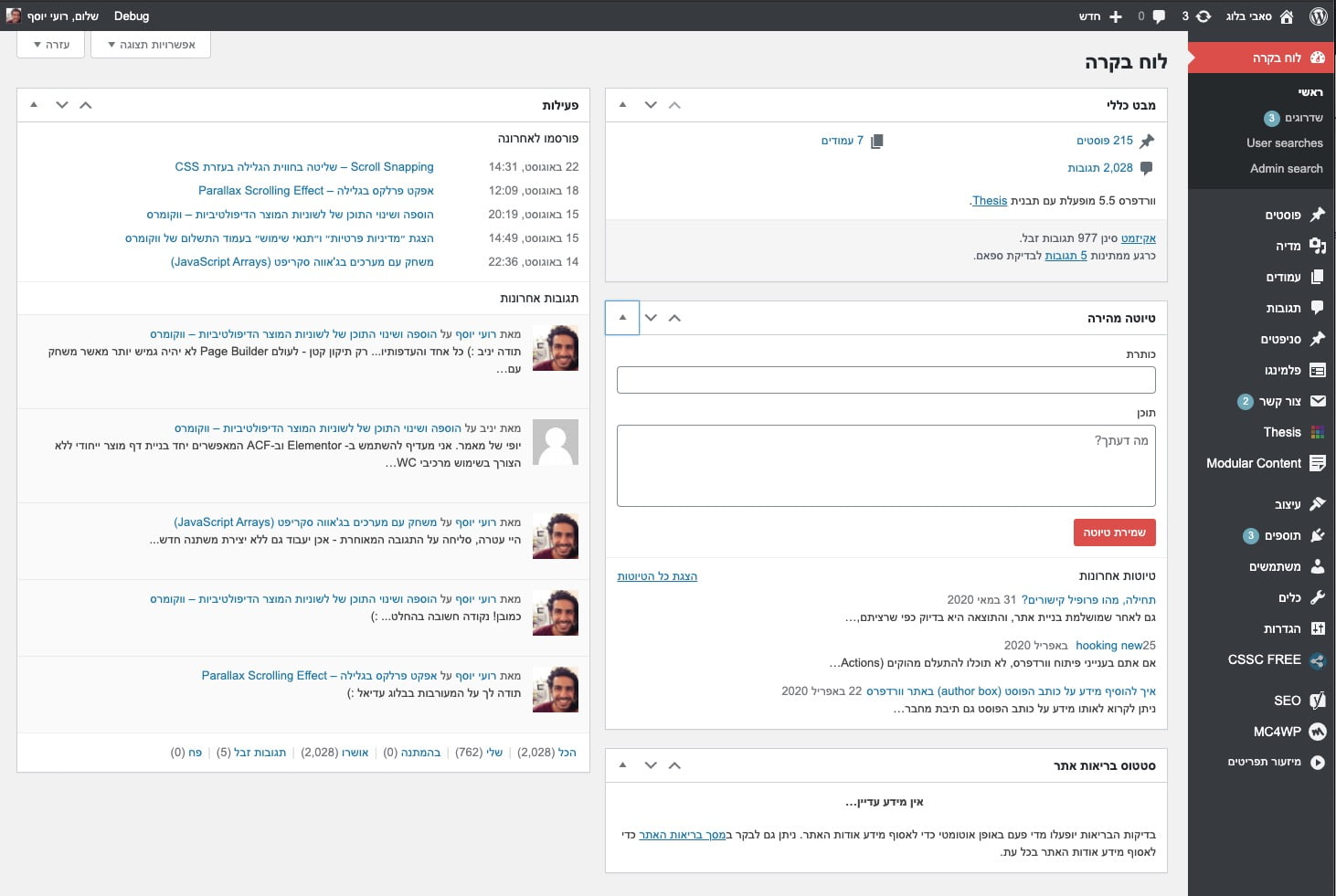
The following snippet lets you remove specific meta boxes from the main Dashboard page in WordPress. These are the default meta boxes shown on the main admin screen.
To remove or change which boxes are displayed, add this snippet to your theme’s functions.php file and choose which boxes to remove:
function my_custom_dashboard_widgets()
{
    global $wp_meta_boxes;

    // Main column (left):
    // Browser Update Required
    unset($wp_meta_boxes['dashboard']['normal']['high']['dashboard_browser_nag']);
    // PHP Update Required
    unset($wp_meta_boxes['dashboard']['normal']['high']['dashboard_php_nag']);
    // Right Now - Comments, Posts, Pages at a glance
    unset($wp_meta_boxes['dashboard']['normal']['core']['dashboard_right_now']);
    // Right Now
    unset($wp_meta_boxes['dashboard']['normal']['core']['network_dashboard_right_now']);
    // Activity
    unset($wp_meta_boxes['dashboard']['normal']['core']['dashboard_activity']);
    // Site Health Status
    unset($wp_meta_boxes['dashboard']['normal']['core']['dashboard_site_health']);

    // Side Column (right):
    // WordPress Events and News
    unset($wp_meta_boxes['dashboard']['side']['core']['dashboard_primary']);
    // Quick Draft, Your Recent Drafts
    unset($wp_meta_boxes['dashboard']['side']['core']['dashboard_quick_press']);

    // Recent Comments
    unset($wp_meta_boxes['dashboard']['normal']['core']['dashboard_recent_comments']);

    // Incoming Links
    unset($wp_meta_boxes['dashboard']['normal']['core']['dashboard_incoming_links']);

    // Plugins - Popular, New and Recently updated WordPress Plugins
    unset($wp_meta_boxes['dashboard']['normal']['core']['dashboard_plugins']);

    // Other WordPress News Feed
    unset($wp_meta_boxes['dashboard']['side']['core']['dashboard_secondary']);


    // Recent Drafts List
    unset($wp_meta_boxes['dashboard']['side']['core']['dashboard_recent_drafts']);
}

add_action('wp_dashboard_setup', 'my_custom_dashboard_widgets');
This is the page we are talking about:
%22%20transform%3D%22translate(2.9%202.9)%20scale(5.71094)%22%20fill-opacity%3D%22.5%22%3E%3Cpath%20fill%3D%22%23141414%22%20d%3D%22M259.1-27.4l3.8%20216-44%20.8-3.8-216z%22%2F%3E%3Cellipse%20fill%3D%22%23fff%22%20rx%3D%221%22%20ry%3D%221%22%20transform%3D%22rotate(62.8%20-69%20126.6)%20scale(107.27896%20131.31111)%22%2F%3E%3Cellipse%20fill%3D%22%23b0b0b0%22%20rx%3D%221%22%20ry%3D%221%22%20transform%3D%22matrix(5.81048%20184.89241%20-13.62194%20.42809%20213%2045.5)%22%2F%3E%3Cellipse%20fill%3D%22%23fff%22%20cx%3D%2273%22%20cy%3D%22155%22%20rx%3D%22114%22%20ry%3D%22114%22%2F%3E%3C%2Fg%3E%3C%2Fsvg%3E "Removing default meta boxes from the main Dashboard page")
For safe admin customizations, see What Are Child Themes and How to Use Them.
If you want WordPress category archive pages to display all posts regardless of post type, add the following code to your functions.php file:
function any_ptype_on_cat($request) {

    if ( isset($request['category_name']) )
        $request['post_type'] = 'any';

    return $request;
}
add_filter('request', 'any_ptype_on_cat');
For more on custom post types, see How to Create Custom Post Types.
To display which template file a page uses in the header, add the following code to your functions.php file:
add_action('wp_head', 'show_template');
function show_template() {
    global $template;
    print_r($template);
}
For more on template files, see WordPress Template Hierarchy.
WordPress lets you create an excerpt for posts by entering text in the excerpt box on the post edit screen. But excerpts are not available for pages, and there is no way to enable this through the WordPress admin.
If you want to add the excerpt box for pages too, add the following code to your theme’s functions.php file:
<?php

// START COPY FROM HERE
function add_excerpt_pages() {
    add_post_type_support('page', 'excerpt');
}
add_action('init', 'add_excerpt_pages');
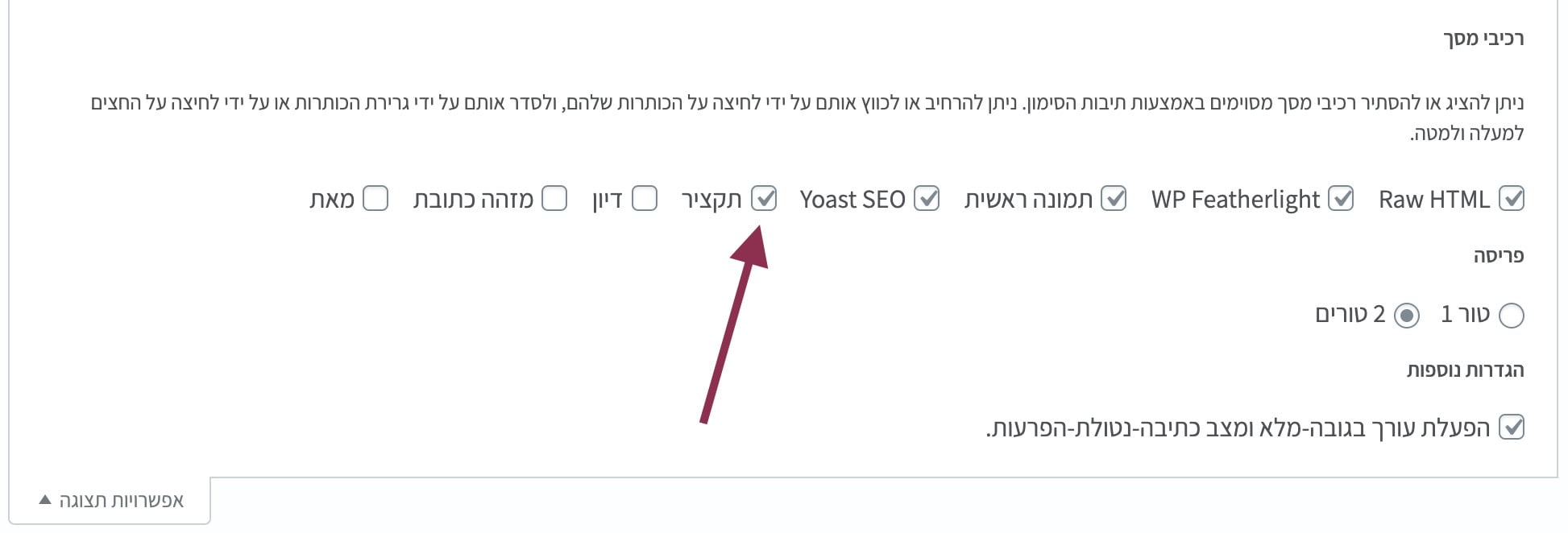
After adding the code, edit a page and click “Screen options” in the top-left corner of the screen.
%27%20fill-opacity%3D%27.5%27%3E%3Cpath%20fill%3D%22%23fff%22%20fill-opacity%3D%22.5%22%20d%3D%22M523.8%20245.5l72.4-100.4%20247.5%2067.4-266-31.5zm-10-181.1L294%2079.7l-9.5-136.5L504.3-72zm-472%20213.1h98.8v136.8H41.8zM1562.1%20650l-296.4%2091.2%20228-205.3z%22%2F%3E%3C%2Fg%3E%3C%2Fsvg%3E "How to enable excerpt for pages in WordPress")
How to enable excerpt for pages in WordPress
Check the Excerpt box and you are done. You will now see an excerpt box for all pages on your site…
For safe theme customizations, see What Are Child Themes and How to Use Them.
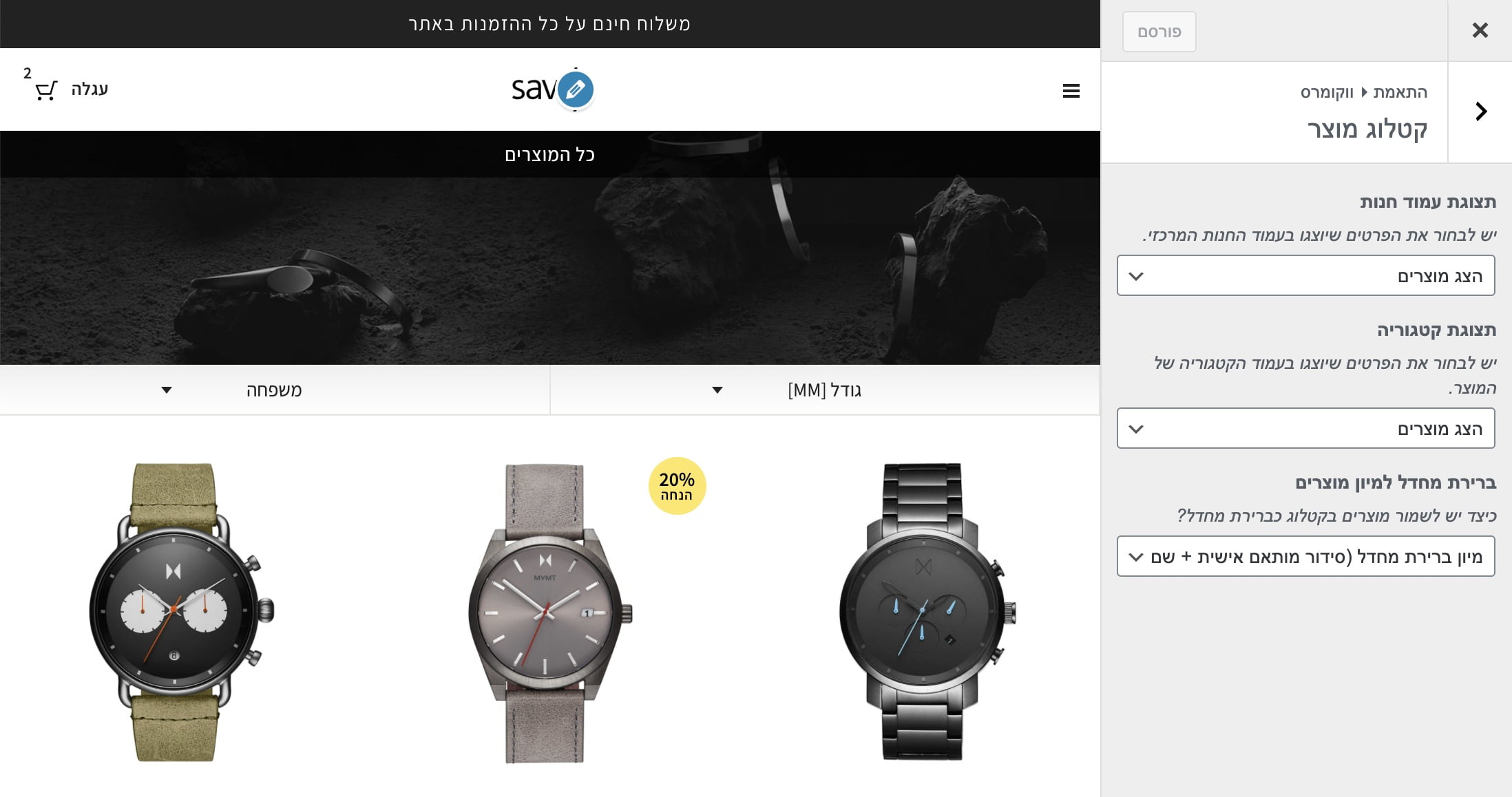
Use the following code to change the number of products WooCommerce displays per page. For this to work, make sure the “Products per page” option is selected in Customizer.
%27%20fill-opacity%3D%27.5%27%3E%3Cellipse%20fill%3D%22%23303030%22%20fill-opacity%3D%22.5%22%20rx%3D%221%22%20ry%3D%221%22%20transform%3D%22rotate(8.2%20-307.2%203247.5)%20scale(1047.96431%20457.09397)%22%2F%3E%3Cellipse%20fill%3D%22%23fdfdfd%22%20fill-opacity%3D%22.5%22%20rx%3D%221%22%20ry%3D%221%22%20transform%3D%22matrix(156.2035%20439.56778%20-2061.15016%20732.4442%201155%201090)%22%2F%3E%3Cellipse%20fill%3D%22%23fff%22%20fill-opacity%3D%22.5%22%20rx%3D%221%22%20ry%3D%221%22%20transform%3D%22matrix(-182.2831%20337.23423%20-284.35429%20-153.70024%202009.6%20124.8)%22%2F%3E%3Cellipse%20fill%3D%22%23919191%22%20fill-opacity%3D%22.5%22%20rx%3D%221%22%20ry%3D%221%22%20transform%3D%22matrix(-448.21247%2033.66252%20-17.4875%20-232.84402%201201.1%20569.7)%22%2F%3E%3C%2Fg%3E%3C%2Fsvg%3E)
Add this code to your theme’s functions.php file:
/**
 * Change number of products that are displayed per page (shop page)
 */
add_filter( 'loop_shop_per_page', 'new_loop_shop_per_page', 20 );

function new_loop_shop_per_page( $cols ) {
  // $cols contains the current number of products per page based on the value stored on Options –> Reading
  // Return the number of products you wanna show per page.
  $cols = 9;
  return $cols;
}
For more WooCommerce customization, see Mastering WooCommerce Hooks.