Adding this code to your .htaccess file will prevent external access to the wp-config.php file. For more tips on securing your WordPress site, see the linked post.
<files wp-config.php>
    order allow,deny
    deny from all
</files>
Adding this code to your .htaccess file will prevent external access to the wp-config.php file. For more tips on securing your WordPress site, see the linked post.
<files wp-config.php>
order allow,deny
deny from all
</files>When users enter an incorrect username or password, an error message appears telling them which one is wrong. If someone is trying to break into your site by guessing one of these, that error message can help them understand what they got wrong. Block this by adding the following line to your functions.php file. For more security tips, see hardening your WordPress site:
add_filter('login_errors',create_function('$a', "return null;"));Some prefer to work with the visual editor when writing posts and others prefer the text editor. Change the default post editor by adding one of the following filters to your functions.php file:
// Visual editor as the default
add_filter( 'wp_default_editor', function () {
	return 'tinymce';
} );

// Text (HTML) editor as the default
add_filter( 'wp_default_editor', function () {
	return 'html';
} );
Use only one of the two. The filter sets which tab, Visual or Text, opens first in the classic editor, so it has no effect on the block editor. Older versions of this snippet used create_function(), which was removed in PHP 8.0 and now causes a fatal error.
For more editor configuration, see Enable Gutenberg for Custom Post Types.
You can redirect users who log into your WordPress site to different URLs based on their role.
function redirect_user_on_role()
{
	global $current_user;
   	get_currentuserinfo();
 	if ($current_user->user_level == 0)
 	{
       	wp_redirect( home_url() ); exit;
 	}
 	else if ($current_user->user_level > 1)
 	{
       	 wp_redirect( home_url() ); exit;
 	}
  	else if ($current_user->user_level >8)
 	{
		wp_redirect( home_url() ); exit;
 	}
 	else
 	{
     		$redirect_to = 'http://google.com/';
       	return $redirect_to;
 	}
}
add_action('admin_init','redirect_user_on_role');
For more security best practices, see Hardening WordPress Security.
By default WordPress blocks comments on Custom Post Types. To enable comments on a custom post type, add comments under supports where you register it (line 32):
function snippet_custom_init() {
      $labels = array(
          'name' => 'Snippet',
          'singular_name' => 'Snippet',
          'add_new' => 'Add New Snippet',
          'add_new_item' => 'Add New Snippet',
          'edit_item' => 'Edit Snippet',
          'new_item' => 'New Snippet',
          'all_items' => 'All Snippets',
          'view_item' => 'View Snippet',
          'search_items' => 'Search Snippets',
          'not_found' =>  'No snippets found',
          'not_found_in_trash' => 'No snippets found in trash',
          'parent_item_colon' => '',
          'menu_name' => 'Snippets',
          );

      $args = array(
          'labels' => $labels,
          'exclude_from_search' => false,
          'public' => true,
          'publicly_queryable' => true,
          'show_ui' => true,
          'show_in_menu' => true,
          'query_var' => true,
          'rewrite' => array( 'slug' => 'snippet' ),
          'capability_type' => 'post',
          'has_archive' => true,
          'hierarchical' => false,
          'taxonomies' => array('category'),
          'menu_position' => null,
          'supports' => array( 'title', 'author', 'thumbnail', 'excerpt', 'comments', 'editor' )
          );

        register_post_type( 'snippet', $args );
    }
add_action( 'init', 'snippet_custom_init', 0);A trend I have seen on many blogs is to change the order of comments in WordPress posts so the most recently written comments appear at the top. If your blog posts have many comments, this option can be preferable to prevent the latest comments from being “buried” at the bottom of the page.
Here is how to reverse comment order in WordPress.
Go to Settings > Discussion. Under “Other comment settings” find “Older comments at the top of each page” and change the setting accordingly.

Add the following code to your theme’s functions.php file:
function wpb_reverse_comments($comments) {
		return array_reverse($comments);
	}
add_filter ('comments_array', 'wpb_reverse_comments');
Here we use the comments_array filter to reverse the comment order.
That is it – hope this tip helps when you want to reverse comment order on your WordPress site.
For more comment customization, see Show the Total Number of Comments in WordPress.
This week I tried to update a theme on a WordPress site and ran into the error Fatal Error: Maximum Execution Time Exceeded in WordPress. The fix in this case is simple, but can be frustrating for beginners. Here is how to fix the Maximum Execution Time Exceeded error in WordPress.
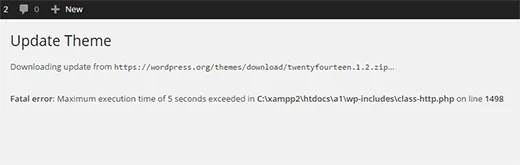
WordPress is largely built on PHP, and to protect servers there is a limit on how long a PHP script can run. Some hosting providers allow longer execution time and others limit it more strictly. When the script hits the limit, you get this message.
To change the PHP script execution time limit, connect via FTP to your server, find the .htaccess file in the same directory as wp-content and wp-admin. Edit the file and add:
<IfModule mod_php7.c>
    php_value max_execution_time 300
</IfModule>
This sets execution time to 300 seconds (5 minutes); you can change it as needed. For reference, the Avada theme version 3.8 requires at least 180 seconds to work properly.
*Note the PHP version in the code – adjust if needed for your server.
For more wp-config.php tweaks, see Optimize WordPress Configuration via wp-config.php.
To change the Add to Cart button position in WooCommerce, move woocommerce_template_single_add_to_cart to a different priority on the woocommerce_single_product_summary action. By default it sits at priority 30, after the excerpt and before the product meta.
I was asked to do this on a client site I built, and the same method works for any element in the product summary.
Add this to your child theme’s functions.php file. It moves the button from priority 30 to 15, between the price and the short description:
remove_action( 'woocommerce_single_product_summary', 'woocommerce_template_single_add_to_cart', 30 );
add_action( 'woocommerce_single_product_summary', 'woocommerce_template_single_add_to_cart', 15 );
remove_action() only works when the priority matches the one used to add the callback, so the first line must say 30.
The action runs inside the .summary div in templates/content-single-product.php. These are the callbacks WooCommerce registers in includes/wc-template-hooks.php:
| Priority | Callback | Output |
|---|---|---|
| 5 | woocommerce_template_single_title |
Product title |
| 10 | woocommerce_template_single_rating |
Star rating |
| 10 | woocommerce_template_single_price |
Price |
| 20 | woocommerce_template_single_excerpt |
Short description |
| 30 | woocommerce_template_single_add_to_cart |
Add to Cart form |
| 40 | woocommerce_template_single_meta |
SKU, categories, tags |
| 50 | woocommerce_template_single_sharing |
Sharing template |
| 60 | WC_Structured_Data::generate_product_data |
Product schema data, no visible output |
Rating and price share priority 10. Callbacks with the same priority run in the order they were added, and the rating is added first.
WordPress runs callbacks on an action from the lowest priority number to the highest. Pick a number between two neighbours to place the button between them:
woocommerce_template_single_add_to_cart() does not print the button itself. It fires woocommerce_{product_type}_add_to_cart, and WooCommerce hooks a function to that action for each core type, such as woocommerce_simple_add_to_cart and woocommerce_variable_add_to_cart. Those load the templates in single-product/add-to-cart/.
Moving the parent function moves the form for every product type at once. For a wider view of these actions, see WooCommerce Hooks: Interactive Visual Guide for Every Page.
Product loops on the shop and category pages use a different action. There the button comes from woocommerce_template_loop_add_to_cart on woocommerce_after_shop_loop_item at priority 10. This moves it above the product image:
remove_action( 'woocommerce_after_shop_loop_item', 'woocommerce_template_loop_add_to_cart', 10 );
add_action( 'woocommerce_before_shop_loop_item', 'woocommerce_template_loop_add_to_cart', 5 );
Choose loop positions carefully. The product link opens on woocommerce_before_shop_loop_item at 10 and closes on woocommerce_after_shop_loop_item at 5, and anything hooked in between ends up inside that link. The button is also a link, and nested links are invalid HTML.
These hooks apply to classic templates. In a block theme the Single Product template is built from blocks, so drag the Add to Cart with Options block to a new spot in the Site Editor instead.
WooCommerce still fires the classic actions in block templates for compatibility, and removes only its own callbacks at their default priorities. Re-adding the add to cart function at a new priority there can print a second button.
Page builders like Elementor also use their own widgets, so check which system renders your product page first.
Common questions about the Add to Cart button position and its hook:
woocommerce_single_product_summary action. It runs after the short description (20) and before the product meta (40).
woocommerce_template_single_add_to_cart to woocommerce_after_single_product_summary. The product tabs run there at 10, so priority 5 puts the button above the tabs and 11 below them.
To exclude pages from search results, add the following code to your functions.php file. You can also limit search to a specific Post Type by changing “post” on line 7 to the slug of the Post Type you want to display.
function filter_pages_from_search($query) {
    if ($query->is_search) {
        $query->set('post_type', 'post');
    }
    return $query;
}

add_filter('pre_get_posts','filter_pages_from_search');
Conversely, to make WordPress search pages as well as posts, use this code:
function filter_pages_from_search($query) {
    if ($query->is_search) {
        $query->set('post_type', array('post', 'page'));
    }
    return $query;
}

add_filter('pre_get_posts','filter_pages_from_search');
For more on controlling WordPress search visibility, see Prevent Search Engines from Indexing Search Results.
To create a custom page template as the homepage in WordPress, duplicate page.php from your theme’s main directory or create a new PHP file and add the following code at the top:
<?php /* Template Name: xxxxxx */ ?>Replace xxxxxx with the name that will appear under “Page Attributes” when you create a new page.
Go to your WordPress admin panel, create a new page and select this template.
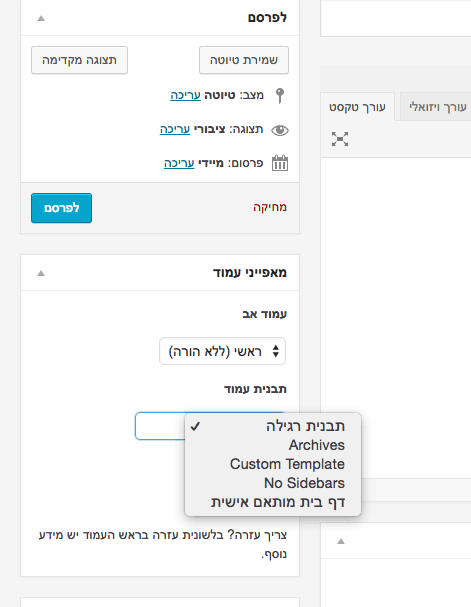
After publishing the page, go to Settings > Reading in the WordPress admin.
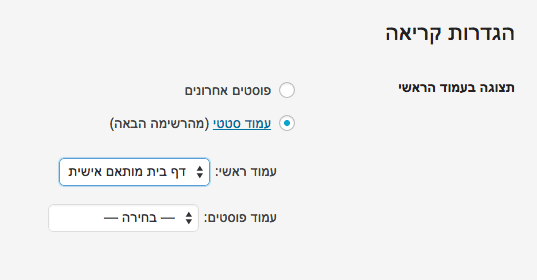
Select your page as the homepage. That is it – you now have a custom homepage. See the post on WordPress page templates.