
Contact forms are magnets for spam bots. The usual fix is Google reCAPTCHA, but it adds friction for real visitors and hands their data to an ad network.
Cloudflare Turnstile is a free, privacy-friendly alternative. It confirms a visitor is human without puzzles, and since version 6.1, Contact Form 7 supports it natively, so you do not need an extra plugin.
The part people get stuck on is the setup in Cloudflare: creating a widget and finding your Site key and Secret key. This short guide walks through exactly that, then connects the keys to Contact Form 7.
Why Use Cloudflare Turnstile?
Turnstile is Cloudflare’s bot-detection widget. It runs lightweight checks in the background instead of asking visitors to click traffic lights or read blurry text.
Cloudflare describes Turnstile as a free, privacy-first alternative to CAPTCHA, one that verifies visitors are real people without the frustrating image puzzles or the tracking that ad-network CAPTCHAs rely on.
If you already protect forms with Google reCAPTCHA on Contact Form 7, Turnstile is a lighter, more private swap. You can read more on the official Turnstile page.
What You Need
Setup is quick, but a couple of pieces have to be in place first.
- A free Cloudflare account. You do not have to move your DNS or site onto Cloudflare to use Turnstile. A basic account is enough.
- Contact Form 7 version 6.1 or newer. Native Turnstile support landed in 6.1. On older versions you would need a separate plugin, so update Contact Form 7 first.
Step 1: Create a Turnstile Widget and Get Your Keys
Your Site key and Secret key are generated when you create a Turnstile widget in the Cloudflare dashboard. This is the main step, so take it slowly.
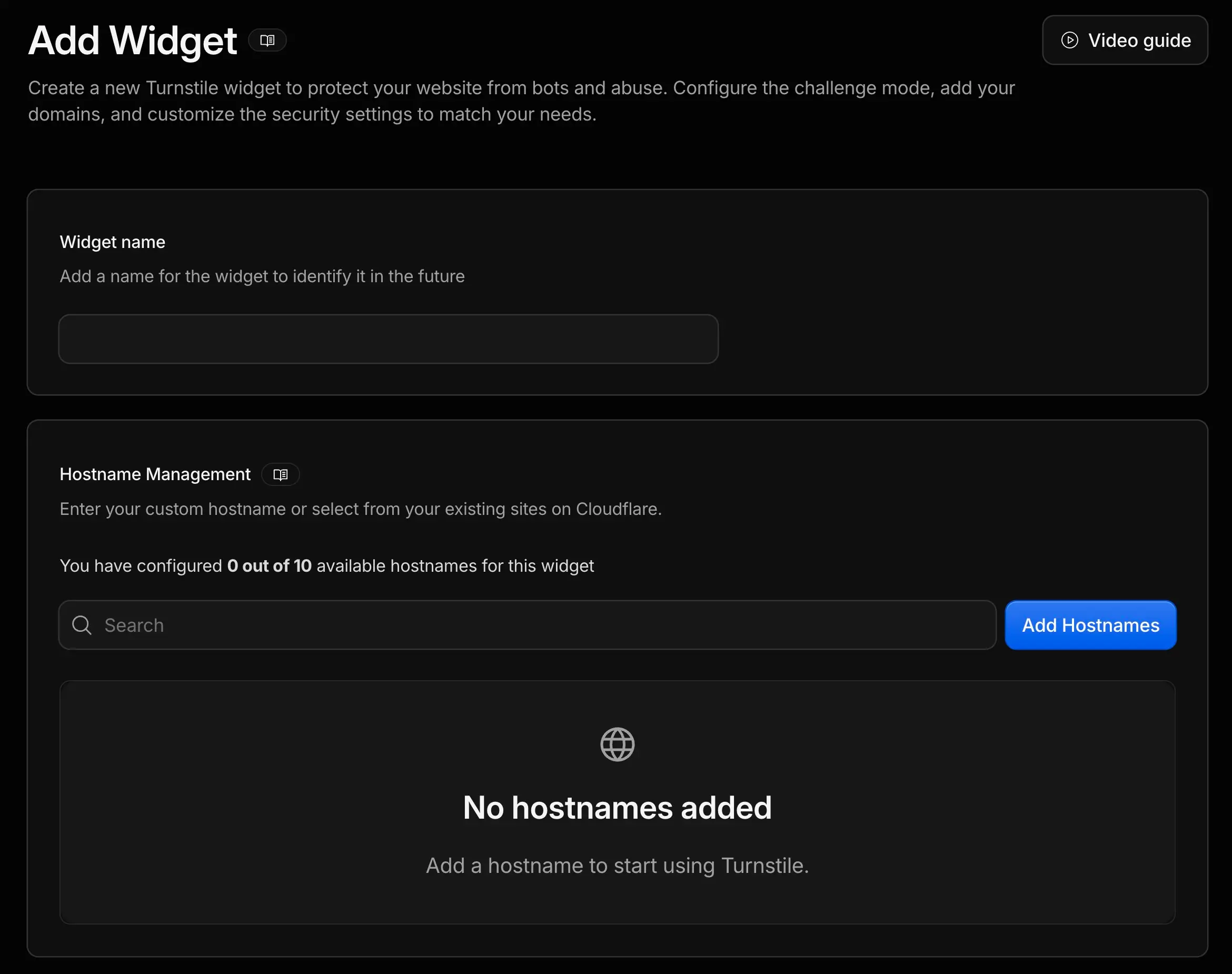
Sign in to the Cloudflare dashboard, open Turnstile from the sidebar, and click Add widget. Give the widget a name you will recognize later, then add your site’s domain under Hostname Management. If the domain is already a zone on your Cloudflare account it appears in the list. If it is not, type it into the field and add it as a custom hostname.
Cloudflare expects a bare, fully qualified domain name here and rejects anything else, so enter example.com and nothing more. These are the formats that will not be accepted:
- With a scheme.
https://example.comis invalid. Drop thehttp://orhttps://. - With a trailing slash or path.
example.com/andexample.com/contactare both invalid. - With a port.
example.com:443is invalid. - With a wildcard.
*.example.comis not supported, and you do not need it: addingexample.comautomatically authorizes its subdomains, includingwww.
Free accounts allow up to 10 hostnames per widget, which is plenty for a production domain plus a staging one.
Next, choose a widget mode. Managed is the recommended option: Cloudflare picks the verification method based on risk, so most visitors pass without doing anything. Non-interactive shows a short spinner, and Invisible runs with nothing on screen.
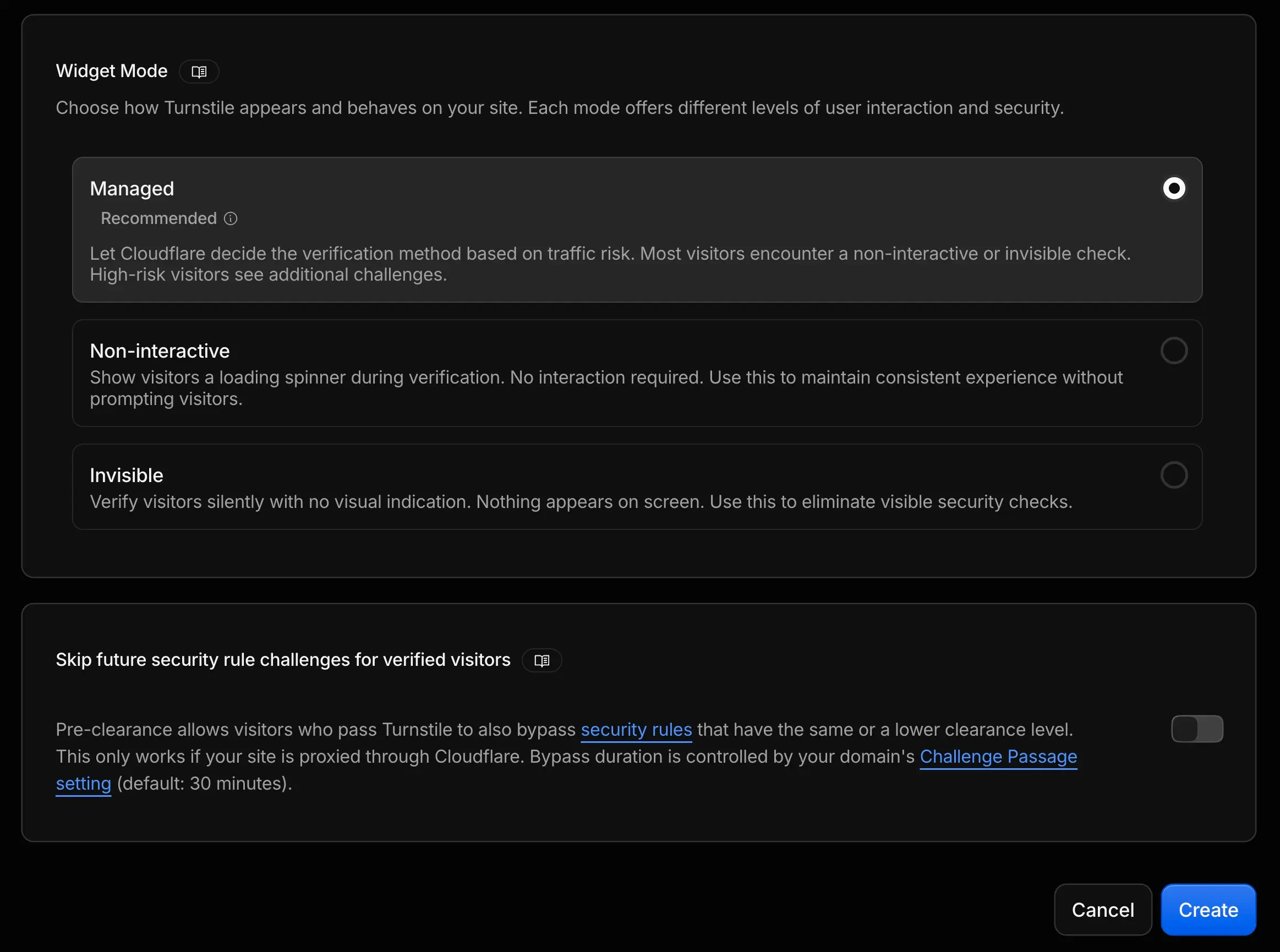
Click Create. Cloudflare immediately shows the two keys you came for.
- Site key is public. It renders the widget in the visitor’s browser.
- Secret key is private. Your server uses it to validate each response with Cloudflare.
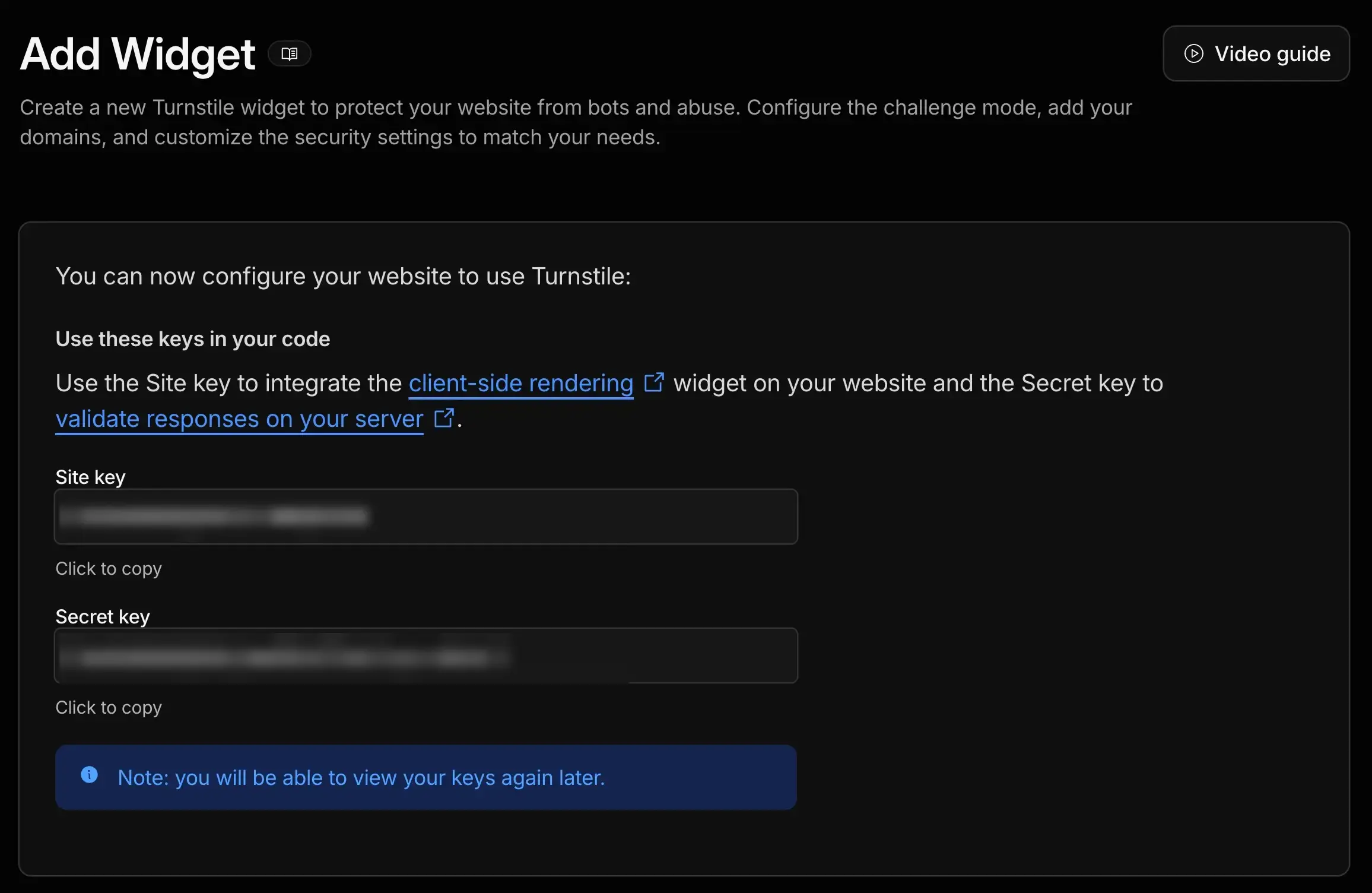
Copy both keys. If you close the screen, you can reopen the widget from the Turnstile list to view them again.
Treat the Secret key like a password: it belongs only on your server. Never paste it into page HTML, a public repository, or client-side JavaScript. Only the Site key is meant to be visible in the browser.
Step 2: Add the Keys to Contact Form 7
With both keys copied, the WordPress side takes under a minute. Contact Form 7 has a built-in Turnstile module, so there is nothing else to install.
In WordPress admin, go to Contact, then Integration. Find the Cloudflare Turnstile panel and click Setup Integration. Paste your Site key and Secret key into their fields and save.
That is the whole connection. Every contact form on your site now shows the Turnstile widget above its submit button and validates each submission before it sends, with no form-tag to add per form. For the official reference, see the Contact Form 7 Turnstile documentation.
Turnstile pairs well with your existing defenses. You can keep Akismet running on Contact Form 7 to filter message content while Turnstile blocks the bots that never reach a human.
Step 3: Test Your Form
Always confirm the connection with a live submission before you move on.
Open a page with a contact form in a private browser window. You should see the Turnstile widget appear before the submit button, or nothing at all if you chose Invisible mode. Send yourself a test message.
If the message arrives, the keys are working. If you get a validation error, check that the domain in the page URL matches the hostname you added to the widget in Step 1, since a mismatch is the most common cause.
Testing on a Local Site
Development domains such as mysite.local, mysite.test, and localhost are not public domain names, so Cloudflare will not let you add them under Hostname Management. That is deliberate, not a bug in the dashboard, and no amount of retyping will make them appear.
For local work, use Cloudflare’s testing keys instead. They are hardcoded dummy values that work on any hostname without a widget:
- Always passes. Site key
1x00000000000000000000AAwith Secret key1x0000000000000000000000000000000AA. - Always fails. Site key
2x00000000000000000000ABwith Secret key2x0000000000000000000000000000000AA. - Forces an interactive challenge. Site key
3x00000000000000000000FF, useful for checking how the widget looks when a visitor has to click.
Paste the passing pair into Contact Form 7 on your local install to confirm the widget renders and the form submits, then swap in your real keys on production. The full list is in the Cloudflare testing documentation.
FAQs
Common questions about setting up Cloudflare Turnstile with Contact Form 7:
Summary
Cloudflare Turnstile gives Contact Form 7 free, privacy-friendly spam protection without the friction of traditional CAPTCHAs.
The core of the job is getting your keys: create a Turnstile widget in the Cloudflare dashboard, add your domain, and copy the Site key and Secret key. Then paste them into Contact Form 7 under Contact, Integration, and save.
Keep the Secret key private, send yourself a test message to confirm it works, and your forms are protected.