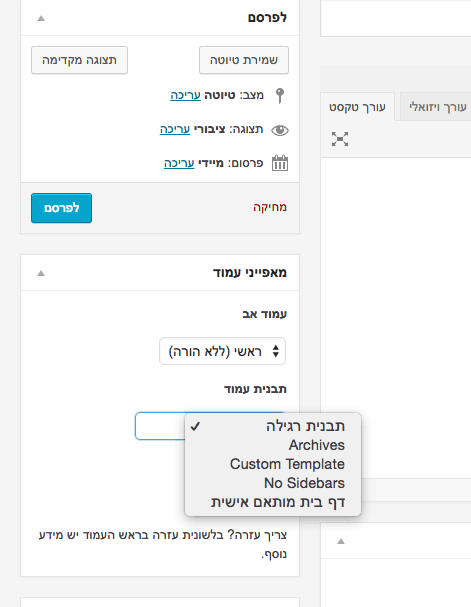
To create a custom page template as the homepage in WordPress, duplicate page.php from your theme’s main directory or create a new PHP file and add the following code at the top:
<?php /* Template Name: xxxxxx */ ?>
Replace xxxxxx with the name that will appear under “Page Attributes” when you create a new page.
Go to your WordPress admin panel, create a new page and select this template.
%22%20transform%3D%22translate(1.2%201.2)%20scale(2.3711)%22%20fill-opacity%3D%22.5%22%3E%3Cellipse%20fill%3D%22%23cacaca%22%20rx%3D%221%22%20ry%3D%221%22%20transform%3D%22matrix(-17.29584%20-32.61896%2035.40186%20-18.77144%20114.7%20195.7)%22%2F%3E%3Cellipse%20fill%3D%22%23c7c7c7%22%20cx%3D%223%22%20cy%3D%2286%22%20rx%3D%2242%22%20ry%3D%2223%22%2F%3E%3Cellipse%20fill%3D%22%23fff%22%20rx%3D%221%22%20ry%3D%221%22%20transform%3D%22rotate(-110.7%2090.2%20-20.1)%20scale(129.21869%2074.70396)%22%2F%3E%3Cellipse%20fill%3D%22%23fff%22%20cx%3D%2244%22%20cy%3D%22229%22%20rx%3D%2235%22%20ry%3D%22135%22%2F%3E%3C%2Fg%3E%3C%2Fsvg%3E "Custom homepage - WordPress")
After publishing the page, go to Settings > Reading in the WordPress admin.
%27%20fill-opacity%3D%27.5%27%3E%3Cellipse%20fill%3D%22%23ccc%22%20fill-opacity%3D%22.5%22%20rx%3D%221%22%20ry%3D%221%22%20transform%3D%22matrix(9.35521%2070.11404%20-96.09846%2012.82227%20187.6%20153.7)%22%2F%3E%3Cellipse%20fill%3D%22%23cbcbcb%22%20fill-opacity%3D%22.5%22%20rx%3D%221%22%20ry%3D%221%22%20transform%3D%22rotate(-90.6%20267.6%20-226.3)%20scale(73.00035%20139.14122)%22%2F%3E%3Cpath%20fill%3D%22%23fff%22%20fill-opacity%3D%22.5%22%20d%3D%22M569.5%20238l-321-270.5%2060.9%20344z%22%2F%3E%3Cellipse%20fill%3D%22%23fff%22%20fill-opacity%3D%22.5%22%20rx%3D%221%22%20ry%3D%221%22%20transform%3D%22matrix(-304.47242%20209.18673%20-42.6458%20-62.0712%2072.2%2052.8)%22%2F%3E%3C%2Fg%3E%3C%2Fsvg%3E "Custom homepage - WordPress")
Select your page as the homepage. That is it – you now have a custom homepage. See the post on WordPress page templates.
A few weeks ago I ran into a situation where a client wanted different text instead of the standard “Add to Cart” or “Add to Bag” in WooCommerce. Here is the code to add to functions.php to change the text:
add_filter( 'woocommerce_product_single_add_to_cart_text', 'woo_custom_cart_button_text' );

function woo_custom_cart_button_text() {
         return __( 'My Button Text', 'woocommerce' );
 }
This code aims to improve user experience. We often encounter situations where we click links without knowing where they lead. This code can improve UX by adding small icons next to links to show visitors that it is an external link – email, PDF file, image, etc.
/* external links */
a[href^="http://"]{
    padding-right: 20px;
    background: url(external.gif) no-repeat center right;
}

/* emails */
a[href^="mailto:"]{
    padding-right: 20px;
    background: url(email.png) no-repeat center right;
}

/* pdfs */
a[href$=".pdf"]{
    padding-right: 20px;
    background: url(pdf.png) no-repeat center right;
}
For more on link styling, see Styling External Links with CSS.
If you want to redirect all URLs on your site that contain www to the non-www version (e.g. http://www.my-domain.com to http://my-domain.com), add the following code to your .htaccess file:
RewriteEngine On
RewriteCond %{HTTP_HOST} ^www.(.*)$ [NC]
RewriteRule ^(.*)$ http://%1/$1 [R=301,L]
If you want to do the opposite – redirect non-www URLs to the www version – use this code:
RewriteEngine On
RewriteCond %{HTTP_HOST} !^www. [NC]
RewriteRule ^(.*)$ http://www.%{HTTP_HOST}/$1 [R=301,L]
Why do this?
- Prevents Google from treating these as two separate URLs (duplicate content).
- Prevents your page ranking from being split across two URLs.
- It is cleaner and more consistent.
Migrating a WordPress site to HTTPS is no small matter – see the guide Migrating to HTTPS on WordPress sites.
Tired of people using your bandwidth by linking to your images on their sites? This annoying phenomenon is called hotlinking. Prevent image hotlinking by adding the following code at the bottom of your .htaccess file and replace the domain name with yours:
RewriteEngine On
RewriteCond %{HTTP_REFERER} !^$
RewriteCond %{HTTP_REFERER} !^http://(www.)?example.com/.*$ [NC]
RewriteRule .(gif|jpg)$ http://www.example.com/hotlink.gif [R,L]
For more security tips, see Hardening WordPress Security.
A small snippet from the WordPress Codex that displays the time since a post was published.
Add the following code to your functions.php file:
/**
 * Display time since post was published
 *
 * @uses	human_time_diff()  Return time difference in easy to read format
 * @uses	get_the_time()  Get the time the post was published
 * @uses	current_time()  Get the current time
 *
 * @return	string  Timestamp since post was published
 *
 */
function get_time_since_posted() {

	$time_since_posted = 'Posted ' . human_time_diff( get_the_time( 'U' ), current_time( 'timestamp' ) ) . ' ago';

	return $time_since_posted;

}
Then add the function inside the loop where you want it:
echo get_time_since_posted();
For another useful post meta display, see Display Estimated Post Reading Time.
A simple function that sets the number of words returned when you call the the_excerpt function in WordPress. Add to functions.php and change the number on line 4 as needed.
function custom_excerpt_length( $length ) {
	return 40;
}
add_filter( 'excerpt_length', 'custom_excerpt_length', 999 );
This uses the excerpt_length filter hook. Learn more in WordPress Hooks Explained.
Gravity Forms is an excellent plugin for adding forms to your WordPress site. It lets you do this easily and quickly and includes many options for functional changes to forms.
For some reason, the plugin does not allow removing the Submit button from its forms, so if you want to use it and embed your own button you will need to remove the plugin’s default button. Add the following line to your functions.php file:
add_filter( 'gform_submit_button', '__return_false' );
For more form customization tips, see Restrict Free Emails in Forms.
By default WordPress allows adding HTML tags in comments such as outbound links, various tags, etc.
Comments do contain rel=nofollow on links automatically, but if you want to completely disable the ability to add any HTML in comments, add the following line to your functions.php file:
add_filter( 'pre_comment_content', 'esc_html' );
WordPress includes functionality that lets you track changes to posts and restore previous versions (Post Revisions). However, these increase the size of the wp_posts table in the database since each revision is another row.
To disable the revision saving functionality in WordPress, add the following line to your wp-config.php file:
define( 'WP_POST_REVISIONS', false);
Alternatively, if you only want to limit the number of revisions saved, add:
define( 'WP_POST_REVISIONS', X);
Replace X with the number of revisions you want to keep.