By default, WordPress does not allow all types of code in the WordPress content editor. For example, Inline SVGs contain many tags such as <def>, <rect>, etc. To allow Inline SVG, use the following code in functions.php:
function override_mce_options($initArray) {
    $opts = '*[*]';
    $initArray['valid_elements'] = $opts;
    $initArray['extended_valid_elements'] = $opts;
    return $initArray;
}
add_filter('tiny_mce_before_init', 'override_mce_options');
Note that this code allows any tag, whether SVG-related or not.
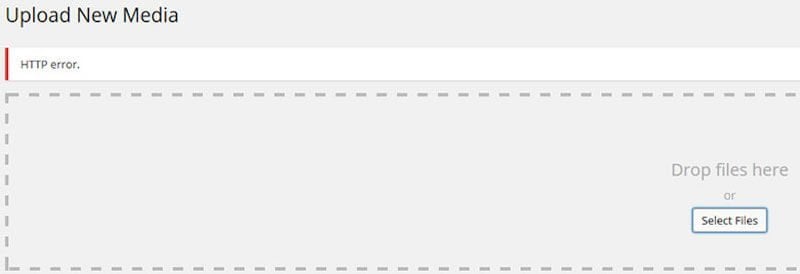
There are several situations where you may get an HTTP Error when trying to upload images to the WordPress media library:
- Problematic file name (special characters, etc.).
- File size exceeds what the server allows (upload_max_size).
- Insufficient PHP memory on the server.
- Insufficient storage space on the server.
%22%20transform%3D%22translate(1.6%201.6)%20scale(3.125)%22%20fill-opacity%3D%22.5%22%3E%3Cellipse%20fill%3D%22%23cdcdcd%22%20rx%3D%221%22%20ry%3D%221%22%20transform%3D%22matrix(5.36445%20-84.02774%2030.97831%201.9777%2021.2%2036.8)%22%2F%3E%3Cellipse%20fill%3D%22%23cecece%22%20rx%3D%221%22%20ry%3D%221%22%20transform%3D%22matrix(8.60206%2023.76292%20-50.36932%2018.23344%20226.6%2065.4)%22%2F%3E%3Cellipse%20fill%3D%22%23fff%22%20rx%3D%221%22%20ry%3D%221%22%20transform%3D%22matrix(-108.02883%2053.4278%20-21.45938%20-43.39%20156.4%2023.3)%22%2F%3E%3Cellipse%20fill%3D%22%23fff%22%20cx%3D%22118%22%20cy%3D%2234%22%20rx%3D%2266%22%20ry%3D%2266%22%2F%3E%3C%2Fg%3E%3C%2Fsvg%3E "Getting HTTP Error when uploading images in WordPress?")
HTTP error in WordPress media library.
Start by checking the file name and try reducing the file size. To increase memory, add the following code to the wp-config.php file in your site root:
define( 'WP_MEMORY_LIMIT', '256M' );
You can also do this via the .htaccess file, but if your hosting provider blocks this you may get a 500 Internal Server Error, so be careful and do not use this method if that is the case (simply remove the line).
php_value memory_limit 256M
If you have access to the php.ini file, you can do it with:
memory_limit = 256M
In some cases ModSecurity on the server can prevent you from uploading files. You can disable it via cPanel or try the following lines in .htaccess (disable if you get an error). Note that ModSecurity exists for good reason – securing your WordPress site:
<IfModule mod_security.c>SecFilterEngine Off
SecFilterScanPOST Off
</IfModule>
Here is a broader post on solving WordPress image upload issues.
The .gitignore file tells Git not to track certain files in the project. For WordPress, here is a recommended .gitignore file you can modify for your project. For more on the mu-plugins directory included in the file, see the linked guide.
# -----------------------------------------------------------------
# .gitignore for WordPress
# -----------------------------------------------------------------

# ignore everything in the root except the "wp-content" directory.
/*
!wp-content/

# ignore all files starting with .
.*

# track this file .gitignore (i.e. do NOT ignore it)
!.gitignore

# track .editorconfig file (i.e. do NOT ignore it)
!.editorconfig

# track readme.md in the root (i.e. do NOT ignore it)
!readme.md

# ignore all files that start with ~
~*

# ignore OS generated files
ehthumbs.db
Thumbs.db

# ignore Editor files
*.sublime-project
*.sublime-workspace
*.komodoproject

# ignore log files and databases
*.log
*.sql
*.sqlite

# ignore compiled files
*.com
*.class
*.dll
*.exe
*.o
*.so

# ignore packaged files
*.7z
*.dmg
*.gz
*.iso
*.jar
*.rar
*.tar
*.zip

# ignore everything in the "wp-content" directory, except:
# "mu-plugins" directory
# "plugins" directory
# "themes" directory
wp-content/*
!wp-content/mu-plugins/
!wp-content/plugins/
!wp-content/themes/

# ignore these plugins from the core
wp-content/plugins/hello.php
wp-content/plugins/akismet/

# ignore specific themes
wp-content/themes/twenty*/

# ignore node/grunt dependency directories
node_modules/
To add product weight on WooCommerce archive pages, right below the product title, add the following code to your child theme functions.php file or to a plugin such as Code Snippets that allows adding functions like this.
WooCommerce 3.0+
/**
 * Show product weight on archive pages
 */
add_action( 'woocommerce_after_shop_loop_item', 'savvy_show_weights', 9 );

function savvy_show_weights() {

    global $product;
    $weight = $product->get_weight();

    if ( $product->has_weight() ) {
        echo '<div class="product-meta"><span class="product-meta-label">Weight: </span>' . $weight . get_option('woocommerce_weight_unit') . '</div></br>';
    }
}
To add product dimensions on WooCommerce archive pages below the product title, add the following code to your child theme functions.php file or to a plugin such as Code Snippets.
WooCommerce 3.0+
/**
 * Show product dimensions on archive pages for WC 3+
 */
add_action( 'woocommerce_after_shop_loop_item', 'savvy_show_dimensions', 9 );

function savvy_show_dimensions() {
    global $product;
    $dimensions = wc_format_dimensions($product->get_dimensions(false));

        if ( $product->has_dimensions() ) {
                echo '<div class="product-meta"><span class="product-meta-label">Dimensions: </span>' . $dimensions . '</div>';
        }
}
WooCommerce below 3.0
/**
 * Show product dimensions on archive pages WC 3 and below
 */
add_action( 'woocommerce_after_shop_loop_item_title', 'wc_show_dimensions', 9 );

function wc_show_dimensions() {
	global $product;
	$dimensions = $product->get_dimensions();

        if ( ! empty( $dimensions ) ) {
                echo '<span class="dimensions">' . $dimensions . '</span>';
        }
}
To do this, add the following code to your functions.php file and change the CSS as needed. If you want to know the right way to add assets (CSS and JS files) to the WordPress admin, take a look at the post Loading scripts correctly in the WordPress admin.
function my_custom_fonts() {
    echo '<style>
    body {
      font-size: 12px;
    }
  </style>';
}

add_action('admin_head', 'my_custom_fonts');
If you want to display the post featured image in the RSS feed (essential if you use RSS for Mailchimp for example), add the following code to your functions.php file:
// Put post thumbnails into rss feed
function savvy_feed_post_thumbnail($content) {
    global $post;
    if(has_post_thumbnail($post->ID)) {
        $content = '' . $content;
    }
    return $content;
}
add_filter('the_excerpt_rss', 'savvy_feed_post_thumbnail');
add_filter('the_content_feed', 'savvy_feed_post_thumbnail');
The following filter lets you remove the WordPress admin toolbar. Add the code to your functions.php file:
add_filter('show_admin_bar', '__return_false');
This uses a WordPress filter. Learn more in WordPress Hooks Explained.
Here is an example of how to change the default PayPal icon on the WooCommerce checkout page. Live example:
<?php
/**
 * Add custom gateway icons
 *
 * @param  string $icon       Image HTML.
 * @param  string $gateway_id Gateway ID.
 *
 * @return string
 */
function custom_wc_gateway_icons( $icon, $gateway_id ) {
	// Example for PayPal:
	if ( 'paypal' == $gateway_id ) {
		$icon = '<img src="' . WC_HTTPS::force_https_url( 'http://your-site.com/image.png' ) . '" alt="' . __( 'PayPal' ) . '" />'
	}
	return $icon;
}
add_filter( 'woocommerce_gateway_icon', 'custom_wc_gateway_icons', 10, 2 );
For a complete WooCommerce setup guide, see Create a Virtual Store with WooCommerce.
To change the number of items on the WooCommerce orders page (on the front end), use the following code where X is the maximum number of items to display (functions.php):
function custom_my_account_orders( $args ) {
    $args['posts_per_page'] = X;
    return $args;
}
add_filter( 'woocommerce_my_account_my_orders_query', 'custom_my_account_orders', 10, 1 );
More on managing and handling orders in WooCommerce sites in the post Managing orders in WooCommerce.