I build WordPress sites from Figma files. For the past year, an AI agent has been reading those files directly and writing the first version of every page. How usable that first version is comes down to a few habits that cost nothing, and to a Figma feature called Code Connect.
The agent reads those files through the Figma MCP server. MCP stands for Model Context Protocol, which is a heavy name for a simple thing: a connector that lets an AI tool plug straight into another program and read from it. Figma provides one, so instead of me describing your design to the AI, the AI opens your file and looks around inside it.
And here’s what I learned fast. The quality of what comes out is decided in your file, before I type a single instruction.
Two files can look identical on screen and give me completely different results. One produces components that match your design system straight away. The other produces a slightly different button on every page, invented from scratch each time, because the AI had nothing to work with except a rectangle with a gold fill and rounded corners.
That’s almost never a design problem. It’s a preparation problem.
So this is the article I keep meaning to send designers at the start of a project. There’s nothing in it about designing better, only about the handful of things that decide whether the AI understands your file or guesses at it. I’ve written about my side of this workflow before, so consider this the other half.
Skip to the Code Connect walkthrough
What the AI Actually Sees When It Opens Your File
The AI doesn’t look at your design. It asks Figma for a list of layers and reads their settings, which is much closer to reading a spec sheet than looking at a photo.
So the thing you built is invisible to it. Only the thing you labeled comes through.
A real component with named properties arrives as exactly that. A group of shapes that happens to look like a button arrives as a group of shapes, and the AI has to work backwards from the geometry to figure out what you meant.
When it works backwards, it guesses. It guesses well, which is the annoying part, because the result looks roughly right and nobody notices the drift until page nine.
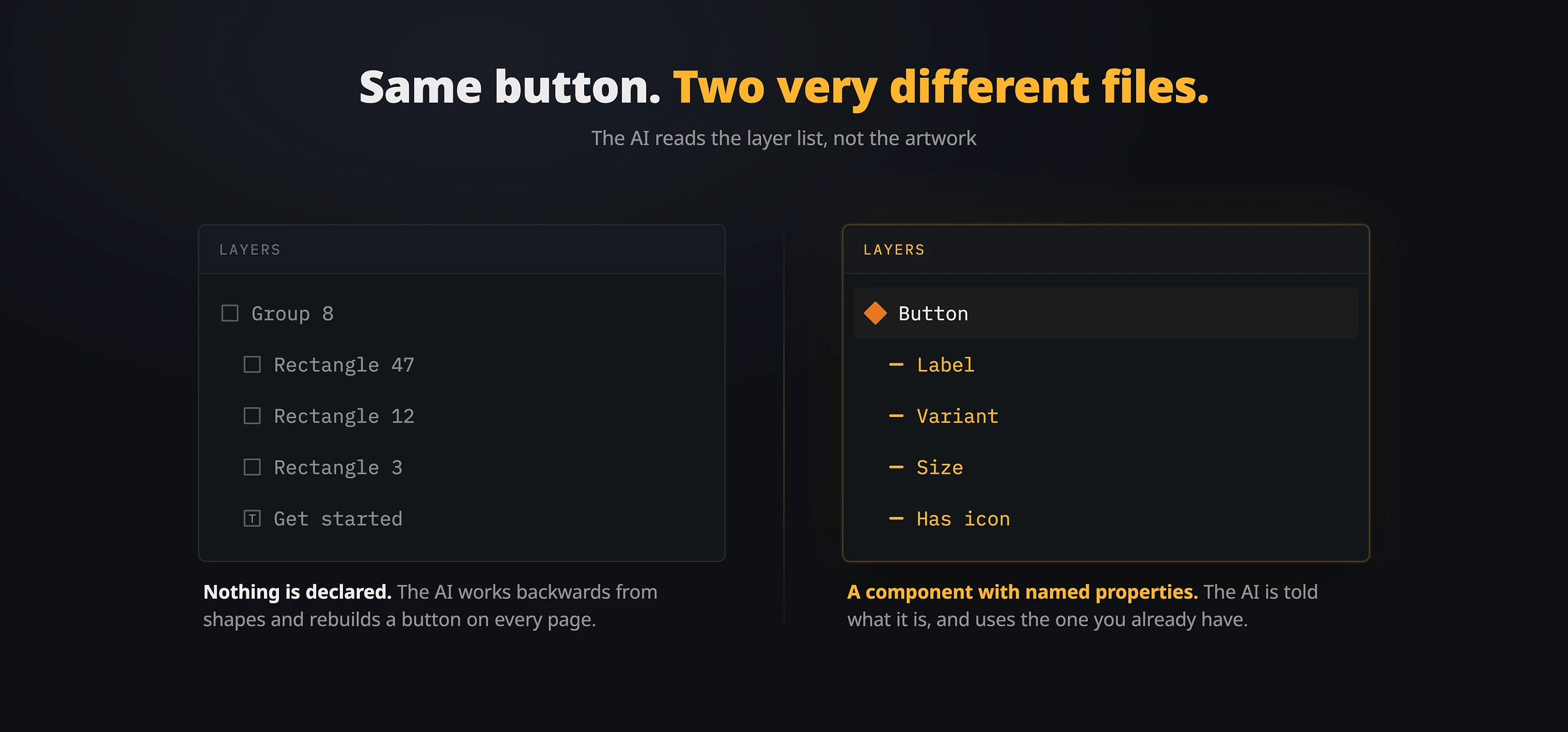
The same button in two files: an unnamed group of shapes, and a component whose properties the AI can actually read
An AI agent can only see what you declared, not what you drew. Published components, real properties and variables aren’t housekeeping. They’re the only way to tell it what something is instead of what it looks like.
Publish Your Library First
I keep getting beautiful files where the design system exists as a set of components sitting in someone’s working file that was never published.
From where I sit, that file has no design system in it at all. The AI sees loose copies with no library behind them and treats every one as a one-off.
The rule is simple: only components published to a team library can be connected to code. A component built inside a page file, however carefully, is invisible to everything I’m about to describe.
If you take one thing from this article, publish your library. The rest depends on it.
Use Real Component Properties, Not Hand-Edited Layers
Now the part designers skip most often.
Figma gives you five types of component property, and each one arrives on my side as a different kind of thing. Used deliberately, they let you write instructions for a developer without touching any code.
| Property type in Figma | What it becomes in code | Use it for |
|---|---|---|
| Text | A text setting | Labels, headings, placeholder copy |
| Boolean | An on/off switch | Showing or hiding an element |
| Variant | A fixed list of options | Size, style, status, state |
| Instance swap | A slot that accepts another component | An icon slot, an avatar slot |
| Slot | An open content area | A card body that can hold anything |
Here’s the practical test. If you’re detaching a copy to change something, or hiding a layer by hand instead of flipping a property, that decision is invisible. It reaches me as a difference in shapes, and the AI will either ignore it or bake it into that one page and nowhere else.
Instance swap is worth calling out on its own. When an icon sits in a proper swap property, the code that gets built accepts any icon. When it’s just a layer someone renamed, the code goes looking for that one icon by name and quietly breaks the first time anyone swaps it.
Name Your Variants Like a Developer Would
Somebody has to decide that your “Large” is the code’s lg, and that your “Type: Filled” is the code’s solid. That decision gets written down once, and every component the AI builds inherits it.
When your variant names already read like settings, the translation is obvious and nobody has to think about it. When they read like adjectives picked at different times by different people, someone makes a judgment call, and it’s usually whoever knows the design least.
| Naming that creates work | Naming that translates cleanly |
|---|---|
| Style: Main / Alt / Quiet | Variant: Primary / Secondary / Ghost |
| Size: Big / Normal / Tiny | Size: Small / Medium / Large |
| A separate component for each state | State as a variant on one component |
| “Icon?” on one component, “Show icon” on another | The same property name everywhere it appears |
Being consistent across your library matters more than the exact words you pick. If everything calls the same idea by the same name, the translation is mechanical, and every component that disagrees turns into its own small negotiation.
Code Connect: The Part That Ends the Guessing
Everything so far makes your file readable. Code Connect is what stops the AI inventing anything at all.
A Code Connect mapping is a small note attached to a published component that says: this component in the design is that component in the code. It holds three things.
- Where the code component lives, like
src/components/Button.tsx, which is just a file name with its folders in front of it - What it’s called in code, like
Button - Which technology the mapping is for, like React
Once that note exists, the AI stops receiving a description of a rectangle and starts receiving the actual name and location of the button it’s supposed to use. There’s nothing left for it to rebuild.
Figma tested this in August 2026. With Code Connect switched on, the AI finished tasks 19.6% faster and the quality of the code went up by a full point on a four-point scale. It also used 29.5% fewer tokens, which here means the AI’s own workload, nothing to do with design tokens.
Without Code Connect, the agent would sometimes fabricate its own version of components: say, build a stepper out of progress bars. With it, the agent sees accurate representations of the design as code […] so the output code quality vastly improved and we saved tokens at the same time.
Erich Kuerschner, Frontend Engineer at Coinbase, quoted in Better Code, Fewer Tokens
A stepper built out of progress bars is exactly the failure I keep describing, so it’s oddly reassuring that a team at Coinbase hit the same wall. Their fix was the same as mine: point the AI at the real components by name instead of letting it improvise.
The number I care about most isn’t in the headline, though. In those tests, Code Connect only covered somewhere between 6% and 20% of what the AI was working from. That small a share got that result, which is my answer whenever someone tells me they don’t have time to map a whole library.
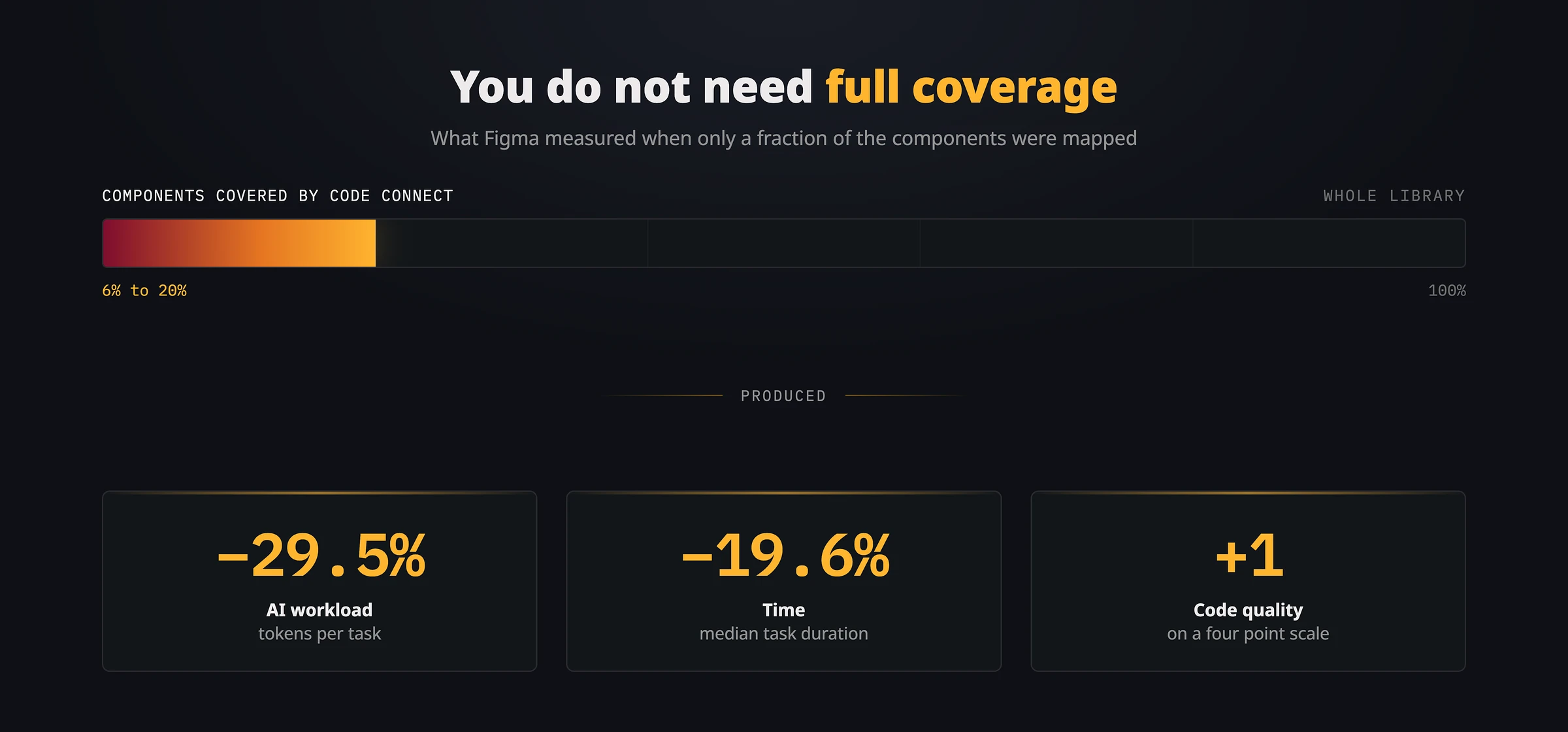
Figma’s own measurements: coverage in the single digits still moved every number
How to Create a Mapping Yourself
You can do this alone. No developer, no terminal, no access to the code.
Open your published library file and switch to Dev Mode from the toolbar. Then open the dropdown next to the file name and choose Library, followed by “Connect components to code.” You’ll get a list of every published component in the library, with a search box and filters if there are a lot of them. Choose one and fill in two fields.
- Source, which is the file path on your developer’s side, something like
src/components/Button/Button.tsx - Component name, which is optional. Leave it empty and Figma works it out from the design component name
Save it, and it’s live straight away. Nothing to publish, nothing to wait for.
There’s also a settings icon that links Figma to wherever your developers keep their code, which for most teams is GitHub. All it does is suggest file paths while you type and let you look through the folders. It’s convenient, and it’s entirely optional. Ask your developer for a list of paths once, paste them in by hand, and you can map the whole library without it.
That request takes your developer about five minutes and saves both of you weeks of small corrections.
Write Down the Rules You Keep Repeating
Every connected component has an “Add instructions for MCP” option, and I think it’s the most ignored field in Figma.
It’s a plain text box, and whatever you write there gets handed to the AI along with the mapping. Everything you know about a component that isn’t visible in the design belongs here: the usage rules, the accessibility requirements, and especially that one mistake you’ve now corrected in four separate design reviews.
The catch is that vague instructions do nothing at all.
| Does nothing | Changes what gets built |
|---|---|
| Use this button for actions. | Never put more than one primary button on a screen. Secondary actions use the ghost variant. |
| Make sure it’s accessible. | Icon-only buttons need a text label for screen readers. |
| This is our card component. | Cards are never clickable. If a design shows a whole card as a link, ask me before building it. |
Write it down once, in the place the AI actually reads, and stop leaving that comment in reviews. No code involved, and it’s the only point in this whole process where your judgment reaches the build directly.
What to Map First
Nobody’s asking you for full coverage. Work down this list and stop when the guessing stops. If you skip Code Connect entirely, you end up doing it by hand: on the GN Law rebuild I tracked node IDs in commit messages instead, which works and does not scale.
- Buttons and links. They appear more than anything else, and they’re what AI reinvents most reliably
- Form fields. Text inputs, dropdowns, checkboxes. Every wrong version here is an accessibility problem
- Layout pieces. Cards, containers, grids. These decide whether the page structure matches yours or fights it
- Icons. One mapping usually covers the whole set and ends the invented-icon problem
- Anything with a rule attached. If people keep misusing a component, map it and write the rule into the instructions field
Skip the one-off marketing pieces, anything you’re mid-redesign on, and any component where you’re not sure which code component it matches. A missing mapping makes the AI guess, and a wrong mapping makes it confidently wrong, which takes far longer to find.
One more thing worth knowing: a mapping points at a file path and a component name, and it doesn’t track what happens to either. When your developer moves or renames that component, the mapping quietly goes stale and the AI carries on trusting it. Figma’s own advice is to update the mapping whenever the component changes in the code.
It runs the other way too. If you rename or delete a mapped component in Figma, tell your developer, because nothing will warn them.
The Checklist I Send Designers
This is what I check before pointing an AI at a file, and the first thing I read when a file arrives for a Figma to WordPress build. It’s short on purpose.
- The component library is published to a team library
- Colors, spacing and type sizes are variables, not typed-in values
- Containers use auto layout
- States and sizes are variants, not separate components
- Text, on/off toggles and icon slots are real properties, not hand-edited layers
- Property names are consistent across the whole library
- Nothing important is a detached copy
- Your main components have Code Connect mappings
- Mapped components carry instructions describing how they should actually be used
The first seven cost nothing but attention. Before you plan the last two, check one thing with whoever pays your Figma bill.
Code Connect needs a Dev or Full seat on an Organization or Enterprise plan. It isn’t available on Free or Professional, and there’s no way around that. Everything else on the checklist still applies, so do all of it. Your developer can write the component rules on their side instead.
FAQs
The questions designers ask me most often when this comes up.
Summary
An AI building from your Figma file isn’t looking at your design. It’s reading what you labeled, and every gap you leave gets filled with a guess.
Most of the fix costs nothing but attention. Publish your library, use real component properties instead of hand-edited layers, and name your variants the way a developer would. That work pays off whether or not anyone ever sets up Code Connect, which is why I’d start there even on a project that can’t afford the seats.
Then add the mappings. Buttons, form fields and layout pieces first, and write your real usage rules into the instructions field while you’re in there. Figma’s own numbers say you don’t need many before it shows, and that matches what I see on my own projects.
And when you sit down to do it, Figma’s setup guide for Code Connect in the UI walks through the same screens in order, so keep it open in a second tab.