High-Performance Order Storage (HPOS), previously called Custom Order Tables, is a WooCommerce feature that stores order data in dedicated database tables instead of the default WordPress _posts and _postmeta.
HPOS was introduced in WooCommerce 8.2 (October 2023) and is now the stable default for all new installations. Existing stores can opt in at any time; legacy storage remains available but is not receiving future feature development.
This update makes WooCommerce faster, more scalable, and easier to manage, especially for stores with lots of orders.
If you’re just starting to build your store, check out our full guide on how to create an online store with WooCommerce.
Why Switch to HPOS?
WooCommerce has historically saved orders as “posts” in the WordPress database, which isn’t ideal for stores with thousands of orders. HPOS solves this by separating order data into optimized tables designed just for WooCommerce. The main benefits include:
- Speed – HPOS improves checkout and admin performance by reducing database load.
- Scalability – Handles more orders without slowing down the site.
- Stability – Less risk of data conflicts and easier backups.
- Cleaner structure – Developers can work with structured data instead of overloaded meta tables.
Who Should Use HPOS?
HPOS is suitable for stores of all sizes. While high-volume stores benefit the most, even small shops can enjoy faster performance. If you run a WooCommerce store and your plugins are compatible, you should consider enabling it.
How to Enable HPOS in WooCommerce
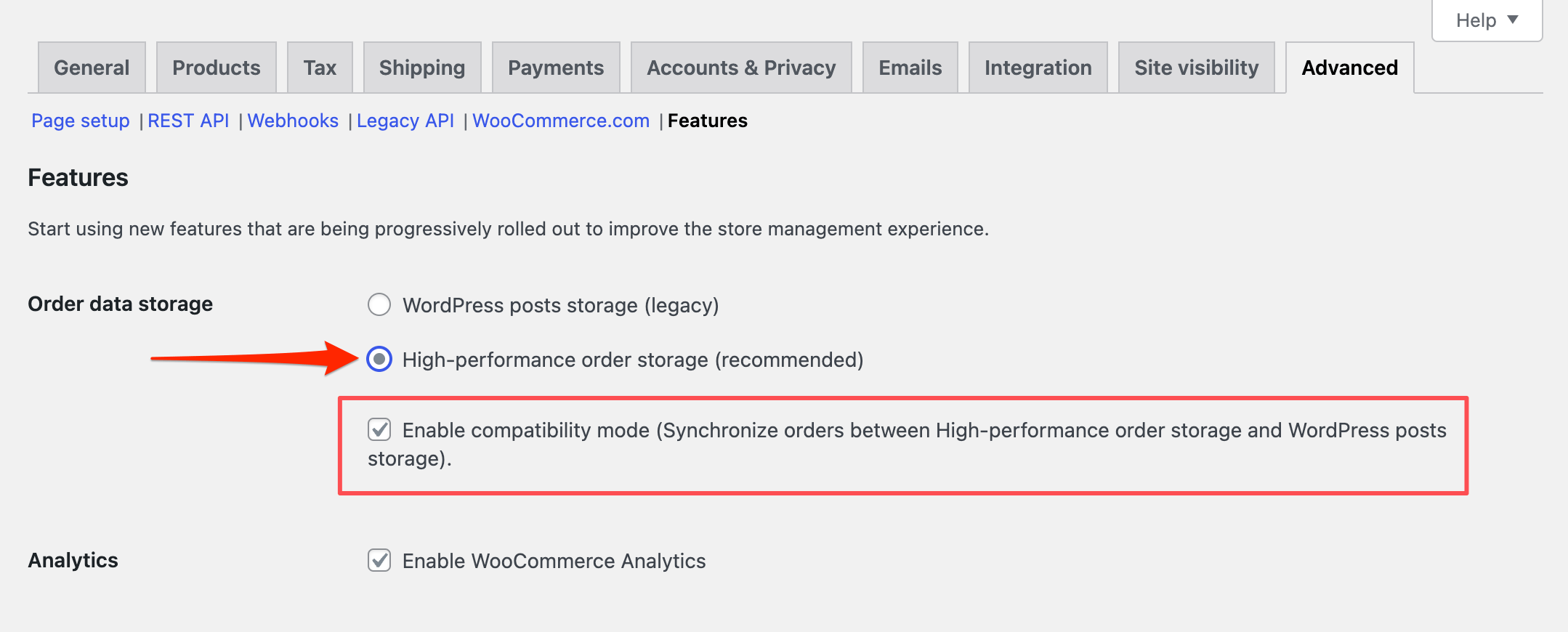
HPOS is enabled by default on new WooCommerce installations (version 8.2 and above). For existing stores, follow these steps:
- In your WordPress dashboard, go to WooCommerce > Settings > Advanced > Features.
- Check the box labeled Enable compatibility mode. This ensures data is synchronized between the old and new systems.
- WooCommerce will automatically begin syncing orders in the background. You can wait, or manually run the sync under WooCommerce > Status > Scheduled Actions.
- Once syncing is complete, return to the Features screen and choose High-performance order storage as your active method.
Important Notes Before Migrating
Before you enable HPOS, make sure all your critical plugins-especially ones that handle orders like Subscriptions or Bookings-are active.
If they’re disabled during migration, WooCommerce may not sync their order data correctly, which could lead to missing or broken order records.
How to Avoid Problems
- Do not disable important plugins before enabling HPOS.
- If you already activated HPOS and noticed issues, switch back to the legacy system, let WooCommerce re-sync the orders, then try again.
- Always back up your site before making structural database changes.
What If a Plugin Isn’t Compatible?
If a plugin you’re using doesn’t support HPOS yet, WooCommerce will grey out the HPOS option until the plugin is updated. You’ll see a warning about incompatible extensions in the settings screen, with a direct link to view and manage those plugins. You can also visit:
https://yourdomain.com/wp-admin/plugins.php?plugin_status=incompatible_with_feature&feature_id=custom_order_tablesIn the meantime, you can continue using legacy order storage. It’s also a good idea to contact the plugin developer and ask them to support HPOS.
Switching Back to Legacy Storage
You can revert to the old system if needed. Go to WooCommerce > Settings > Advanced > Features and choose WordPress posts storage (legacy). If compatibility mode is off, re-enable it to sync the data again.
How Synchronization Works
When compatibility mode is enabled, WooCommerce keeps the legacy and HPOS tables in sync. You can safely test HPOS while keeping a copy of all data in the old structure. After verifying everything works, you can disable compatibility mode and run your store fully on HPOS.
The following tables are used by HPOS. If you extend WooCommerce with custom code, always access order data through the WooCommerce Orders API and WooCommerce hooks rather than querying these tables directly, keeping your code compatible regardless of which storage mode is active.
_wc_orders_wc_order_addresses_wc_order_operational_data_wc_orders_meta
Frequently Asked Questions
Here are some of the most common questions users have about High-Performance Order Storage and what you need to know before switching.
Final Thoughts
HPOS is a solid infrastructure upgrade for WooCommerce. It gives your store faster admin, cleaner database tables, and more room to scale. Personally, I’d treat the plugin compatibility check as the only real blocker. If everything passes, back up your site and make the switch.
If you’re also looking to optimize your store beyond order storage, a well-configured WooCommerce inventory management setup pairs well with HPOS as a foundation for high-performance stores.
You can also refer to the official WooCommerce HPOS documentation for more technical details.