A 404 error occurs when a user requests a page that doesn’t exist on your WordPress site. While some 404s are normal, a surge in them often signals something is wrong – whether it’s a broken permalink, deleted post, or misconfigured plugin.
Understanding what causes 404 errors is the first step in preventing them from harming your SEO, user experience, and server load.
1. Broken Permalinks
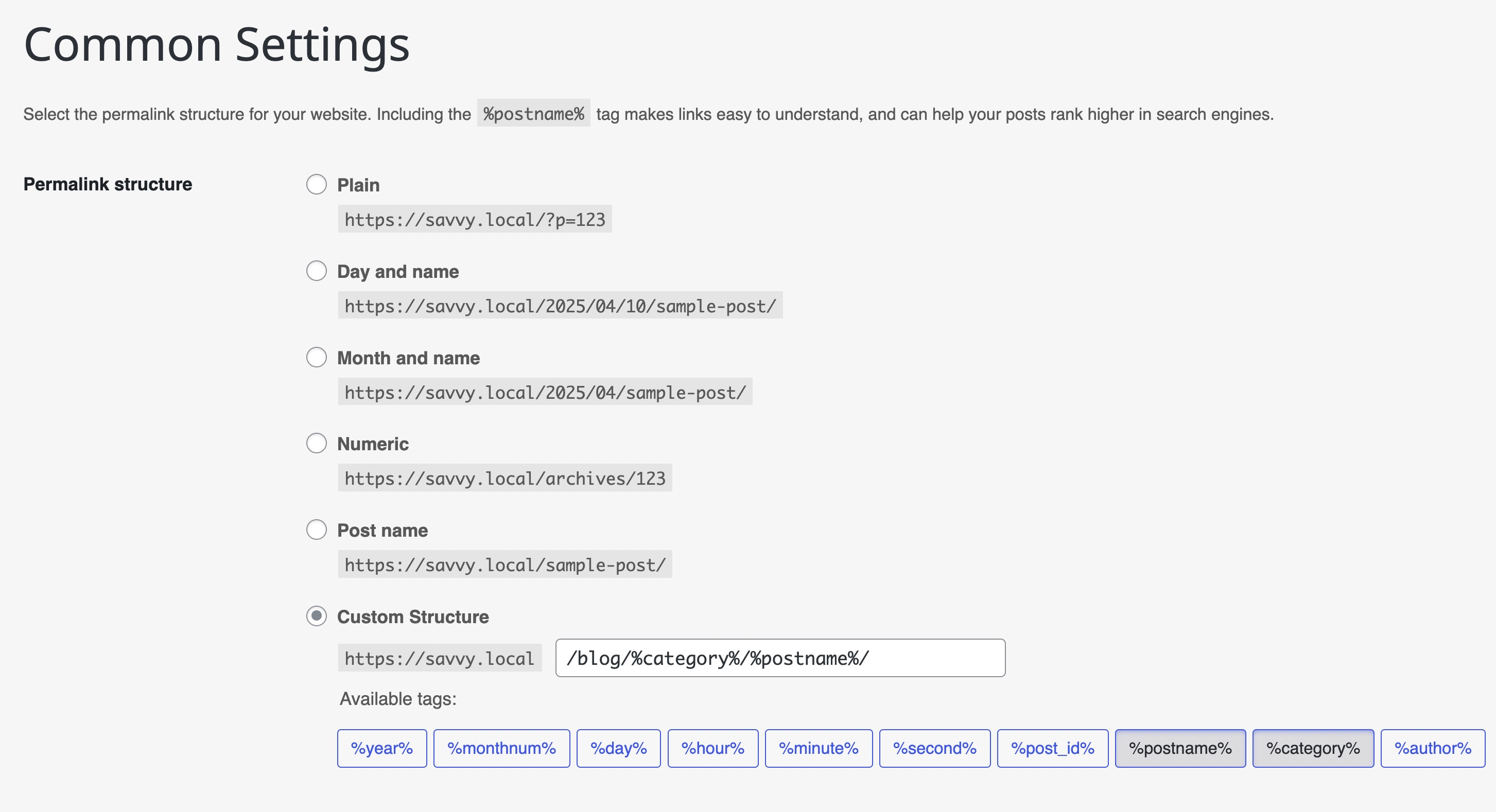
This is one of the most common reasons WordPress sites start showing 404 errors. If your permalinks are misconfigured or not updated properly after plugin/theme changes, WordPress may fail to resolve URLs correctly.
Solution: Go to Settings -> Permalinks and click “Save Changes” to flush rewrite rules. You can also use WP-CLI: wp rewrite flush --hard to regenerate both the database rewrite rules and the .htaccess file.
2. Deleted or Moved Content
When you delete a page, post, or product but external links or bookmarks still point to it, visitors will land on a 404 page. The same happens if you change a URL slug without setting up a redirect.
Solution: Set up a 301 redirect from the old URL to the new one. Use a plugin like Redirection or Rank Math, or edit .htaccess directly if you are comfortable with it.
3. Typos in Links (Internal or External)
It only takes a single misplaced character in a link to send users to a page that doesn’t exist. These errors can appear in menus, buttons, footers, or even theme files.
Solution: Use a link checker plugin or an SEO crawler like Screaming Frog to scan your site for broken internal links. Fix them at the source rather than relying on redirects.
4. Custom Post Types Without Rewrite Rules
If you are using a custom post type (e.g. portfolios, testimonials) and it is not registered with the proper 'rewrite' => true argument in register_post_type(), you may get 404s when accessing those pages.
Solution: Ensure that your custom post types are registered correctly and flush rewrite rules (just like in scenario #1). This also applies to custom taxonomies.
5. Conflicts with Plugins or Themes
Some plugins – especially ones that deal with SEO, multilingual content, or redirects – can interfere with WordPress rewrite rules or URL handling, resulting in unexpected 404s.
Solution: Deactivate plugins one by one to isolate the issue, and check if the 404 disappears. Use WP_DEBUG to log errors and identify the conflicting plugin.
6. Caching Issues
Browser cache, server-side caching, or CDN caching (like Cloudflare) may serve outdated pages or redirect loops, resulting in users seeing 404s even when the content exists.
Solution: Clear your site cache, object cache, and CDN cache. Ask users to refresh with Ctrl + F5 if needed. If you recently changed URLs or permalink structure, purge all cache layers before testing.
7. Multilingual or Polylang Issues
If you are using Polylang or WPML, 404s may appear when translated pages are missing, unlinked, or the language switcher points to an incorrect slug.
Solution: Ensure all translations exist and are connected properly. Re-sync permalinks for all languages if needed.
8. .htaccess File Corruption
A corrupted or missing .htaccess file can break your site’s URL structure entirely, causing all permalinks to return 404 errors – even your homepage.
Solution: Restore the default WordPress .htaccess content:
# BEGIN WordPress
<IfModule mod_rewrite.c>
RewriteEngine On
RewriteBase /
RewriteRule ^index.php$ - [L]
RewriteCond %{REQUEST_FILENAME} !-f
RewriteCond %{REQUEST_FILENAME} !-d
RewriteRule . /index.php [L]
</IfModule>
# END WordPress
If you are using Nginx instead of Apache, there is no .htaccess file. Instead, make sure your Nginx server block includes the proper try_files directive: try_files $uri $uri/ /index.php?$args;
9. Incorrect Domain or URL Settings
In some cases, your site URLs (under Settings -> General) may not match the actual domain or subdirectory structure, leading to broken internal paths and 404s.
Solution: Make sure your WordPress Address (URL) and Site Address (URL) are correct, especially after migration or SSL changes.

10. Site Migration Without Proper Redirects
Migrating your WordPress site to a new domain, new hosting, or from a subdirectory to the root can cause widespread 404 errors if URLs change and redirects are not set up.
Solution: Before migrating, export a full list of your existing URLs. After migration, set up 301 redirects for any URLs that changed. Use Search and Replace tools to update internal links in the database, and flush rewrite rules on the new server.
11. Soft 404 Errors
A soft 404 occurs when a page returns a 200 (OK) HTTP status code but displays content that looks like an error page. Google Search Console flags these because they waste crawl budget and confuse search engines.
Common causes include empty category or tag archive pages, thin placeholder pages, and custom 404 templates that incorrectly return a 200 status code.
Solution: Ensure your custom 404 page returns a proper 404 HTTP status code. For empty archives, either add content, noindex them, or return a proper 404. Check Google Search Console under Pages -> Not indexed -> Soft 404 to find affected URLs.
How to Monitor 404 Errors
Regularly monitoring your 404 errors helps you catch issues before they impact SEO and user experience:
- Google Search Console: Check the Pages report under Indexing for crawl errors, 404s, and soft 404s. This is the most reliable source since it shows what Googlebot actually encounters.
- Security/SEO plugins: Plugins like Wordfence, Rank Math, and Redirection log 404 hits in real-time, showing you which URLs are being requested and how often.
- Server logs: For advanced users, your server’s access logs contain every 404 response. Tools like GoAccess can help visualize this data.
Fixing the root cause of a 404 is better than masking it. Redirects help, but a technically clean site structure is even better.
FAQs
Common questions about WordPress 404 errors:
Summary
404 errors are part of every website’s life, but when they start piling up, it is time to investigate. By understanding the most common causes, you can fix and prevent them more efficiently – improving SEO, UX, and even server performance.