AI tools like ChatGPT, Perplexity, and Claude are sending real traffic to websites. The problem is that Google Analytics 4 doesn’t separate these visits from generic referrals or direct traffic, making them essentially invisible.
Here’s how to identify AI referral traffic in GA4 using custom channel groups and regex patterns. You’ll learn which AI platforms send traffic, what the current limitations are, and how to build a reporting workflow around this data. This guide is part of my AEO checklist for WordPress.
Why AI Traffic Gets Lost in GA4
GA4’s default channel definitions were built for a world of search engines, social platforms, and email campaigns. AI tools don’t fit neatly into any of those categories.
When a user asks ChatGPT a question and clicks a link in the response, the traffic arrives with a referrer like chatgpt.com. GA4 lumps it into the generic “Referral” channel alongside Reddit, forums, and random backlinks.
It gets worse. When users copy a URL from an AI response and paste it into a new browser tab, there’s no referrer at all. GA4 classifies these visits as “Direct.”
AI referral traffic grew from 0.02% to roughly 1% of total web traffic in 2025 – a significant increase year-over-year. ChatGPT alone accounts for nearly 80% of all AI referrals. If you’re not tracking this separately, you’re flying blind on a fast-growing channel.
This matters for anyone investing in Generative Engine Optimization (GEO) or optimizing for AI citations. If you can’t measure AI traffic, you can’t prove the ROI.
Which AI Platforms Send Referral Traffic?
Not all AI tools handle referrals the same way. Here’s a breakdown of the major platforms and how they appear in GA4:
| Platform | Referrer Domain | Traffic Share (2025) |
|---|---|---|
| ChatGPT | chatgpt.com, chat.openai.com | ~78-87% |
| Perplexity | perplexity.ai | ~15% |
| Google Gemini | gemini.google.com | ~6% |
| Microsoft Copilot | copilot.microsoft.com | <1% |
| Claude | claude.ai | <1% |
ChatGPT dominates AI referrals by a wide margin. Perplexity is second, largely because it includes clickable source citations by default.
Google AI Overviews is a notable exception. Traffic from AI Overviews shows up as google / organic in GA4, which means you cannot separate it from regular Google search traffic using standard methods.
How to Track AI Traffic with a Custom Channel Group
The most effective way to track AI traffic is by creating a Custom Channel Group in GA4. This adds an “AI” channel alongside your existing channels (Organic Search, Referral, Direct) in all acquisition reports.
The best part: custom channel groups apply retroactively to historical data. You’ll see past AI traffic properly categorized as soon as the channel is created.
Step 1 – Open Channel Groups Settings
Go to Admin (gear icon) in GA4. In the Property column, find Data display and click Channel groups.
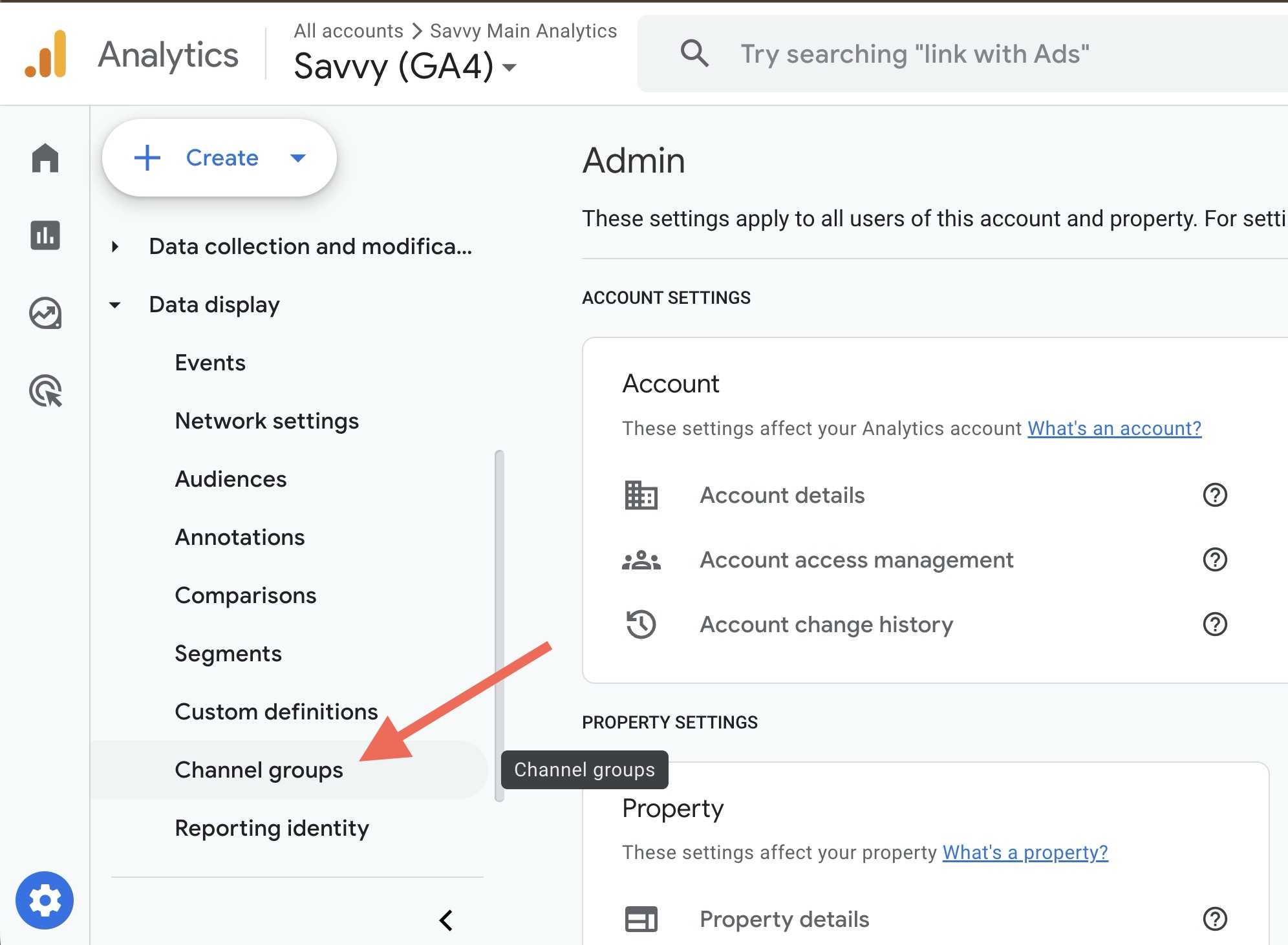
Create Custom Channel Group
Click Create new channel group. Give it a descriptive name, like “Channels with AI” or “Custom Channels 2026.”
Step 2 – Add the AI Channel
Click Add new channel and name it “AI” or “AI Search.”
Under Channel definition, click Add condition group. Set the first dropdown to Source, set the operator to matches regex, and paste this pattern:
chatgpt.com|chat.openai.com|perplexity.ai|claude.ai|gemini.google.com|copilot.microsoft.com|edgeservices.bing.comThis regex captures traffic from ChatGPT, Perplexity, Claude, Gemini, and Microsoft Copilot in a single rule.
Step 3 – Order Your Channels Correctly
This is the most important step. GA4 evaluates channel rules from top to bottom. If “Referral” appears above your AI channel in the list, all AI traffic will match the Referral rule first and your AI channel will never trigger.
GA4 processes channel rules in order. If your AI channel is listed below Referral, it will never match any traffic. Always place AI above Referral in the channel list.
Click the Reorder button at the top of the Channel list. Drag your “AI Search” channel above “Referral” and click Apply and then click Save Group.
Step 4 – Validate the Setup
Navigate to Reports > Acquisition > Traffic acquisition. At the top of the data table, switch the dropdown from “Default channel group” to your new custom channel group.
Look for the “AI” channel. If it shows sessions, the setup works. If it shows 0 sessions and you still see chatgpt.com traffic under Referral, your channel order is wrong – move AI above Referral.
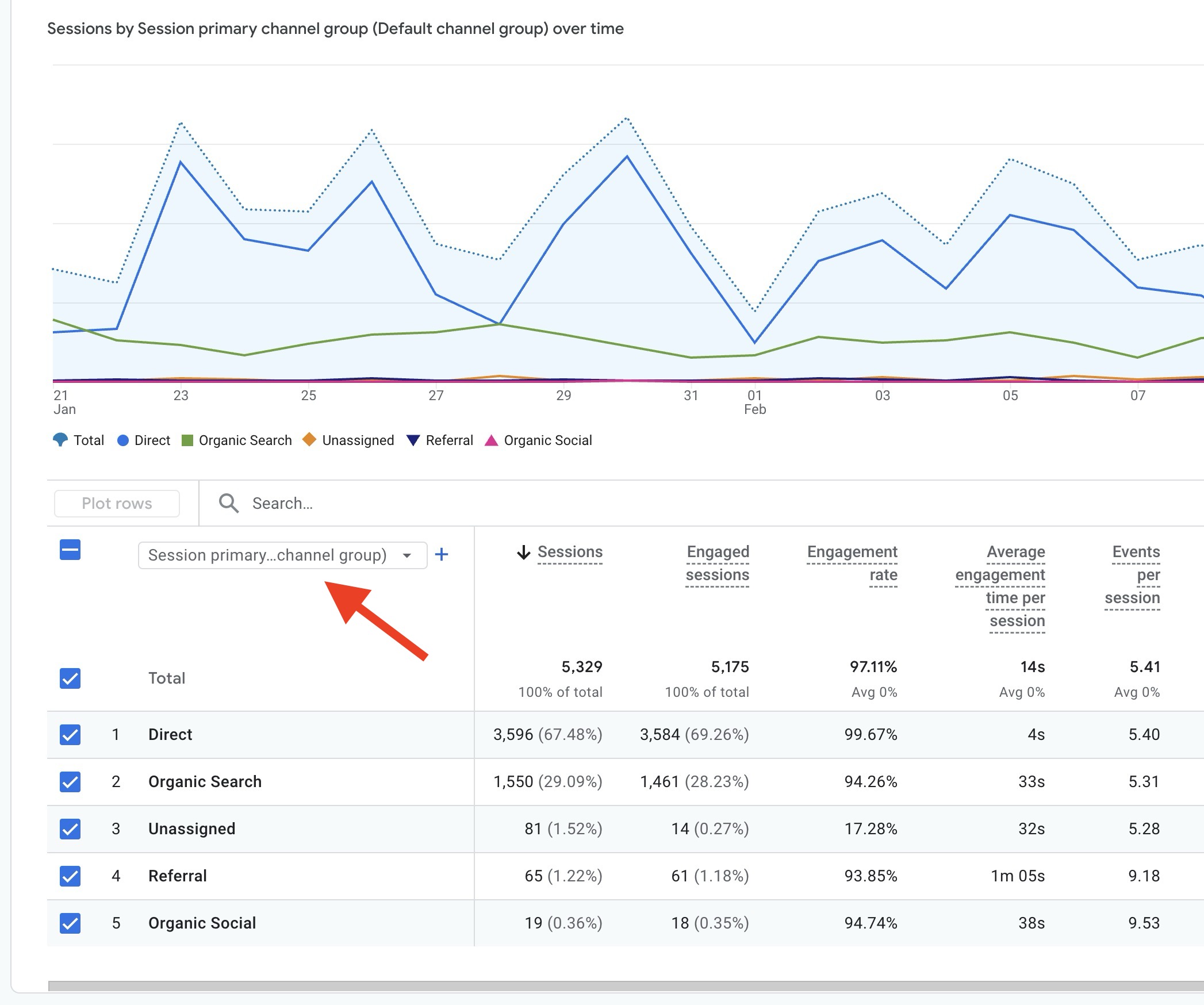
Session Primary Channel Group – GA4

Sessions Channels with AI – GA4
How to Verify AI Traffic in GA4 Explorations
If you want to analyze AI traffic without creating a permanent channel group, use GA4 Explorations.
Go to Explore in the left sidebar and create a new Free Form exploration. Add Session source / medium as a dimension and Sessions as a metric.
Apply a filter on Session source with “matches regex” and use this pattern:
chatgpt.com|openai.com|perplexity.ai|claude.ai|gemini.google.com|copilot.microsoft.comThis gives you a focused report showing only AI-referred sessions. Add dimensions like Landing page to see which pages attract AI traffic, or Key events (see our guide to GA4 events) to measure conversions from AI visitors.
Explorations are private by default, but you can share them with your team.
What You Can’t Track – The “Dark AI” Problem
Even with a perfect setup, you won’t capture all AI-driven traffic.
When users copy a URL from ChatGPT or Perplexity and paste it into a new browser tab, the visit arrives without any referrer data. GA4 classifies it as “Direct” and there’s nothing you can do about it.
Mobile apps add another layer. Links opened from AI apps often pass through webviews that strip referrer headers entirely.
The AI traffic you see in GA4 represents a minimum baseline, not the full picture. The actual number of users arriving through AI tools is likely higher than what your reports show.
There’s also the summarization problem. When an AI tool answers a user’s question by summarizing your content without linking to it, no click-through happens at all. That’s a visibility win for your brand, but it won’t show up in analytics.
If you already have Google Analytics 4 installed on your WordPress site, setting up the custom channel group is the best first step. It takes a few minutes and immediately gives you visibility into the AI traffic you can track.
FAQs
Common questions about AI traffic in GA4:
Summary
AI traffic is growing fast, and GA4 doesn’t track it properly out of the box. By creating a custom channel group with a simple regex pattern, you can separate AI referrals from generic traffic and start measuring how AI tools contribute to your site’s performance.
The setup takes a few minutes and applies to historical data. If you’re investing in GEO or content marketing, this is one of the easiest wins for better analytics. Before you dig into the numbers, make sure AI engines can actually find your content – run a free AI Visibility Audit to check.