
Gutenberg, WordPress’s block editor, simplifies the process of visually creating and managing content. By using Advanced Custom Fields (ACF), you can easily build custom blocks for Gutenberg without extensive knowledge of JavaScript.
Since WordPress 5.8, it is recommended to register blocks using the block.json file instead of PHP functions. The older acf_register_block_type() function is now considered legacy, and ACF 6.0+ officially recommends block.json for all new blocks.
We’ll build a Call to Action (CTA) block from scratch: the configuration file, the field group, the render template, and the CSS. Everything here is written against ACF PRO 6.8.9 and WordPress 7.0, and I’ve noted the version each newer feature needs, so the guide still holds if you are a release or two behind.
Step 1: Create the Block Configuration (block.json)
In your theme directory, navigate to /template-parts/blocks/custom-cta/ and create a file named block.json. This file defines the block’s properties and settings:
{
  "apiVersion": 3,
  "name": "acf/custom-cta",
  "title": "Custom CTA Block",
  "description": "A custom call to action block with an image, title, description, and button.",
  "category": "design",
  "icon": "megaphone",
  "keywords": ["cta", "call to action", "button"],
  "supports": {
    "align": ["wide", "full"],
    "html": false
  },
  "acf": {
    "blockVersion": 3,
    "renderTemplate": "custom-cta.php"
  },
  "style": ["file:./custom-cta.css"]
}
Important: Since ACF PRO 6.6 (October 2025), setting "blockVersion": 3 inside the acf key enables ACF Blocks V3, where the block always shows its preview and the fields appear in a sidebar panel instead of replacing that preview inline. From ACF PRO 6.8.9 (August 2026) a block that leaves the key out defaults to V3 anyway on WordPress 7.1 and later, but writing it down keeps the block behaving the same way on every WordPress version.
Explanation of Key Properties
Here is what each property in the configuration does:
apiVersion: Set to3for WordPress 6.3+ to enable iframe editor support. Since WordPress 6.9, theblock.jsonschema accepts only version 3, and blocks registered on an older version log a warning in the browser console.name: The block’s unique identifier. Must be prefixed withacf/.category: Defines where the block appears in Gutenberg (e.g.,design,text,media,widgets).icon: The WordPress Dashicon representing the block.supports: Controls block settings like alignment, anchor, and HTML editing.acf.renderTemplate: Specifies the PHP file used to render the block.acf.blockVersion: Set to3to enable the latest ACF Blocks V3 editing experience (requires ACF PRO 6.6+). Leave it out and ACF picks the default for you, which is version 2 up to WordPress 7.0 and version 3 from WordPress 7.1 on ACF PRO 6.8.9 or newer.style: An array of CSS files loaded on both the editor and frontend. Use thefile:./prefix for relative paths.
Note: The
styleproperty loads CSS in both the editor and the frontend. If you need styles only in the editor, useeditorStyle. For frontend-only styles (available since WordPress 6.5), useviewStyle.
Step 2: Register the Block in functions.php
Although block.json handles the block definition, you still need to tell WordPress where to find it. Add this snippet to your functions.php file:
function register_acf_blocks() {
    register_block_type(get_template_directory() . '/template-parts/blocks/custom-cta/block.json');
}
add_action('init', 'register_acf_blocks');
If you have multiple ACF blocks, you can register them all in one function by scanning a directory:
function register_acf_blocks() {
    $block_dirs = glob(get_template_directory() . '/template-parts/blocks/*/block.json');
    foreach ($block_dirs as $block_json) {
        register_block_type($block_json);
    }
}
add_action('init', 'register_acf_blocks');
This approach automatically picks up any new block you add to the blocks directory without editing functions.php again.
Step 3: Create the ACF Field Group for the Block
1. In your WordPress dashboard, go to ACF > Field Groups.
2. Click Add New to create a new field group.
3. Name the field group Custom CTA Block Fields.
Add the following fields:
- Title: Add a
Textfield for the CTA title. - Description: Add a
Text Areafield for the CTA description. - Image: Add an
Imagefield for the CTA image. - Button Text: Add a
Textfield for the button label. - Button URL: Add a
URLfield for the button link. - Background Color: Add a
Color Pickerfield for setting the block’s background color.
Every ACF field type works inside a block, so once the CTA runs you can swap in a Repeater for a dynamic list or a Group to keep related settings together. Those need their usual have_rows() loop in the template, and since that template also renders the editor preview, a missing guard shows up as a broken block while someone is editing.
It looks like this:
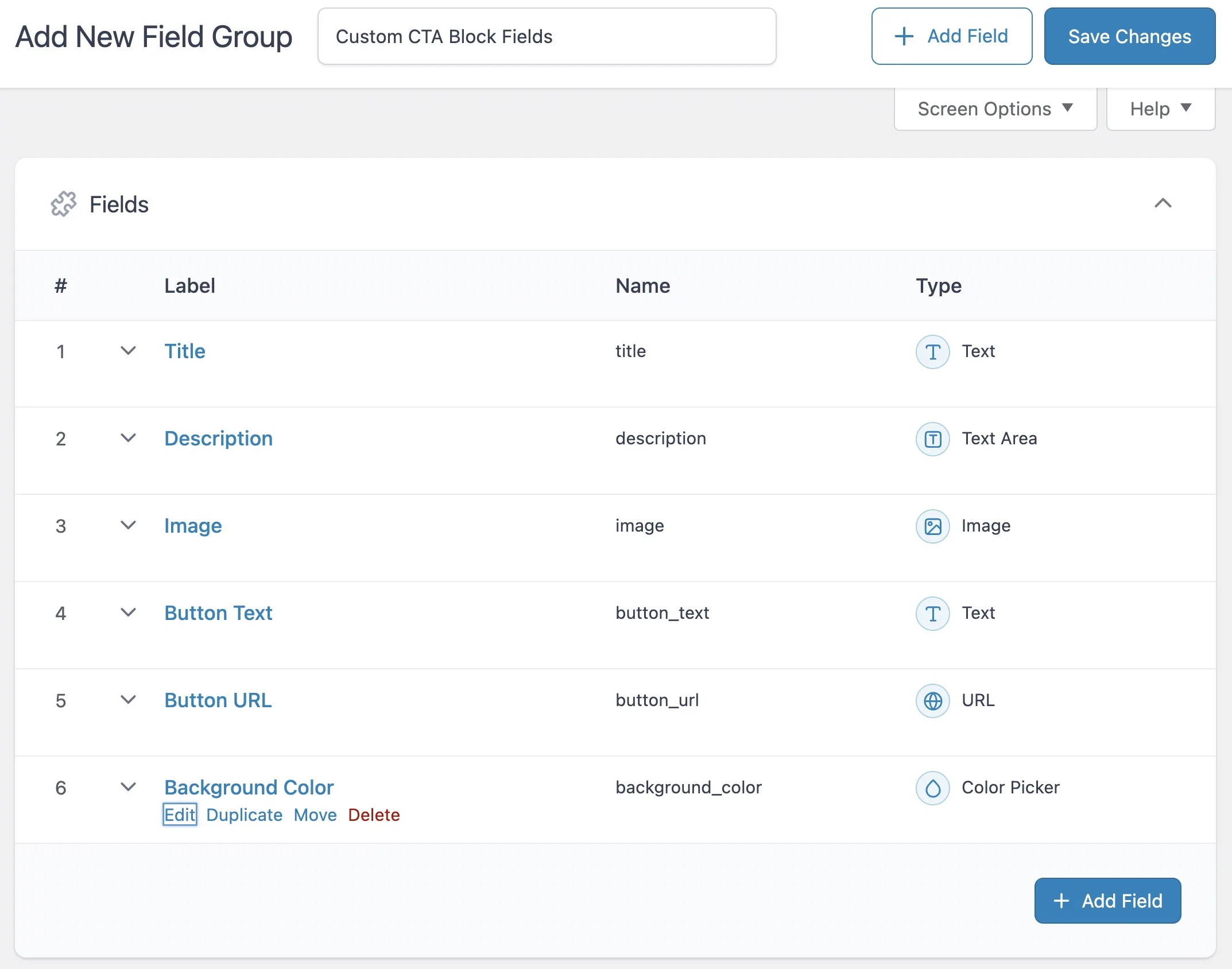
Create the ACF Field Group for the Block
When you’ve finished adding the fields, go to the “Location Rules” settings in the ACF field group editor. Set the rule to Block is equal to Custom CTA Block.
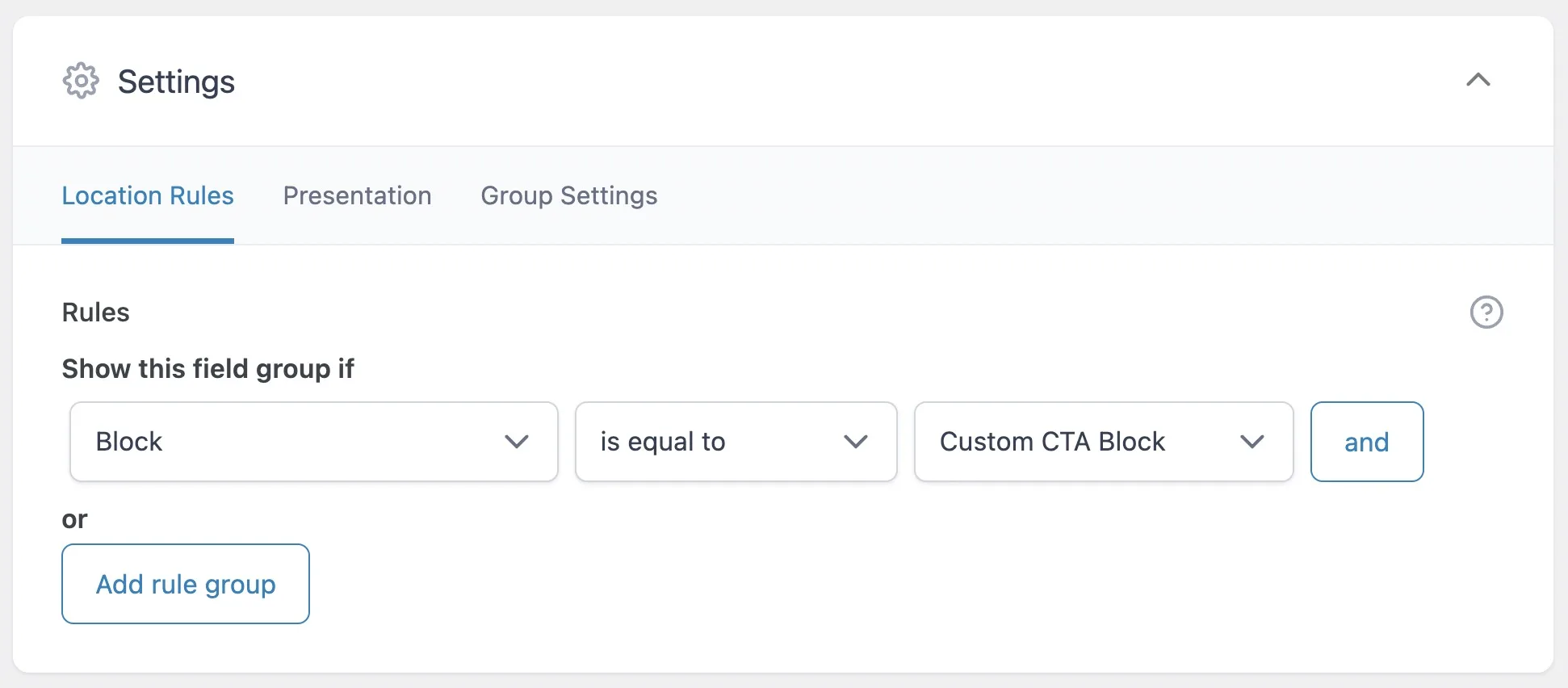
Step 4: Create the Block Template
In your theme directory, navigate to template-parts/blocks/custom-cta/ and create a file named custom-cta.php. This file controls the block’s HTML output on both the frontend and the editor preview.
<?php
$title = get_field('title');
$description = get_field('description');
$image = get_field('image');
$button_text = get_field('button_text');
$button_url = get_field('button_url');
$background_color = get_field('background_color');
?>

<div class="custom-cta-block" style="background-color: <?php echo esc_attr($background_color); ?>">
    <?php if ($image): ?>
        <img src="<?php echo esc_url($image['url']); ?>" alt="<?php echo esc_attr($image['alt']); ?>" class="cta-image" />
    <?php endif; ?>

    <div class="cta-content">
        <?php if ($title): ?>
            <h3 class="cta-title"><?php echo esc_html($title); ?></h3>
        <?php endif; ?>

        <?php if ($description): ?>
            <p class="cta-description"><?php echo esc_html($description); ?></p>
        <?php endif; ?>

        <?php if ($button_text && $button_url): ?>
            <a href="<?php echo esc_url($button_url); ?>" class="cta-button">
                <?php echo esc_html($button_text); ?>
            </a>
        <?php endif; ?>
    </div>
</div>
Step 5: Add Custom CSS
Create a file at template-parts/blocks/custom-cta/custom-cta.css and add your styles. Because we used the style property in block.json, WordPress will automatically enqueue this file when the block is used.
.custom-cta-block {
    padding: 40px;
    border-radius: 15px;
    text-align: center;
    color: #fff;
    max-width: 700px;
    margin: 30px auto;
    box-shadow: 0 4px 20px rgba(0, 0, 0, 0.1);
}

.custom-cta-block:hover {
    transform: translateY(-5px);
}

.cta-image {
    max-width: 120px;
    margin-bottom: 20px;
    border-radius: 50%;
    border: 4px solid #fff;
}

.cta-title {
    font-size: 28px;
    margin: 15px 0;
    font-weight: 700;
}

.cta-description {
    font-size: 18px;
    margin-bottom: 20px;
    line-height: 1.5;
}

.cta-button {
    display: inline-block;
    padding: 12px 25px;
    background-color: #ff6b6b;
    color: #fff;
    text-decoration: none;
    border-radius: 25px;
    font-weight: bold;
}

.cta-button:hover {
    background-color: #e05656;
}
ACF Blocks V3 and Inline Editing
ACF Blocks V3 landed in ACF PRO 6.6 (October 2025) and rewrote how the editor treats your block. A V3 block never leaves preview. Its fields live in a sidebar panel, and a pencil icon opens a wider pop-out editor when you need room for longer content.
Version 2 blocks work differently. They use a mode key to swap between an inline edit form and the rendered preview, defaulting to auto when you register through block.json. That key does nothing on a V3 block, because ACF routes these to a renderer that never builds the inline form.
For a long time every block registered through block.json started life on version 2 and you opted in per block. ACF PRO 6.8.9 (August 2026) changed that: a block that declares no version now defaults to V3 on WordPress 7.1 and later. Below WordPress 7.1 the old default stands, so the same theme can hand you a V2 block on one site and a V3 block on another. Declare the version and the question goes away, because an explicit blockVersion wins everywhere:
"acf": {
    "renderTemplate": "custom-cta.php",
    "blockVersion": 3,
    "autoInlineEditing": true
}
That second key is the one to try first. autoInlineEditing, added in ACF PRO 6.7 (December 2025), lets editors click any element in the preview that holds nothing but a single field value and type straight into the block. Through 6.8.8 those fields needed a throwaway first click before they took focus, which 6.8.9 fixed.
Editing every block.json in an established theme is tedious, so ACF also exposes a filter for the blocks that leave the version unset:
add_filter( 'acf/blocks/default_block_version', function ( $version, $block ) {
    return 3;
}, 10, 2 );
The $block argument holds the block’s configuration, so you can move most of a theme and hold specific blocks back by name while you rework them.
Blocks That Should Not Render a Preview
Some blocks make poor previews. A form handler, a block whose output depends on a query string, anything that needs real request context: the render template either throws or shows something misleading in the editor. ACF PRO 6.8.9 added an opt-out for V3 blocks:
"acf": {
    "renderTemplate": "custom-cta.php",
    "blockVersion": 3,
    "renderPreview": false
}
The editor then draws a placeholder with the block’s icon, its title, and an Edit Block button, and skips the render template entirely. ACF applies that same placeholder on its own when a legacy V2 block that paired "mode": "edit" with "supports": { "mode": false } is upgraded to V3, since that pairing was the old way of saying the same thing.
Adding InnerBlocks Support
ACF blocks fully support InnerBlocks, which lets you nest other Gutenberg blocks inside your custom block. This is useful for blocks that need flexible content areas, like a layout block with a text column and a media column.
To add InnerBlocks, include the <InnerBlocks /> component in your render template:
<div class="my-block-wrapper">
    <!-- ACF field output -->
    <h3><?php echo esc_html(get_field('heading')); ?></h3>

    <!-- InnerBlocks area -->
    <div class="inner-content">
        <InnerBlocks />
    </div>
</div>
Each block can only contain a single <InnerBlocks /> component. You can also define parent/child relationships in block.json to restrict which blocks can be nested inside your block, or pass a template array to pre-populate the area, which is easiest to build in the editor first and then convert to PHP with Theme Code Pro.
Where apiVersion 3 Stands in WordPress 7.x
The block API version has moved several times, and plenty of tutorials still describe the old plan:
- WordPress 6.9 (December 2025) narrowed the
block.jsonschema so that onlyapiVersion: 3validates, and started logging a console warning for blocks registered on an older version. - WordPress 7.0 (May 2026) iframes the post editor, but only when every block on the page is on version 3. A single older block anywhere in the content drops the iframe for the whole editor.
- WordPress 7.1 (August 2026) removed that fallback. The post editor is now always iframed, whatever API version your blocks declare.
Version 3 never became strictly mandatory, so a version 2 block will keep rendering. It just can no longer opt out of the iframe. For a PHP-rendered ACF block that rarely matters, since the render template runs server side. The exception is a block shipping its own editor script: anything reaching for the global document or window needs to go through ownerDocument and defaultView instead.
ACF’s own block version is a separate setting, and 7.1 is where the two collide. V2 editing builds its interface from JavaScript and CSS that load in wp-admin, and inside a canvas that is now always iframed those libraries are simply not there. That is the reason 6.8.9 moved the default. If a site needs breathing room, ACF ships a stopgap plugin, acf-blocks-v2-iframe-compatibility, which detects registered V2 blocks and forces the editor out of the iframe again. It only kicks in when a V2 block is actually present, and it is a bridge rather than a destination.
FAQs
Common questions about creating custom Gutenberg blocks with ACF and block.json:
block.json support. The free ACF plugin ships the block bindings API and nothing else, so acf_register_block_type() and the acf key in block.json are both unavailable. There is a free route through Secure Custom Fields, covered in the next question.
autoInlineEditing work without a licence, and everything in this guide, from the block.json to the render template, applies unchanged.
acf_register_block_type() and block.json registration?
acf_register_block_type() function is the legacy PHP-based method for registering ACF blocks. Since ACF 6.0, the recommended approach is to use a block.json file with the standard register_block_type() function. The block.json method aligns with WordPress core standards, enables features like automatic asset loading, and ensures better compatibility with future WordPress releases.
"blockVersion": 3 do in the ACF configuration?
"blockVersion": 3 in the acf key of your block.json enables ACF Blocks V3, available since ACF PRO 6.6. V3 blocks always display their rendered preview in the editor, with fields appearing in a sidebar panel. The mode key is ignored on these blocks, because ACF routes them to a renderer that never builds the inline edit form. ACF PRO 6.7 added autoInlineEditing on top of V3, which lets editors click a field value in the preview and type into it directly. Since ACF PRO 6.8.9 the key is no longer the only way in, because a block that omits it defaults to V3 on WordPress 7.1 and later, but an explicit value still overrides both that default and the acf/blocks/default_block_version filter.
apiVersion 2 or 3 in my block.json?
apiVersion 3 if your site runs WordPress 6.3 or later. Version 3 enables iframe editor support, which isolates block styles from admin CSS and prevents style conflicts. Since WordPress 6.9 it is the only value the block.json schema accepts, WordPress 7.0 iframes the editor whenever every block on the page is on version 3, and WordPress 7.1 iframes it unconditionally. Version 2 blocks still render, but they no longer keep the editor out of the iframe.
wp-admin scripts and styles that do not load inside that iframe. ACF PRO 6.8.9 responds by defaulting any block without a declared version to V3 on WordPress 7.1 and later, so blocks that never set blockVersion switch to the sidebar editing experience after the update. Frontend output does not change, since the render template runs server side either way. If a block relied on the V2 inline form and needs more time, ACF's acf-blocks-v2-iframe-compatibility plugin forces the editor out of the iframe while V2 blocks are registered.
"renderPreview": false in the acf key of the block's block.json, available for V3 blocks since ACF PRO 6.8.9. The editor shows a placeholder with the block icon, title and an Edit Block button instead of running the render template, which suits blocks that depend on real request context or are simply too heavy to preview. ACF applies the same placeholder automatically when a legacy V2 block that combined "mode": "edit" with "supports": { "mode": false } is upgraded to V3.
Summary
You’ve now built a working custom Gutenberg block with ACF: the block.json configuration, the PHP registration, the field group, the render template, and the CSS. If you are starting a block today on ACF PRO 6.6 or newer, set "blockVersion": 3 from the beginning. The editing experience is better, and on WordPress 7.1 it is what you get by default anyway, so declaring it only means you decided rather than inherited it.
From here, registering ACF fields via PHP keeps your block definitions entirely in code, and synchronized JSON keeps the field group in version control alongside the block.
If you encounter any issues or have questions, feel free to leave a comment below!




Great tutorial, thank you!
The only thing I would have expected is that you would have written it with `Blocks.json` support in mind:
> Since WordPress 5.8, WordPress has supported – and recommended – that blocks are registered through a JSON configuration file.
Source: https://www.advancedcustomfields.com/resources/whats-new-with-acf-blocks-in-acf-6/#blockjson-support
Maybe an idea for a follow-up post?
Cheers,
Pieter
Hi Pieter,
I appreciate the comment…
You are correct, i’ve modified the post to reflect the update. Thanks again! 🙂
Hi Roee,
Amazing how quick you have adapted your post following my suggestion! Many thanks, truly surprised!
Pieter