Passwords alone are no longer enough to protect your WordPress site. Brute-force attacks, credential stuffing, and phished passwords are among the most common ways WordPress sites get compromised.
Two-Factor Authentication (2FA) adds a second verification step after your password, making it significantly harder for attackers to break in – even if they have your credentials.
In this guide, you’ll learn what 2FA is, why it matters for WordPress, and how to set it up step by step using the free WP 2FA plugin.
What is Two-Factor Authentication (2FA)?
Two-Factor Authentication requires two separate forms of identification before granting access to an account. The idea is simple: something you know (your password) plus something you have (a code from your phone or a physical key).
Even if an attacker obtains your password through a data breach, phishing, or brute force, they still can’t log in without that second factor. This single layer of protection blocks over 99% of automated account attacks, according to Microsoft.
The most common 2FA methods are:
- Time-based One-Time Passwords (TOTP) – apps like Google Authenticator, Authy, or Microsoft Authenticator generate a 6-digit code that refreshes every 30 seconds.
- Email codes – a one-time code is sent to your registered email address.
- Hardware security keys – physical USB devices (like YubiKey) that you plug in or tap to verify.
- Backup codes – one-time codes you save and use if your primary 2FA method is unavailable.
For WordPress, TOTP-based apps are the recommended method. They don’t depend on email delivery, work offline, and are free to use.
Here’s how a standard login compares to one protected by 2FA:
Why WordPress Sites Need 2FA
WordPress powers over 40% of the web, which makes it the biggest target for automated attacks. Bots constantly scan for WordPress login pages and attempt thousands of password combinations.
If you’re only relying on a strong password, you’re still vulnerable to:
- Credential stuffing – attackers use passwords leaked from other sites (people reuse passwords more than they admit).
- Brute-force attacks – bots systematically try password combinations until one works.
- Phishing – fake login pages trick users into entering their real credentials.
- Keyloggers and malware – malicious software captures keystrokes on infected devices.
2FA neutralizes all of these. Even when the password is compromised, the attacker is locked out without the second factor.
2FA is especially critical if your site handles user data, payments, or sensitive content. If your WordPress site has ever been hacked or compromised, adding 2FA should be the first thing you do during recovery.
Choosing a WordPress 2FA Plugin
Several plugins handle 2FA in WordPress. Here are the most popular free options:
| Plugin | Methods | Free? | Best For |
|---|---|---|---|
| WP 2FA (Melapress) | TOTP, Email, Backup Codes | Yes | Most sites, easy setup wizard |
| Wordfence Login Security | TOTP, Backup Codes | Yes | Sites already using Wordfence |
| Two-Factor | TOTP, Email, FIDO U2F, Backup Codes | Yes | Developers, hardware key users |
This guide uses WP 2FA by Melapress because it has a built-in setup wizard, works with any authenticator app, and covers both admin and subscriber accounts. The free version is more than enough for most sites.
How to Set Up 2FA on WordPress (Step by Step)
The setup takes about 5 minutes. You’ll install the plugin, run the wizard, and configure your authenticator app.
Step 1: Install and Activate WP 2FA
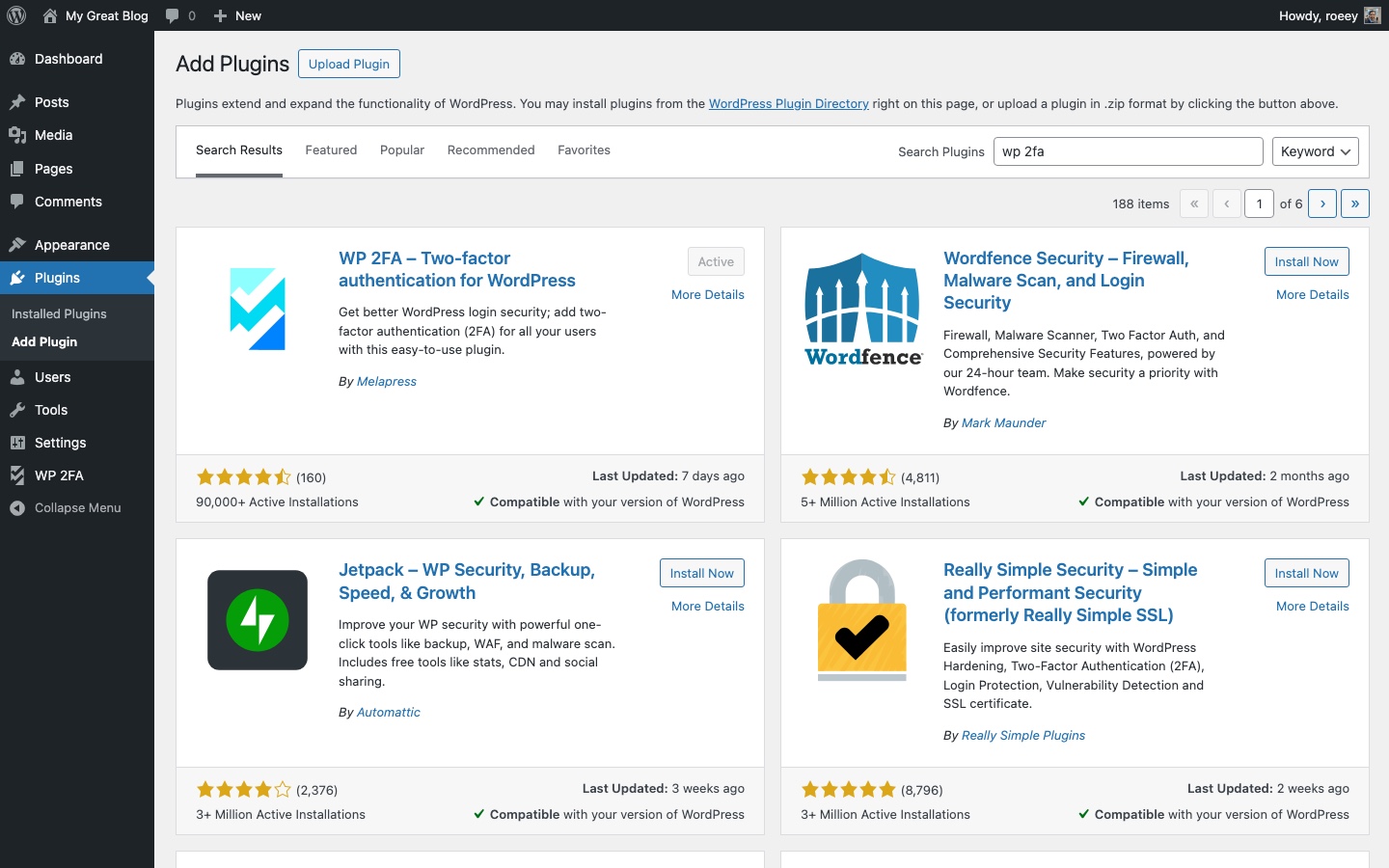
Go to Plugins > Add New in your WordPress dashboard. Search for “WP 2FA” and install the plugin by Melapress. Click Activate.
After activation, the setup wizard launches automatically.
If you prefer WP-CLI:
wp plugin install wp-2fa --activateStep 2: Run the Setup Wizard
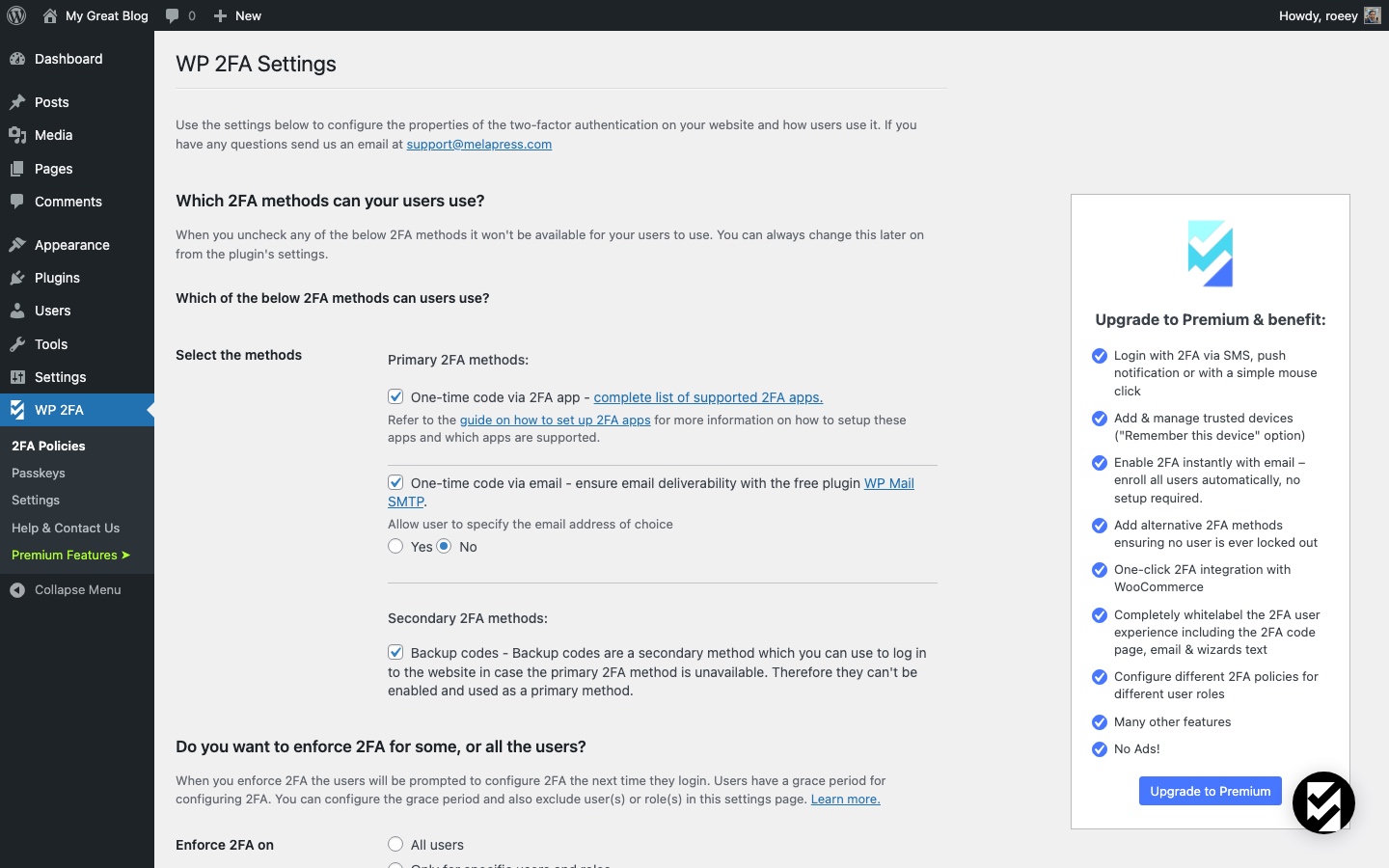
The WP 2FA wizard walks you through the initial configuration. It asks you to choose:
- Primary 2FA method – select “One-time code via 2FA App (TOTP).” This is the most secure free option.
- Alternative method – enable “One-time code via email” as a fallback in case users lose access to their authenticator app.
- Enforcement policy – decide whether 2FA is required for all users, only administrators, or specific roles.
For most WordPress sites, enforce 2FA for Administrators and Editors at minimum. These roles have the power to modify content, install plugins, and change settings.
Step 3: Configure Your Authenticator App
After the wizard, you’ll set up your own 2FA. The plugin displays a QR code on screen.
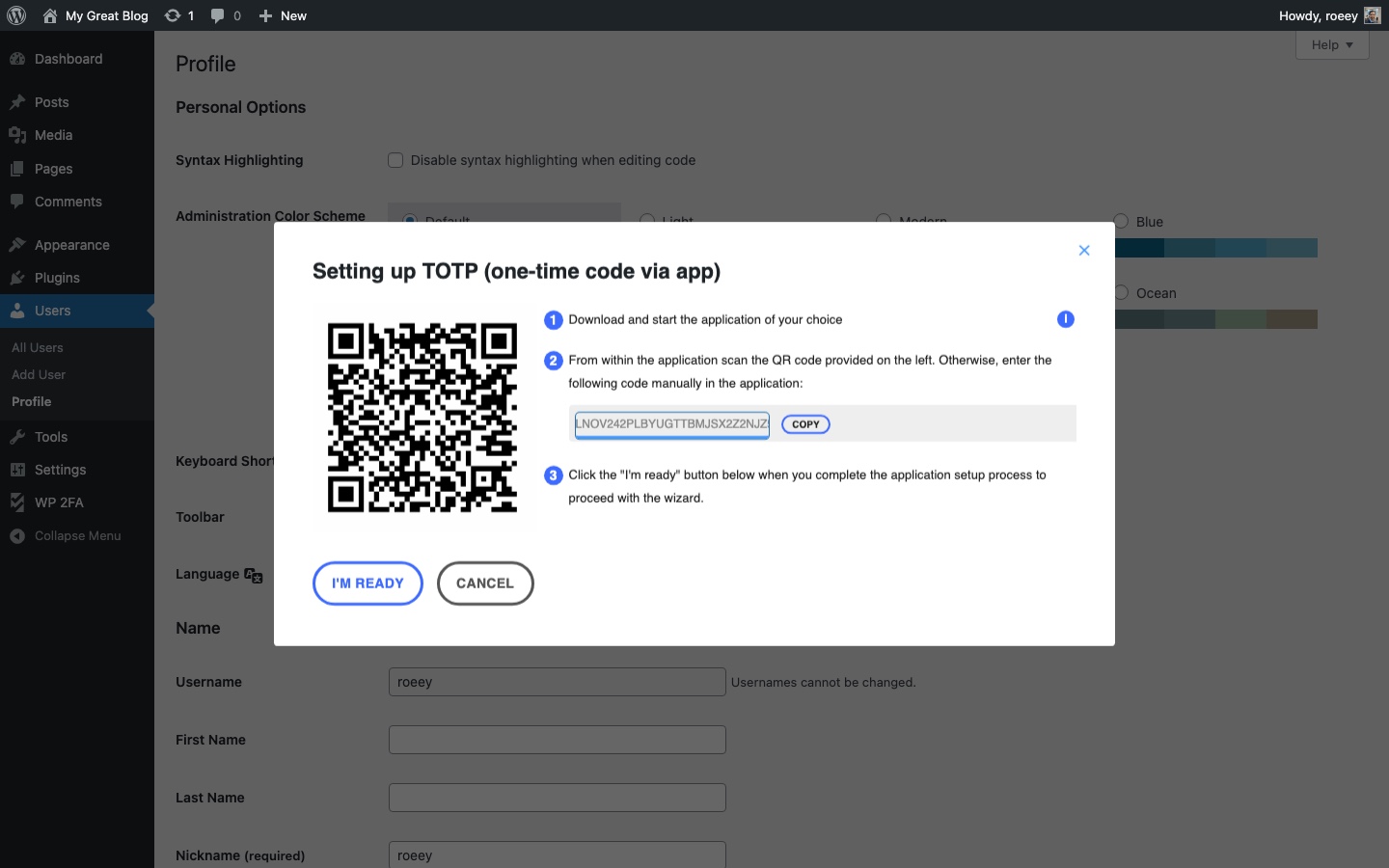
- Open your authenticator app (Google Authenticator, Authy, or Microsoft Authenticator) on your phone.
- Tap the + button and select “Scan a QR code.”
- Point your phone’s camera at the QR code displayed in WordPress.
- The app adds your site and starts generating 6-digit codes.
- Enter the current code in the verification field and click Validate & Save.
Step 4: Save Your Backup Codes
After verifying your authenticator app, WP 2FA generates a set of backup codes. These are one-time codes you can use if you lose your phone or can’t access the authenticator app.
Save these codes in a secure location – a password manager, encrypted note, or printed copy in a safe place. Each backup code can only be used once. Once they’re all used, generate a new set from the plugin settings.
Step 5: Test the Login
Log out of WordPress and log back in. After entering your username and password, you’ll see a second screen asking for your 2FA code. Enter the 6-digit code from your authenticator app and you’re in.
If the code doesn’t work, double-check that the time on your phone is set to automatic. TOTP codes are time-sensitive, and a clock that’s off by more than 30 seconds will generate invalid codes.
Enforcing 2FA for All Users
Setting up 2FA for your own account is a good start, but it only protects one login. If your site has multiple users (editors, authors, shop managers), any unprotected account is a potential entry point.
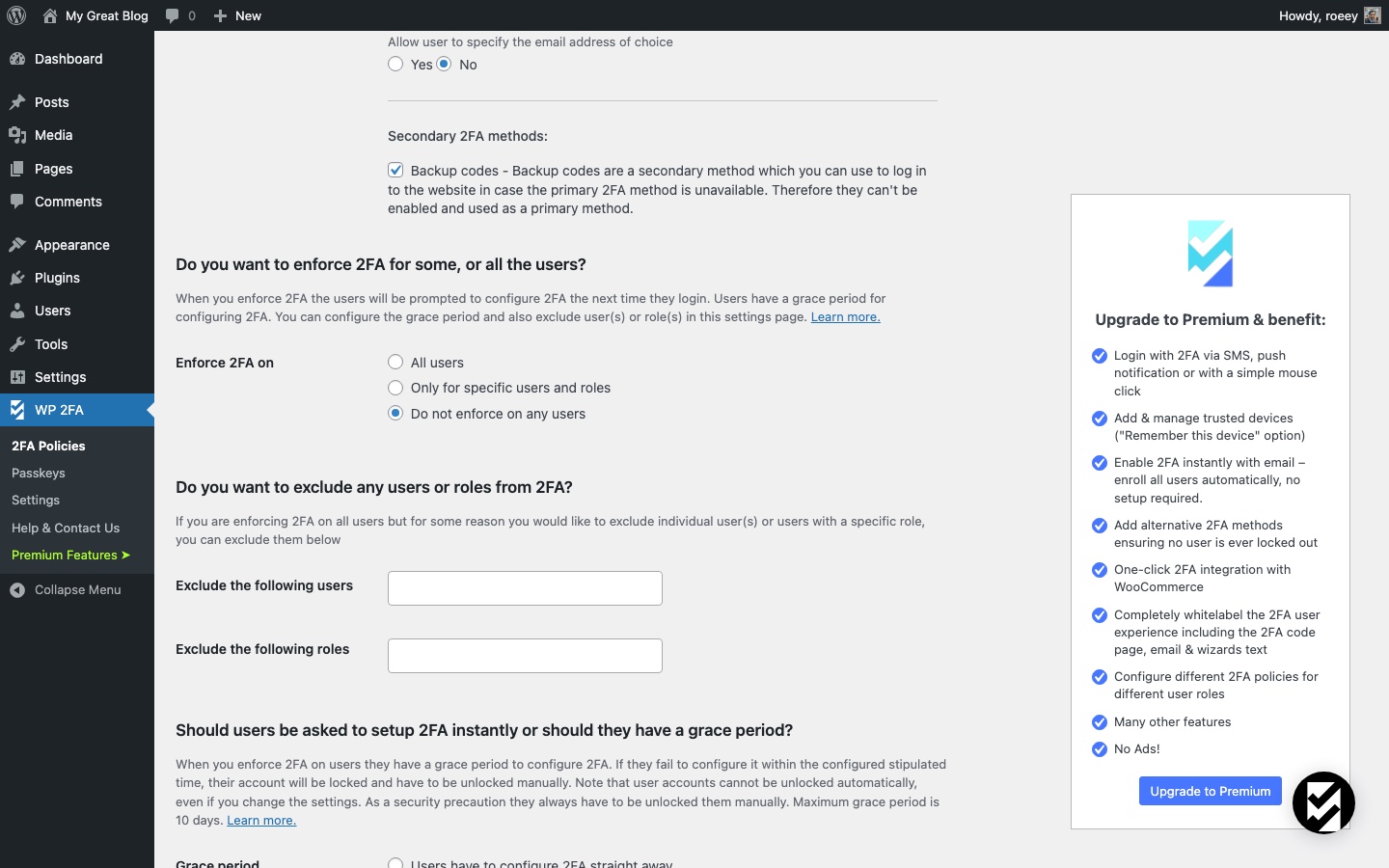
In the WP 2FA settings (WP 2FA > 2FA Policies), you can:
- Enforce 2FA by role – require specific roles to set up 2FA within a grace period.
- Set a grace period – give users a deadline (e.g., 3 days) to configure their 2FA before they’re locked out.
- Exclude specific users – if needed, exempt certain accounts from the requirement.
For WooCommerce stores and membership sites, consider enforcing 2FA for customers who store payment information or access sensitive account data.
What If You Get Locked Out?
Losing access to your authenticator app is the biggest concern with 2FA. Here’s how to recover:
Use a Backup Code
On the login screen, look for the “Use backup code” option. Enter one of the codes you saved during setup. Each code works once, so cross it off your list.
Reset via WP-CLI
If you have server access, you can disable 2FA for a specific user with WP-CLI:
wp user meta delete admin_username wp_2fa_totp_key
wp user meta delete admin_username wp_2fa_enabled
Replace admin_username with the actual username. After this, the user can log in with just their password and reconfigure 2FA.
Deactivate the Plugin via FTP
As a last resort, connect to your server via FTP or your hosting file manager. Navigate to wp-content/plugins/ and rename the wp-2fa folder to wp-2fa-disabled. This deactivates the plugin and removes the 2FA requirement.
Once you regain access, rename the folder back and reconfigure the plugin.
Always keep your backup codes in a safe place. The recovery methods above work, but they require either server access or physical backup codes. Without either, you’ll need your hosting provider’s help to regain access.
2FA and Other Security Layers
2FA is one piece of a layered security strategy. It works best when combined with other measures:
- Strong, unique passwords – use a password manager to generate and store complex passwords.
- Change your login URL – moving
wp-adminto a custom URL reduces bot traffic to your login page. - Harden your WordPress installation – disable file editing, limit login attempts, and follow other best practices.
- Keep everything updated – WordPress core, themes, and plugins should always run the latest versions.
- Regular backups – so you can recover quickly if something goes wrong.
No single measure makes a site bulletproof, but 2FA is arguably the highest-impact change you can make. It takes 5 minutes to set up and blocks the vast majority of unauthorized login attempts.
According to Microsoft’s security research: “By providing an extra barrier and layer of security that makes it incredibly difficult for attackers to get past, MFA can block over 99.9 percent of account compromise attacks.”
FAQs
Common questions about Two-Factor Authentication on WordPress:
wp user meta delete username wp_2fa_totp_key, or deactivate the plugin by renaming the wp-2fa folder in wp-content/plugins/ via FTP.wp-login.php). REST API authentication uses application passwords or tokens, which bypass the 2FA prompt entirely. Your API integrations will continue to work normally.Summary
Two-Factor Authentication is the single most effective security upgrade you can make to a WordPress site. It blocks brute-force attacks, credential stuffing, and phishing attempts by requiring a second verification step that attackers simply don’t have.
Setting it up takes 5 minutes with a free plugin like WP 2FA. Enable it for all admin and editor accounts, save your backup codes, and combine it with other security practices for a site that’s genuinely hard to break into.