Product variations in WooCommerce let you sell a single product in multiple combinations – different sizes, colors, or any attribute you define – each with its own price, stock, and image. This guide covers the full process: creating attributes, building a variable product, and setting each variation’s options.
If you’re new to WooCommerce, start with our guide on how to create an online store with WooCommerce first.
Creating New Product Attributes
Before you create a product with variations, you first need to create attributes. In the WordPress dashboard, go to Products > Attributes, create two new attributes, and give them names. In this example, we’ll create the attributes “Color” and “Size”.
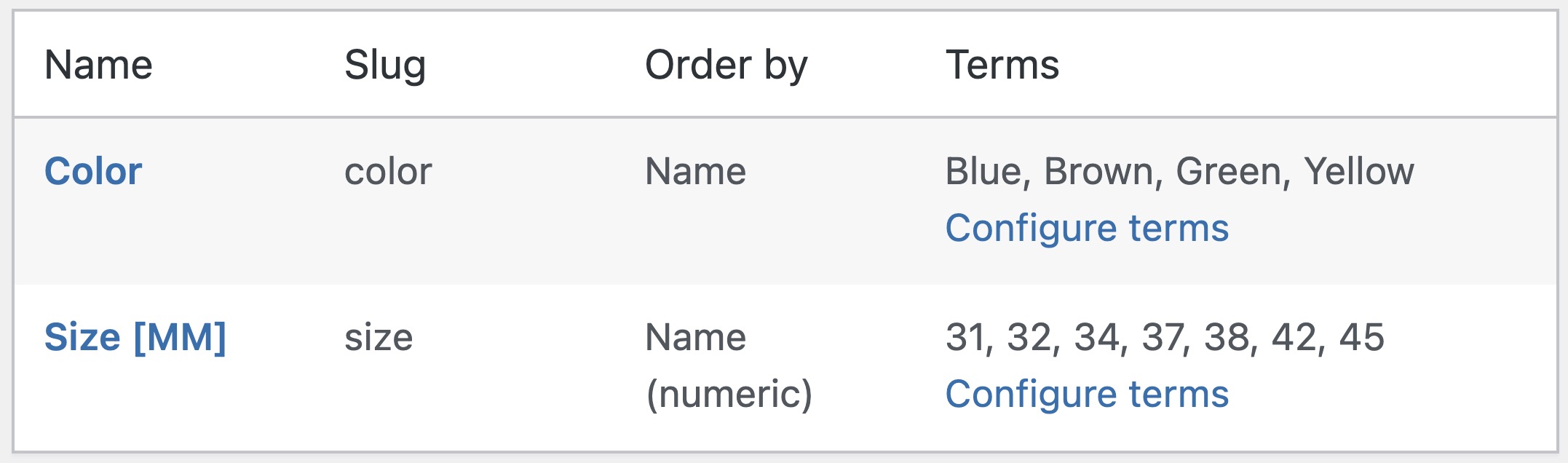
Adding Attributes to a Variable Product – WooCommerce
Note that you can also add new attributes on the single product edit page itself…
After creating the attributes, click Configure Terms next to each attribute to create terms for those attributes. For example, under Color, create terms like “Green,” “Yellow,” and “Brown,” and under Size, create terms like “Large,” “Medium,” and “Small.” Here’s how it will look (in my case I used numbers to represent the size):
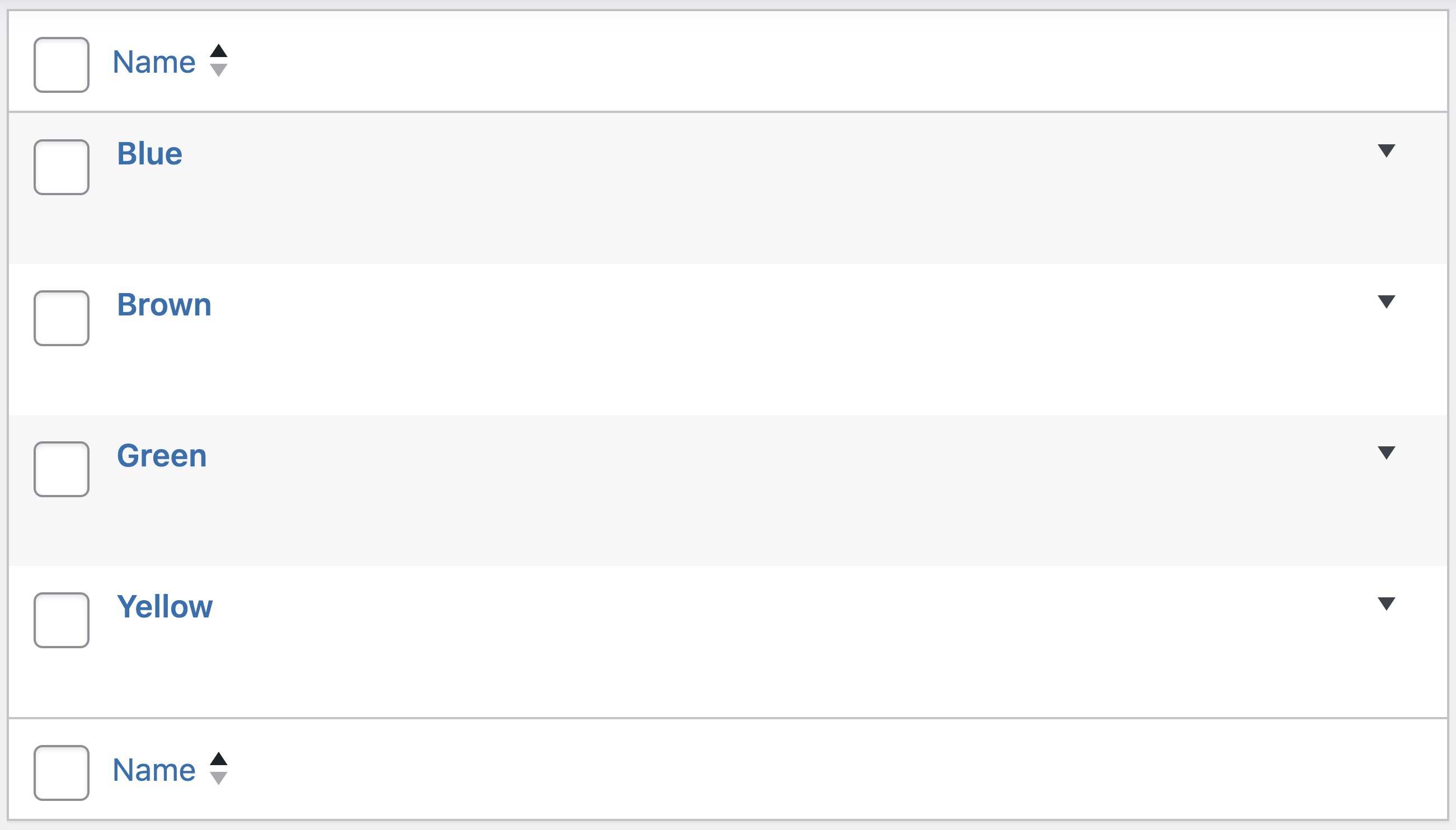
Adding Terms to Attributes – WooCommerce
It’s important to understand that the combination of any attribute (like “Color”) with a specific term (like “Green”) forms a variation.
Creating a Product with Variations
Now let’s create the product. Under Products in the WordPress dashboard, click Add New. In the Product Data section, select Variable Product. Of course, you’ll need to add all relevant details about your product, but for this guide, I’ll focus on the steps for adding product variations.
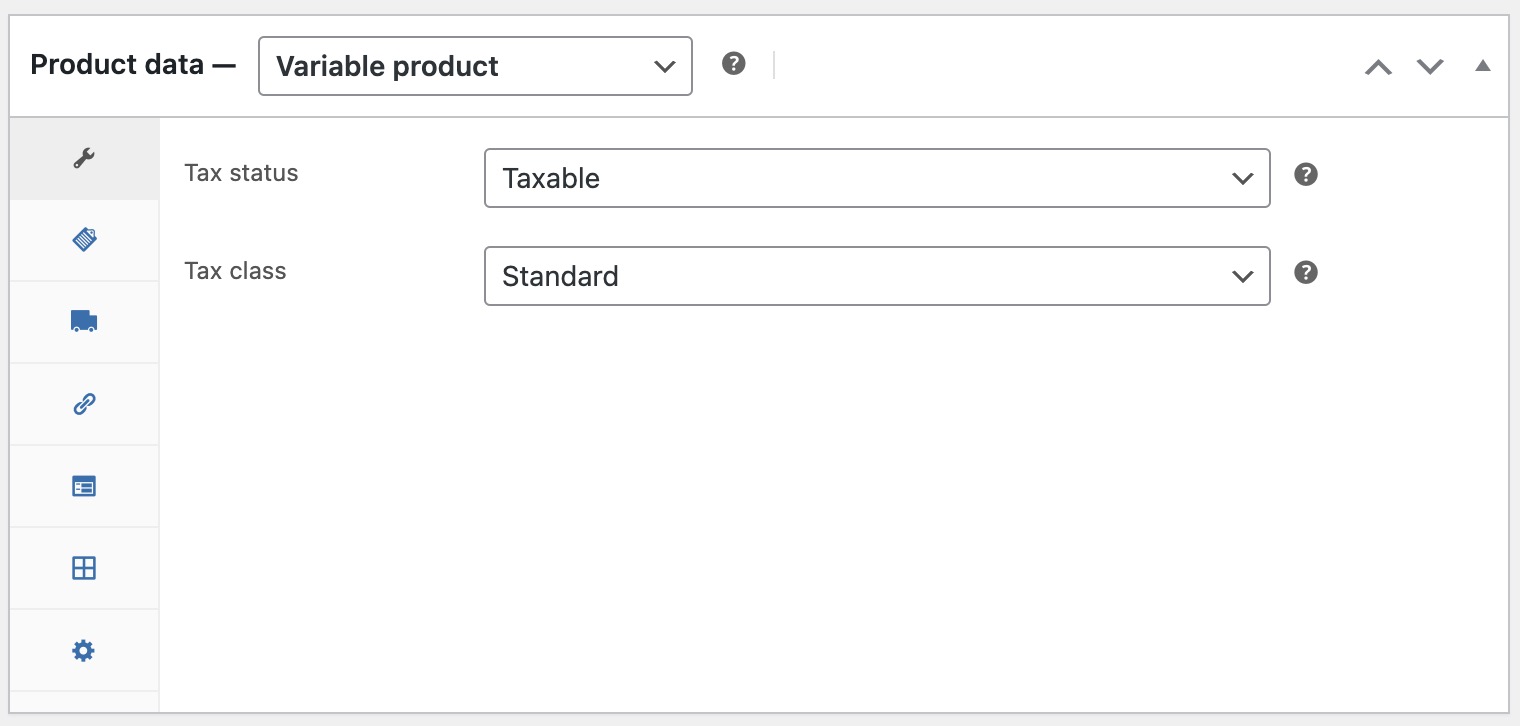
Variable Product – WooCommerce
Assigning Attributes to the Product
Under the Attributes tab, select the attribute(s) you want to assign to the product and click Add.
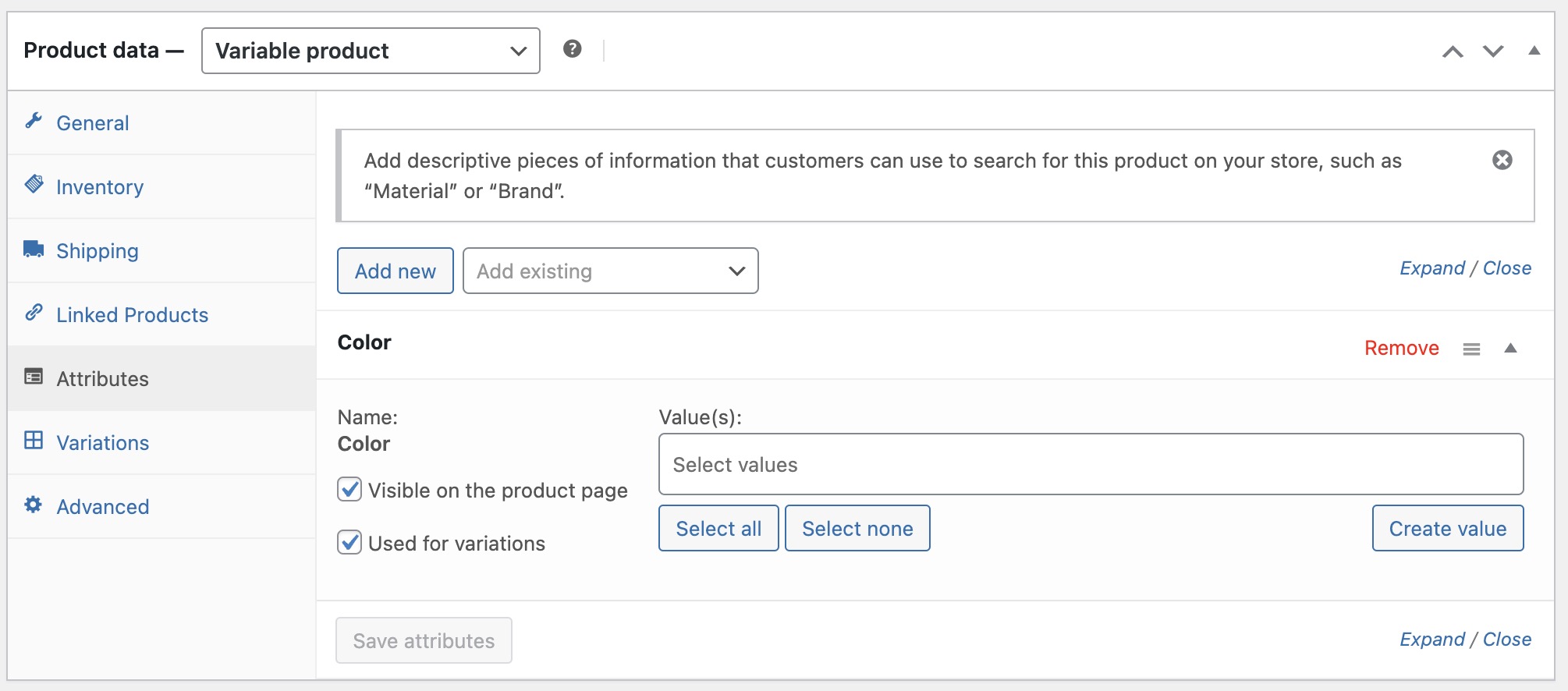
Adding Attributes to Products – WooCommerce
Now, choose the terms you want for the product:
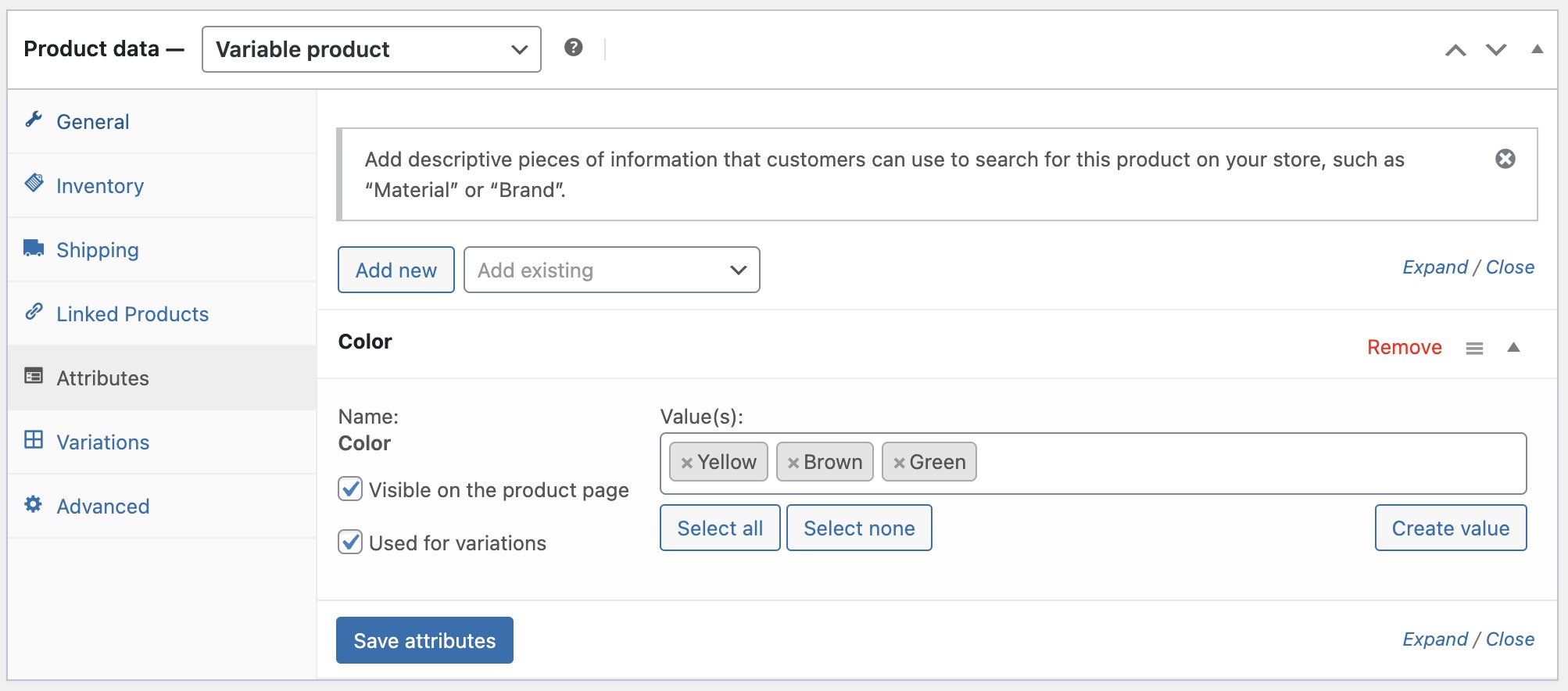
Choose Terms for Product – WooCommerce
Important Points to Remember
- Ensure both Visible on the product page and Used for variations are checked.
- Select the terms relevant to the product. For instance, if a product is only available in Medium size, add only that term for the product. Click Save Attributes when done.
- You can click Select All to add all terms assigned to a specific attribute for the product.
- You can add additional terms (not created previously) to the product by clicking the Add New button.
Setting Specific Variations for the Product
Now let’s define the specific variations for this product. Remember, a variation is a combination of an attribute and a specific term for a product. Go to the Variations tab in the product page:
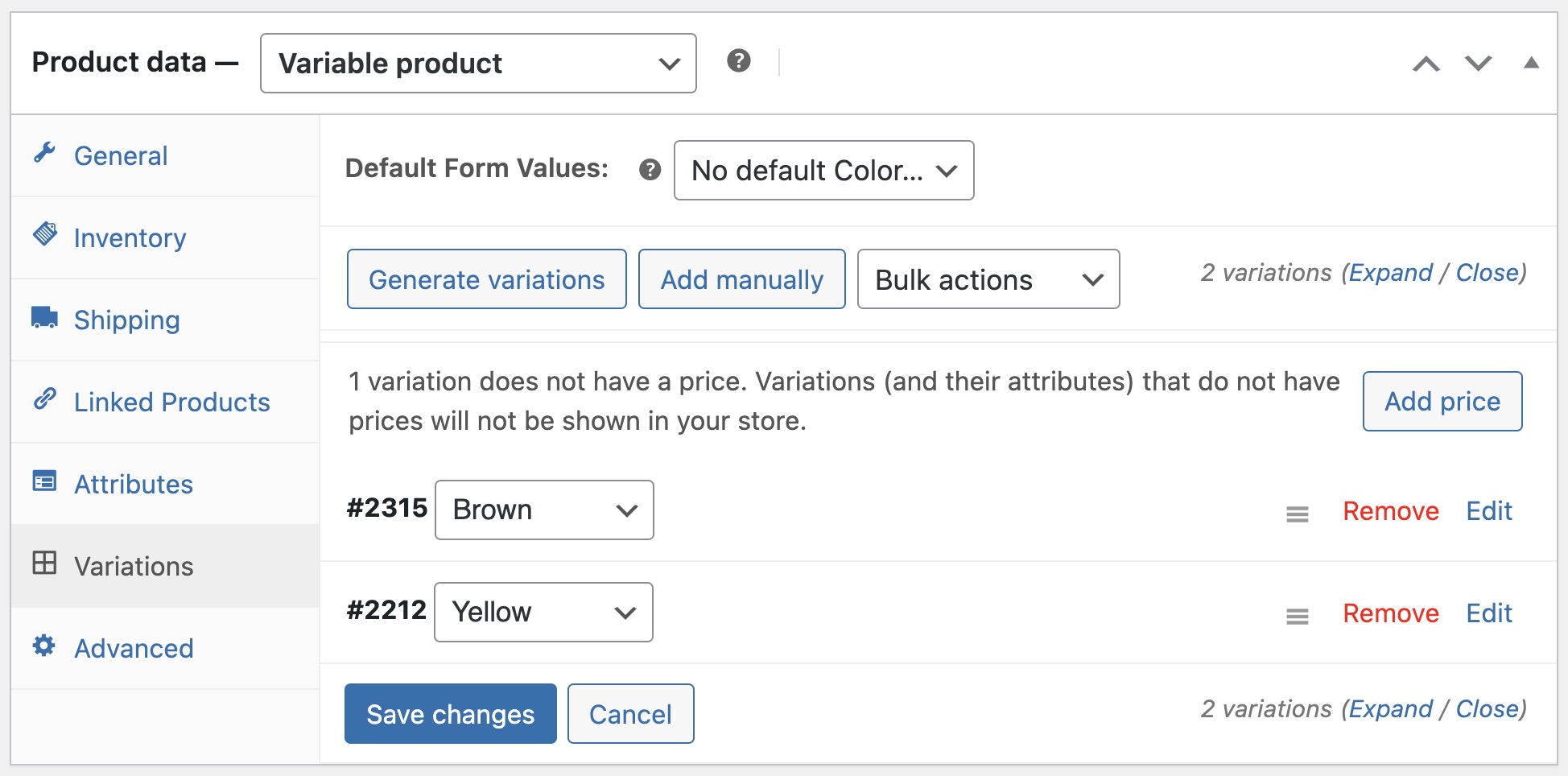
Adding Product Variations – WooCommerce
Additional Tips
- Under the Default Form Values field, you can choose a default attribute that will appear on the product page when viewed by the customer.
- Bulk editing speeds up the process when you have many variations. Use the dropdown to apply actions to all variations at once. The Add variations from all attributes option automatically creates every possible combination – the fastest way to get started.
- WooCommerce loads variation data dynamically for products with fewer than 30 variations. Above that threshold, all dropdowns become static – every option appears at once regardless of availability. If you have a product with many combinations, keep this behavior in mind when planning your attribute structure.
Setting Variation Options for a Specific Product
You can edit details for each variation, such as price, stock status, and SKU, by clicking the Edit button next to the variation in the Variations tab.
The following image shows the settings for a single variation. In this window, you’ll find all settings you can add to this specific variation. In the image below, these are the settings for a product attribute of “Color” with the term “Yellow” for a specific watch:
This window opens when you click the small triangle (highlighted in the image) next to the variation you added.
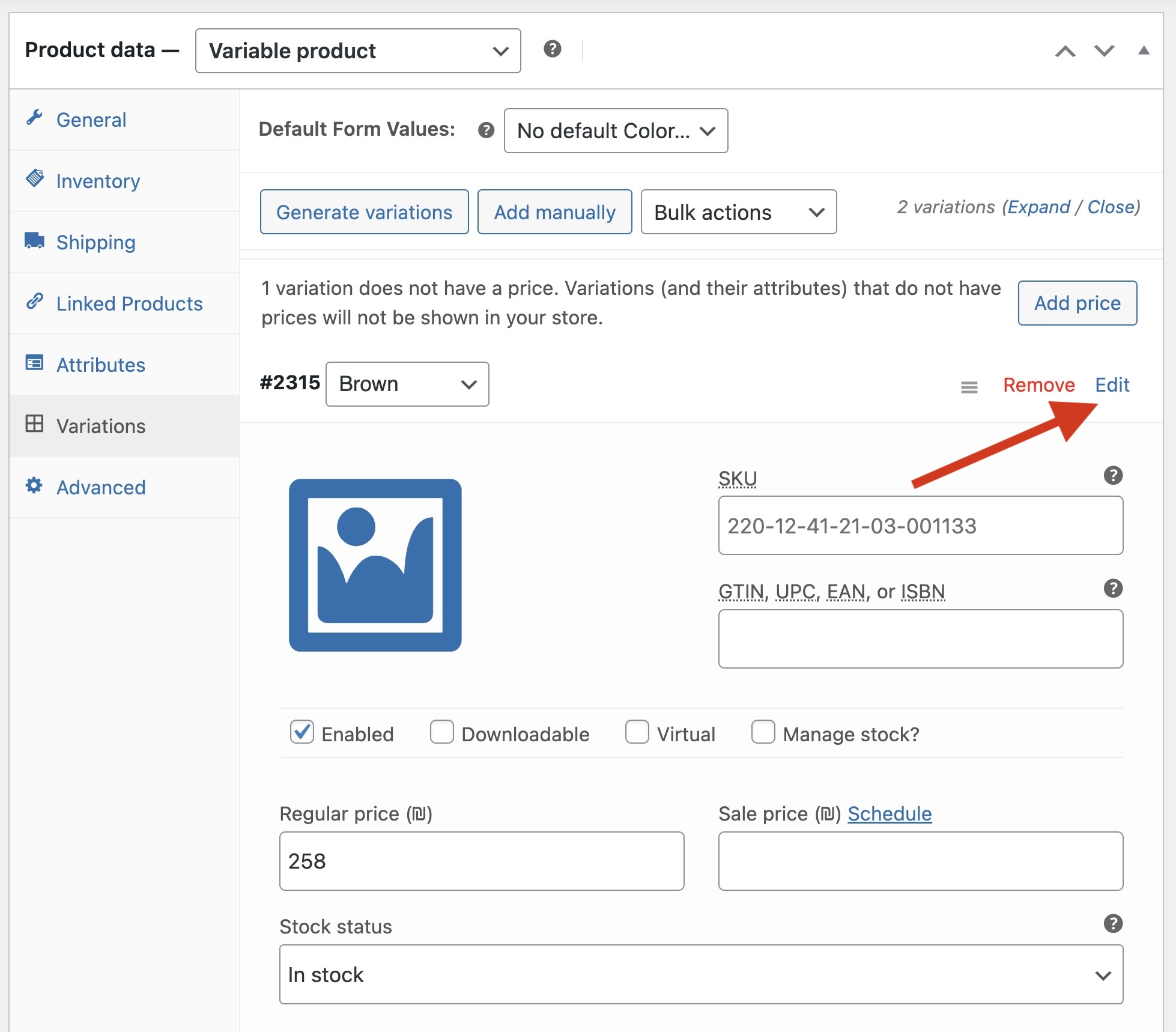
Setting Product Variation Details – WooCommerce
The settings here are mostly self-explanatory, and some fields may auto-fill based on previous choices. You can set a price, sale price, product type (downloadable or virtual), and dimensions.
Since WooCommerce 9.2, each variation also has a Global Unique ID field for GTIN, UPC, EAN, or ISBN – useful if you sell on Google Shopping or other channels that require product identifiers.
Save changes, publish the product and you’re done. If you need to add extra data beyond the built-in fields, check out our guide on adding custom fields to WooCommerce products.
Displaying Variations as Swatches
The default WooCommerce variation selector uses a dropdown. If you want to show color swatches, image buttons, or size boxes instead, the Variation Swatches for WooCommerce plugin is the most widely used option – over 9 million installs, actively maintained, and compatible with current WooCommerce versions.
For more variation-related tools, the WooCommerce extensions store has options for bulk pricing, conditional variations, and more.
FAQs
Common questions about WooCommerce product variations:
woocommerce_ajax_variation_threshold filter.Summary
Variable products are one of WooCommerce’s most flexible features. Once you understand the relationship between attributes, terms, and variations, the process becomes straightforward. The FAQ above covers the most common issues with stock tracking, pricing, and frontend display. Feel free to leave a comment with questions.